

🔐 Secure, seamless, and passwordless—that’s the future of enterprise file access. With Azure Files and Entra Kerberos authentication, organizations can finally deliver a true single sign-on experience for both Windows and macOS devices, without relying on legacy Active Directory. This guide walks you through everything you need to know to make it happen.
🌍 Why This Matters
Traditional SMB access to file shares often depends on on-prem Active Directory and Kerberos tickets issued by domain controllers. In a cloud-first world, that model doesn’t scale. Azure Files combined with Entra Kerberos authentication solves this by:
- Eliminating dependency on on-prem AD
- Enabling passwordless access for cloud-only devices
- Supporting Windows Hello for Business and macOS PSSO
- Maintaining strong security and compliance
🧩 Understanding the Components
Before diving into configuration, let’s break down the key pieces:
- Azure Files: Fully managed file shares in Azure Storage.
- Entra Kerberos Authentication: Allows SMB access using Kerberos tickets issued by Entra ID.
- Cloud Kerberos Trust: Bridges Hello for Business and Kerberos without on-prem DCs.
- PSSO (Platform Single Sign-On): Enables macOS to acquire Kerberos tickets from Entra ID.
🛠 Prerequisites
To make this work, you need:
- ✅ An Azure Storage Account with Azure Files enabled
- ✅ Windows Entra-only devices with:
- Windows Hello for Business enabled
- Cloud Kerberos Trust enabled
- ✅ macOS devices enrolled with PSSO
- ✅ Conditional Access policies in Entra ID
- ✅ Appropriate RBAC roles for users accessing the file share
💡 Tip: Cloud Kerberos Trust is critical—it ensures devices can request Kerberos tickets from Entra without on-prem infrastructure.
1️⃣ Create the Storage Account & File Share
Start by creating a new Storage Account:
- Choose Premium for performance-sensitive workloads
- Chosse Azure Files
- Configure networking to allow access also from public networks if necessary
- Assign RBAC roles like Storage File Data SMB Share Contributor to users/groups
Then create your Azure File Share inside the Storage Account.
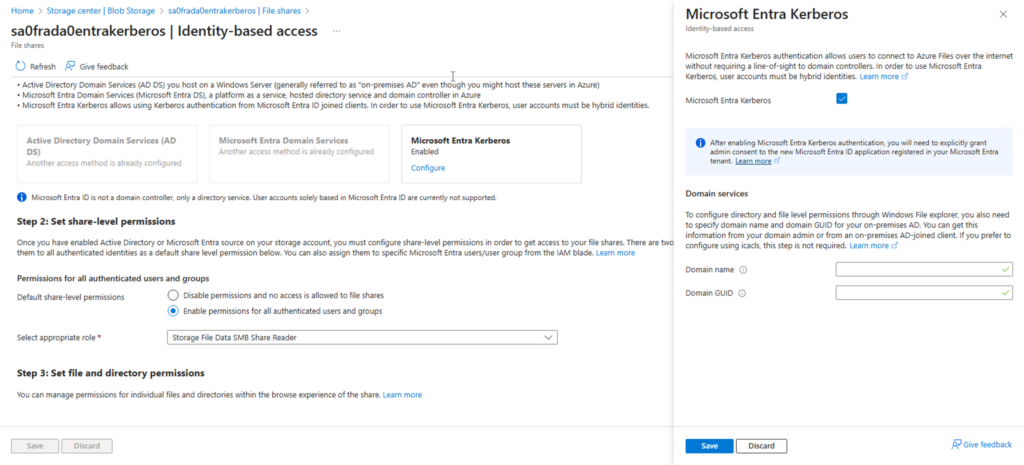
2️⃣ Enable Entra Kerberos Authentication
In the Storage Account settings:
- Navigate to Azure Files Identity-based Access
- Enable Entra Kerberos Authentication
- Select Default share-level permissions to Storage File Data SMB Share Reader of Read only default permission
3️⃣ Configuring Windows ACLs when using Microsoft Entra Kerberos
If Microsoft Entra Kerberos is configured as your identity source, you can set Windows ACLs directly for Entra users or groups through the Azure portal. This applies to both hybrid and cloud‑only identities, as long as Microsoft Entra Kerberos is the identity provider for the file share.
To configure ACLs, use the following steps:
- Sign in to the Azure portal using this dedicated URL:
https://aka.ms/portal/fileperms - Navigate to the Azure file share where you want to manage permissions.
- Open the service menu and select Browse.
If you want to set ACLs at the root folder, select Manage access from the top menu.
This approach lets you manage NTFS‑style permissions directly in the Azure portal without requiring a domain controller or hybrid identity setup, since the identity resolution is handled through Microsoft Entra Kerberos.
4️⃣ Adjust the App Registration
Grant admin consent to the new service principal:
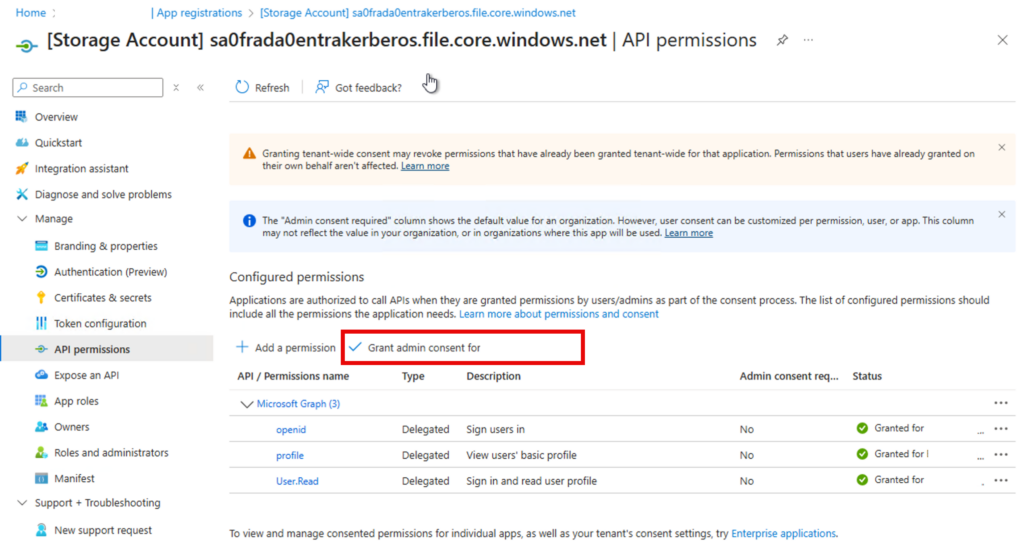
For Kerberos to work correctly edit the App Manifest:
- Ensure the servicePrincipal for the Storage Account has:
cifsin lowercase (required for macOS)- Add the tag: JSON”kdc_enable_cloud_group_sids” (This ensures proper SID handling for cloud groups.)

5️⃣ Conditional Access Policies
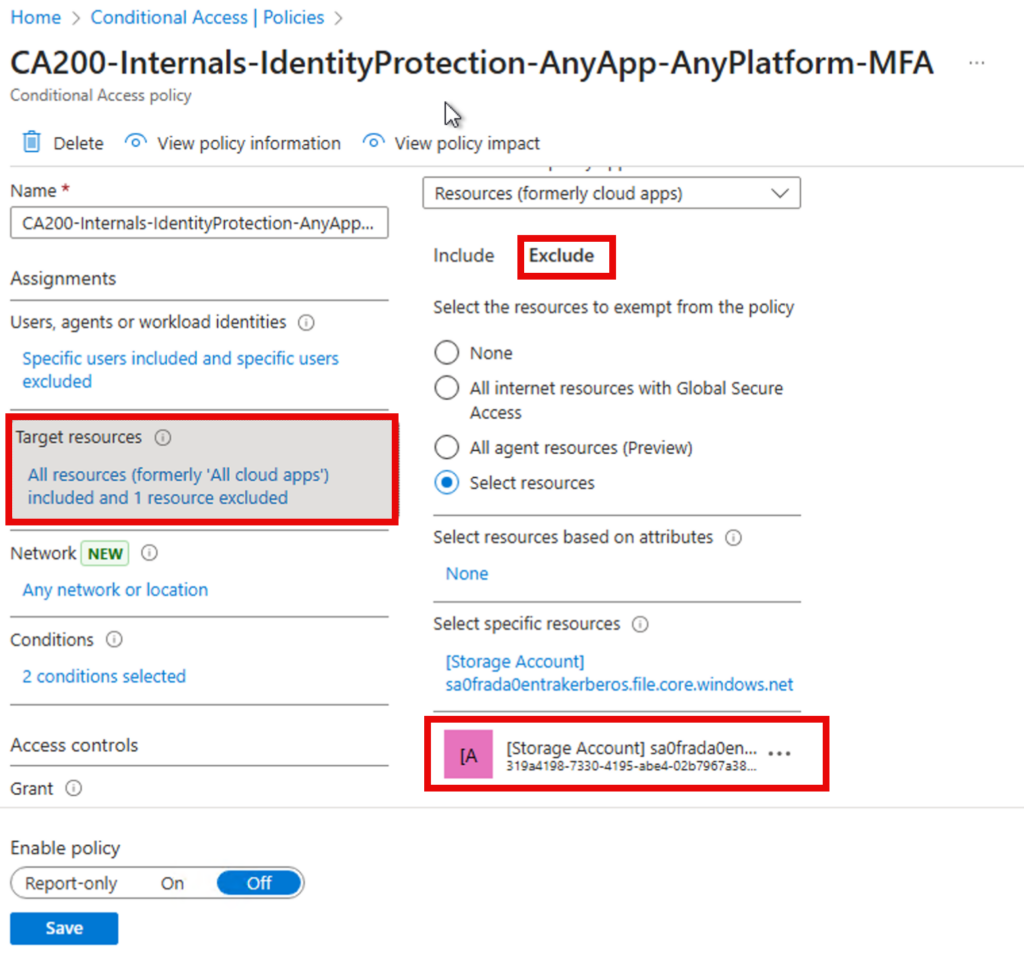
To avoid MFA prompts during SMB access:
- Exclude the Storage Account app from your MFA policy
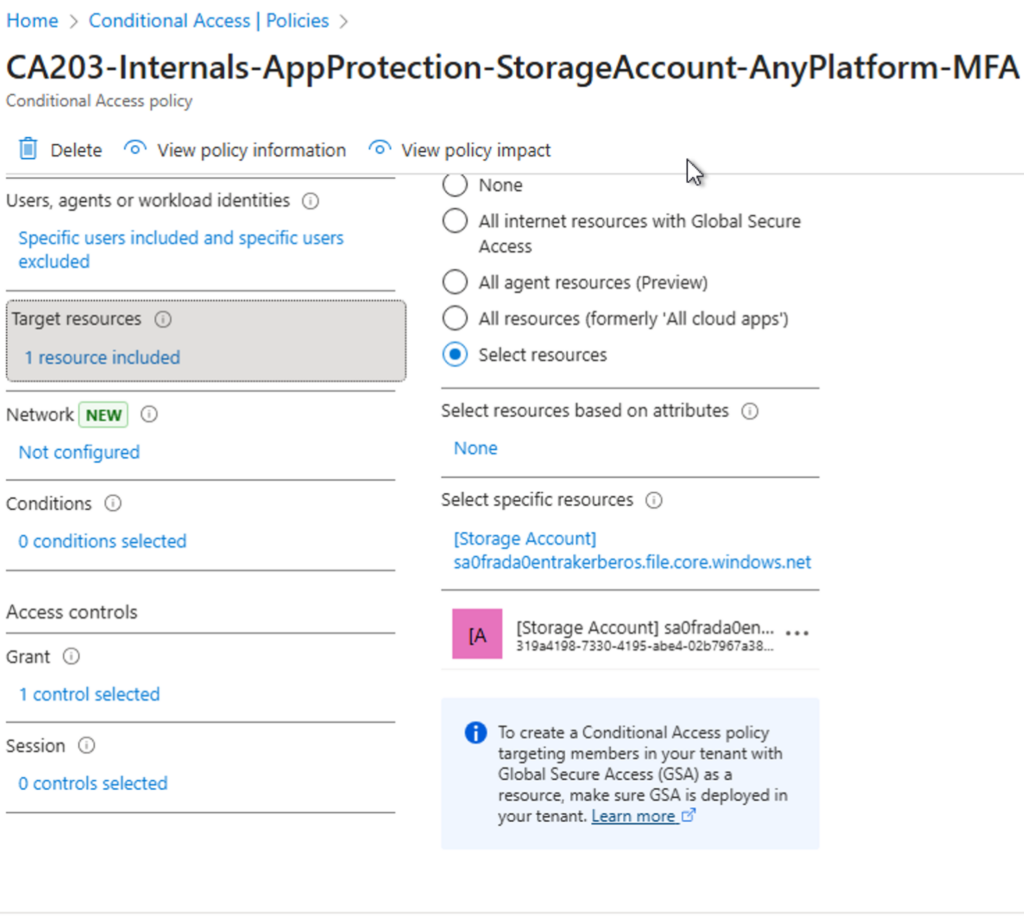
- Optional: Create a dedicated CA policy enforcing compliant devices for this app

6️⃣ Windows Configuration
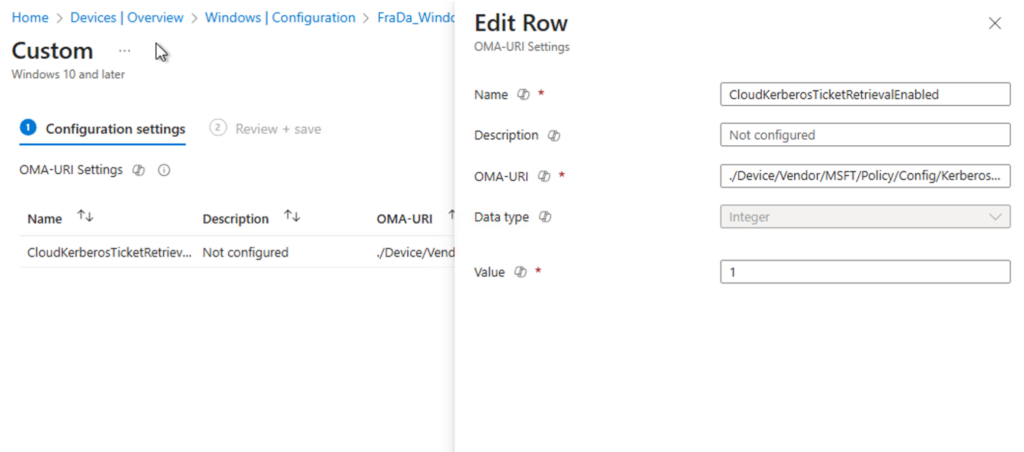
On Windows Entra-only devices ensure you have an Hello Policy with CloudKerberosTrust enabled and also CloudKerberosTicketRetrievalEnabled for getting a ticket already during Windows sign in.
Custom CSP Policy:
- Name:
CloudKerberosTicketRetrievalEnabled - OMA-URI:
./Device/Vendor/MSFT/Policy/Config/Kerberos/CloudKerberosTicketRetrievalEnabled - Data type: Integer
- Value:
1
7️⃣ macOS Configuration
Deploy a custom Kerberos SSO mobileconfig in addition to your already existing PSSO Policy:
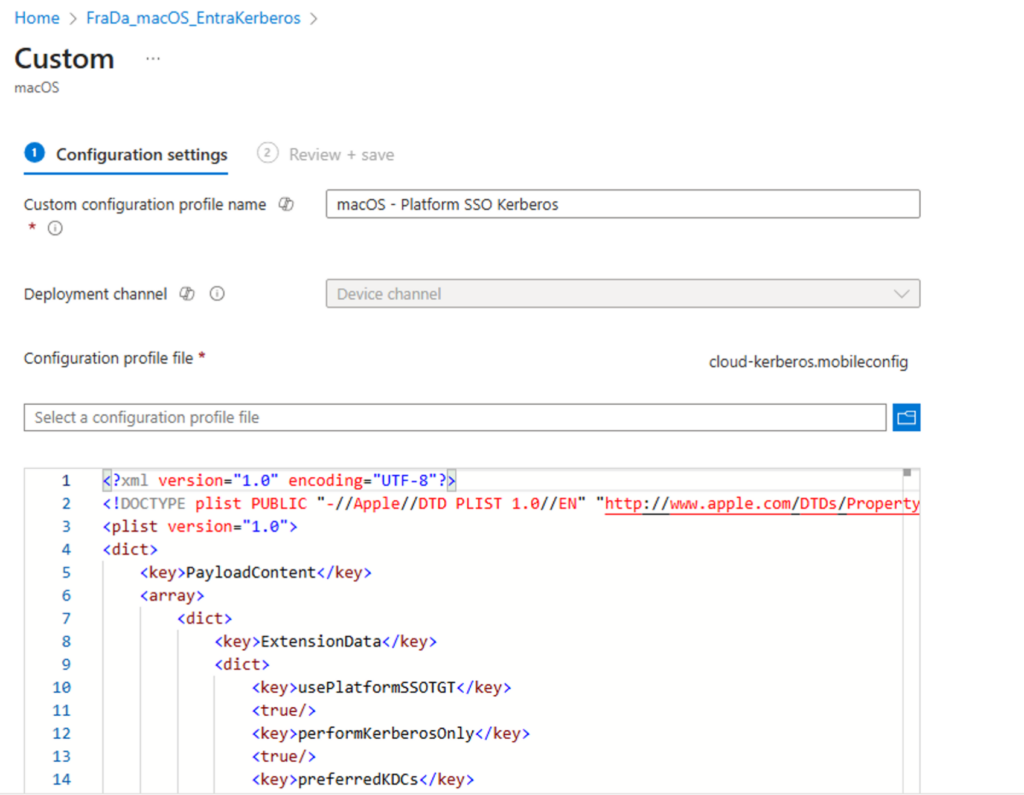
<?xml version="1.0" encoding="UTF-8"?>
<!DOCTYPE plist PUBLIC "-//Apple//DTD PLIST 1.0//EN" "http://www.apple.com/DTDs/PropertyList-1.0.dtd">
<plist version="1.0">
<dict>
    <key>PayloadContent</key>
    <array>
        <dict>
            <key>ExtensionData</key>
            <dict>
                <key>usePlatformSSOTGT</key>
                <true/>
                <key>performKerberosOnly</key>
                <true/>
                <key>preferredKDCs</key>
                <array>
                <string>kkdcp://login.microsoftonline.com/<<<<<REPLACE with YOUR Tenant ID!!!!>>>>>/kerberos</string>
                </array>
            </dict>
            <key>ExtensionIdentifier</key>
            <string>com.apple.AppSSOKerberos.KerberosExtension</string>
            <key>Hosts</key>
            <array>
                <string>windows.net</string>
                <string>.windows.net</string>
            </array>
            <key>Realm</key>
            <string>KERBEROS.MICROSOFTONLINE.COM</string>
            <key>PayloadDisplayName</key>
            <string>Single Sign-On Extensions Payload for Microsoft Entra ID Cloud Kerberos</string>
            <key>PayloadIdentifier</key>
            <string>com.apple.extensiblesso.00aa00aa-bb11-cc22-dd33-44ee44ee44ee</string>
            <key>PayloadType</key>
            <string>com.apple.extensiblesso</string>
            <key>PayloadUUID</key>
            <string>00aa00aa-bb11-cc22-dd33-44ee44ee44ee</string>
            <key>TeamIdentifier</key>
            <string>apple</string>
            <key>Type</key>
            <string>Credential</string>
        </dict>
    </array>
    <key>PayloadDescription</key>
    <string></string>
    <key>PayloadDisplayName</key>
    <string>Kerberos SSO Extension for macOS for Microsoft Entra ID Cloud Kerberos</string>
    <key>PayloadEnabled</key>
    <true/>
    <key>PayloadIdentifier</key>
    <string>11bb11bb-cc22-dd33-ee44-55ff55ff55ff</string>
    <key>PayloadOrganization</key>
    <string>headsinthecloud.blog Entra Kerberos Config</string>
    <key>PayloadRemovalDisallowed</key>
    <true/>
    <key>PayloadScope</key>
    <string>System</string>
    <key>PayloadType</key>
    <string>Configuration</string>
    <key>PayloadUUID</key>
    <string>11bb11bb-cc22-dd33-ee44-55ff55ff55ff</string>
    <key>PayloadVersion</key>
    <integer>1</integer>
</dict>
</plist>
✅ Testing & Validation
- From Windows:
net use \\<storageaccount>.file.core.windows.net\<share> - From macOS: Mount via Finder
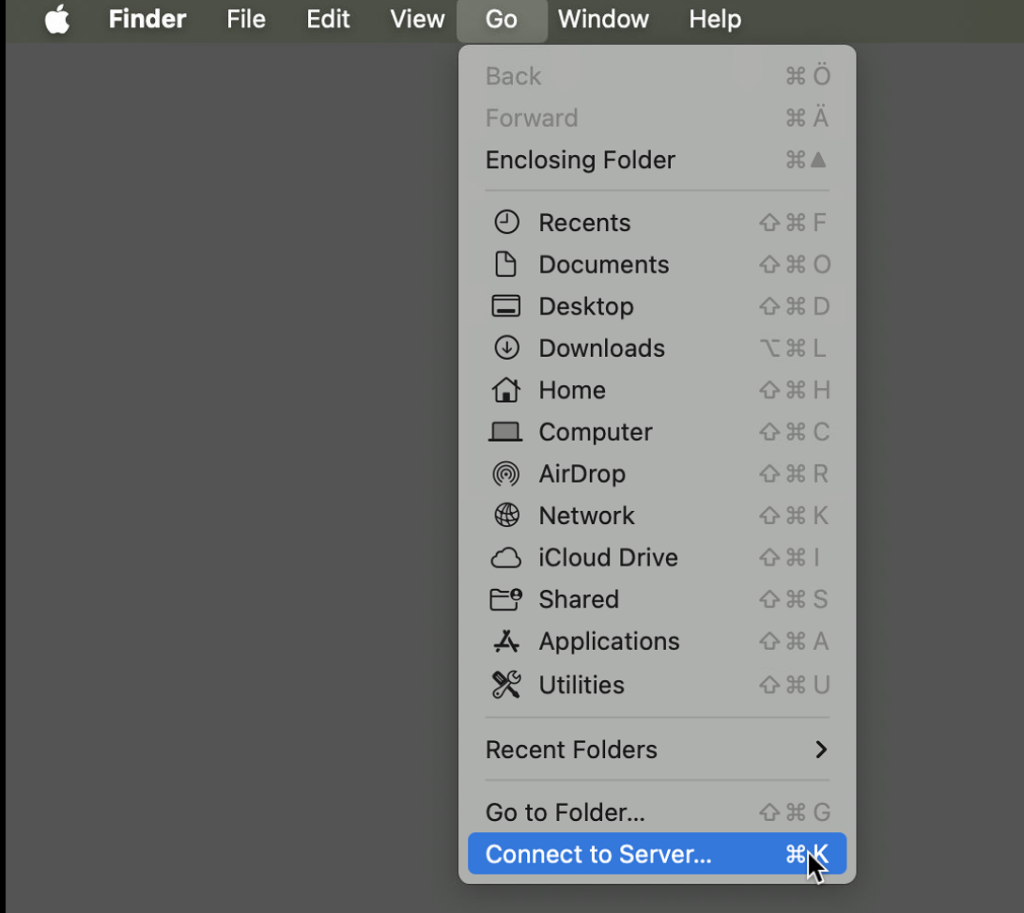
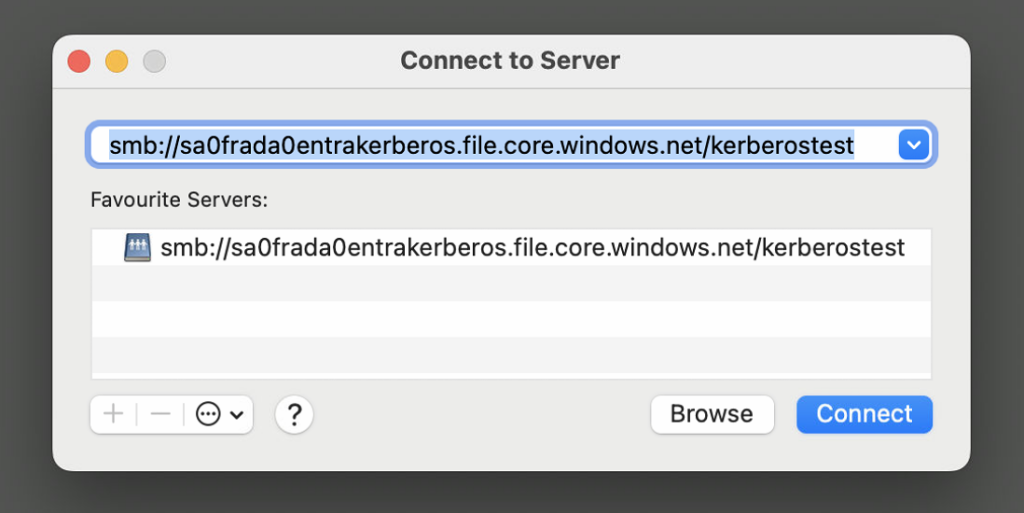
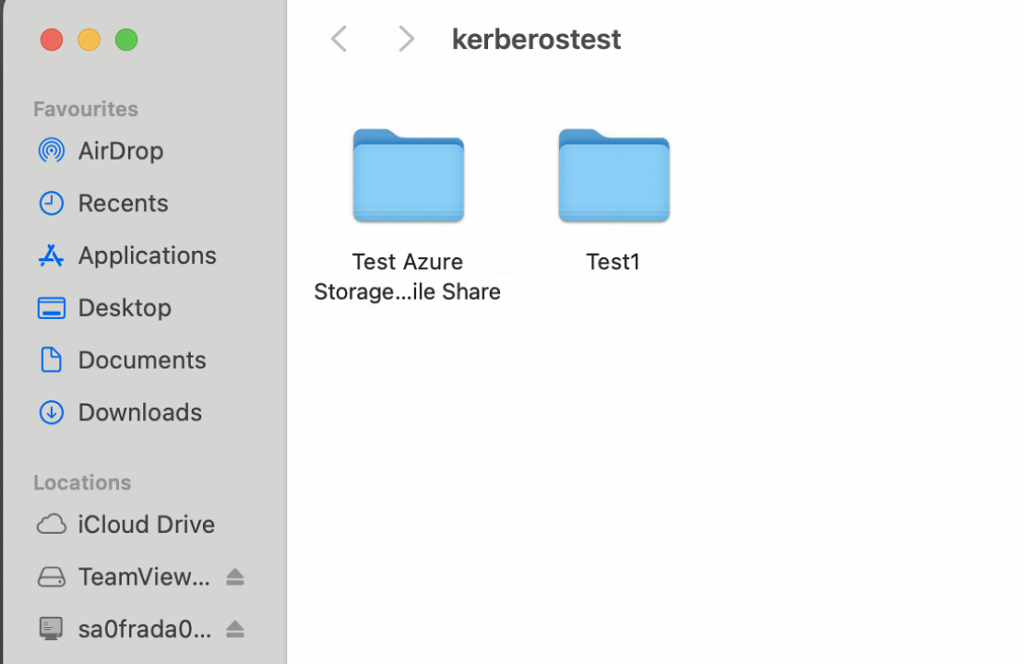
Check Kerberos tickets using:
- Windows:
klist - macOS:
klist
⚠️ Best Practices & Gotchas
- Conditional Access misconfigurations can block access
- macOS requires correct realm settings in mobileconfig
✅ Key Takeaways
- Entra Kerberos brings passwordless SMB access to Azure Files
- Works for Windows Hello for Business and macOS PSSO
- Requires Cloud Kerberos Trust, proper CA policies, and manifest tweaks
- Delivers a modern, secure experience without legacy dependencies


Leave a Reply