

When we talk about modern identity security, most organizations immediately think of Conditional Access, compliant devices, and MFA prompts. But Microsoft’s Global Secure Access platform introduces something that goes even further: Compliant Network.
It’s a capability inside Microsoft Entra Internet Access that allows you to restrict tenant access exclusively to trusted, managed networks—effectively locking down your tenant so unmanaged devices don’t receive tokens and are denied by Conditional Access using the Compliant Network signal.
This is a powerful way to raise the security bar, especially in environments where identity boundaries must be airtight. But like with every strong lock, you must know where to keep the key—and which people need a copy.
🛡️ What Compliant Network Actually Does
Compliant Network is all about ensuring that incoming traffic to your Microsoft cloud services—such as Microsoft 365, Entra ID, or SaaS apps—comes only from trusted, validated egress points. Think of it as a secure private front door to your tenant.
Once enabled and enforced:
- 🌐 Only devices routed through Entra Internet Access (EIA clients or trusted network appliances) can reach your cloud resources.
- 🚫 Unmanaged devices or unapproved networks are blocked during authentication when Conditional Access evaluates the Compliant Network signal, before any access token is issued.
- 🎯 This creates an additional layer of segmentation above your typical device compliance or authentication policies.
This means that even if an unmanaged device has valid credentials, it still can’t reach the tenant. The network layer simply denies the session altogether.
💡 Why You Might Want This
For organizations with strong Zero Trust mandates—especially in regulated industries—this capability is a dream come true. It allows you to:
- Prevent exfiltration attempts from non-corporate devices
- Reduce attack surface by eliminating rogue client access
- Enforce that all access comes through monitored, compliant paths
- Ensure device identity, user identity, and network identity work together
And for administrators like you designing secure architectures: it offers predictable, controlled, and fully inspectable inbound traffic.
💳 Licensing: The Best Part — It’s Included
One of the nicest surprises about Microsoft Entra Internet Access and the Compliant Network capability is the licensing model.
Unlike many security features that require a premium add‑on, Compliant Network is already included if your users are licensed with:
- Microsoft Entra ID P1, or
- Microsoft Entra ID P2
That’s it.
No extra SKU.
No addon.
No hidden upgrade.
If your organization already operates on P1 (which most do), Global Secure Access for Microsoft traffic — including Compliant Network — is immediately available. And if you’re running P2, you’re covered as well, along with the additional identity governance features that license brings.
This makes Compliant Network one of the most cost‑effective ways to dramatically harden your tenant without increasing your licensing footprint. The traffic processing, network enforcement layer, CA signaling, and compliant network recognition — all included.
It also means that enabling a network‑level Zero Trust boundary isn’t a budget conversation anymore.
It’s simply a configuration choice.
☁️ What’s Included in the Microsoft Traffic Profile
The Microsoft Traffic Profile defines which Microsoft cloud workloads are routed through Global Secure Access. Only traffic to these services is inspected, validated, and eligible for Compliant Network enforcement.
Currently, the profile includes four categories:
📧 Exchange Online
Mail access, EWS, MAPI over HTTP, REST APIs — all protected through the compliant network path.
💬 Microsoft Teams & Skype for Business Online
Real‑time collaboration and signaling traffic is secured and forced through the validated Microsoft route.
📁 SharePoint Online & OneDrive for Business
Document access, SPO APIs, and file sync operations all pass through the authorized traffic path.
🧩 Microsoft 365 Common & Office Online
Shared Microsoft 365 services such as Office Online apps, common microservices, presence signals, and backend productivity APIs.
👥 Don’t Forget Guests & External Admins
Tight controls can create tight outages. With Compliant Network enabled, external identities—guest users, partners, consultants, break-glass accounts, and external administrators—will also be blocked if they are not handled correctly.
You will need:
- Explicit exclusions
- Well-defined administrator access paths
- Clear rules for external collaborators
- Operational break‑glass exceptions
This isn’t a drawback—it’s an intentional part of the design. Compliant Network ensures that only the identities and network paths you approve can access your tenant, but you remain in control of who those are.
🚀 Step-by-Step: Enabling Compliant Network
Before you enforce Compliant Network with Conditional Access, you need to prepare the secure traffic path that Microsoft Entra Internet Access provides. This ensures that your devices, networks, and egress routes are recognized as trusted by Microsoft’s Global Secure Access layer.
The following steps walk you through the setup — and you can insert your screenshots exactly where they belong.
🔧 1. Activate Microsoft Traffic Processing
The first step is to enable processing of Microsoft 365 and Entra traffic through Global Secure Access.
This establishes the controlled path required for Compliant Network enforcement later on.
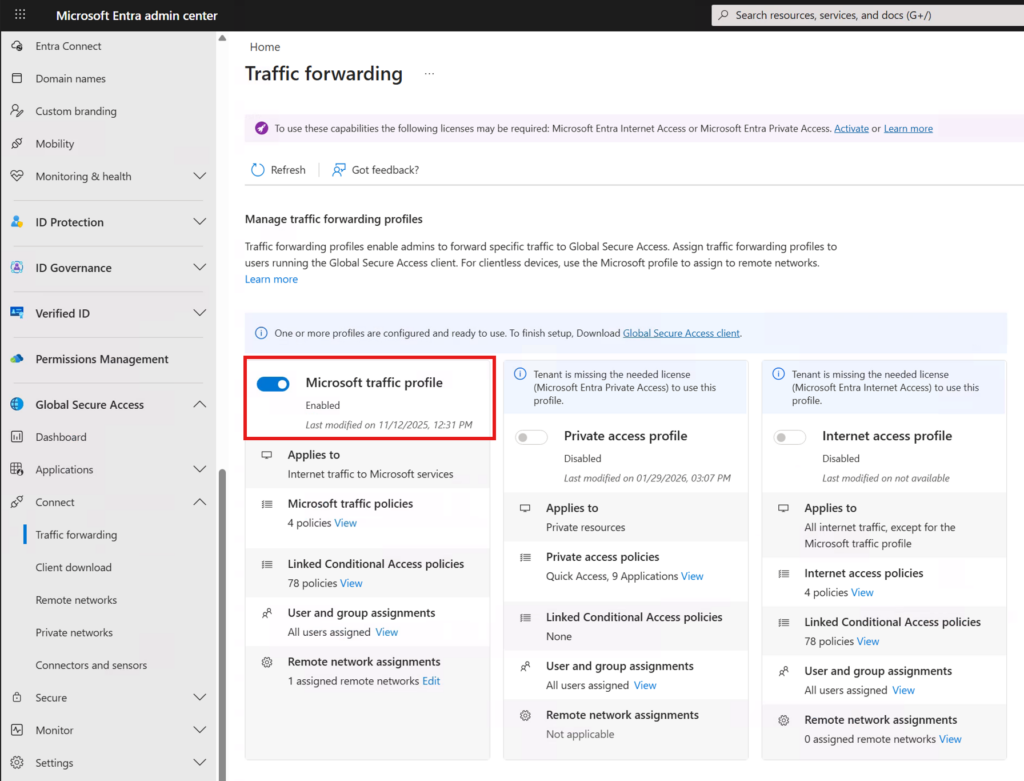
Once activated, Microsoft cloud traffic is evaluated by the GSA platform, enabling policy‑based decisions at the network layer.
🔧 2. Enable Conditional Access Signaling for Entra ID
Next, enable CA Signaling.
This ensures that network signals from your devices and forwarders are passed to Entra ID — essentially telling Entra whether the incoming request originates from a trusted network.
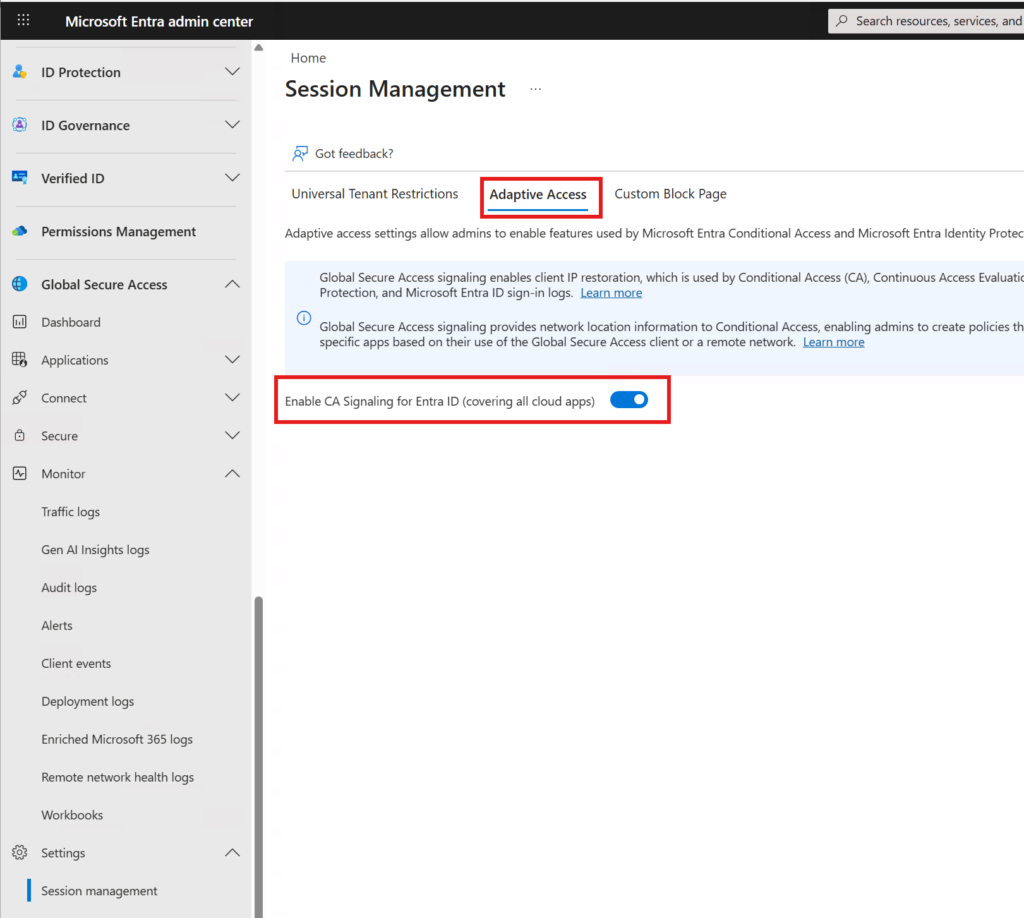
With CA Signaling active, Entra can differentiate compliant from non‑compliant network sessions before authentication logic kicks in.
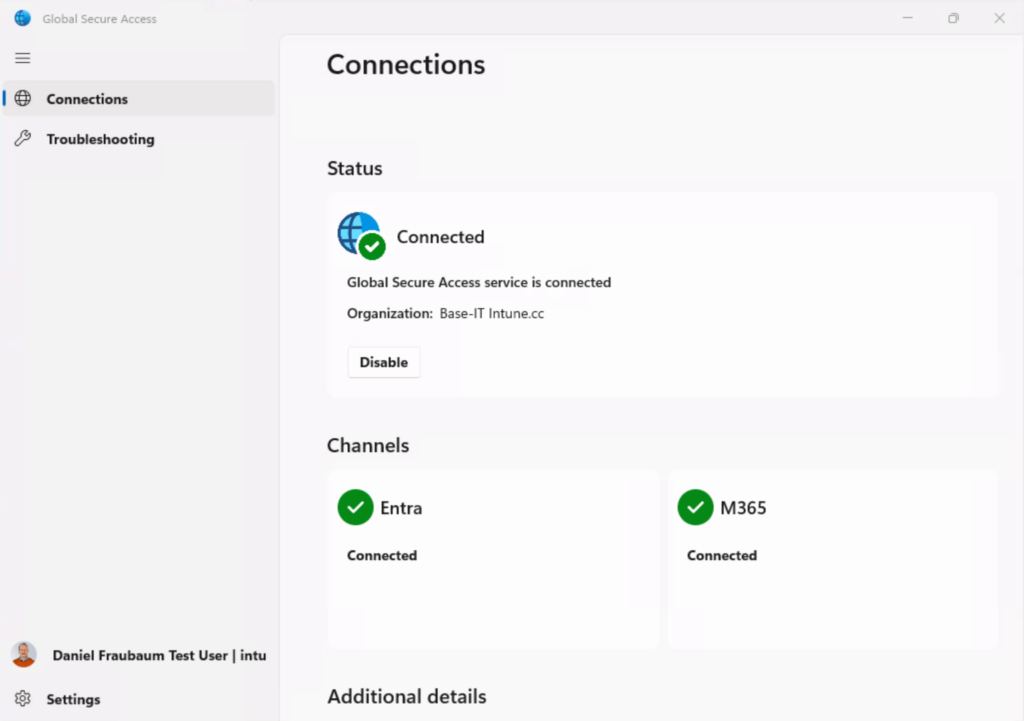
💻 3. Deploy the Global Secure Access Client to Managed Devices
Now it’s time to onboard your managed devices.
Deploy the Global Secure Access (GSA) client to your Windows and macOS fleet — either manually or using your standard Intune deployment rings.
Once installed, the client transparently routes Microsoft-bound traffic through the secure inspection path. This is what allows the device to be recognized as part of your Compliant Network.
🌐 4. (Optional) Configure Remote networks
If your organization operates central egress points, SD‑WAN appliances, or secure web gateways, configure them as Remote Networks.
This enables compliant access even from devices without the GSA client — ideal for special-purpose systems or remote network hubs.
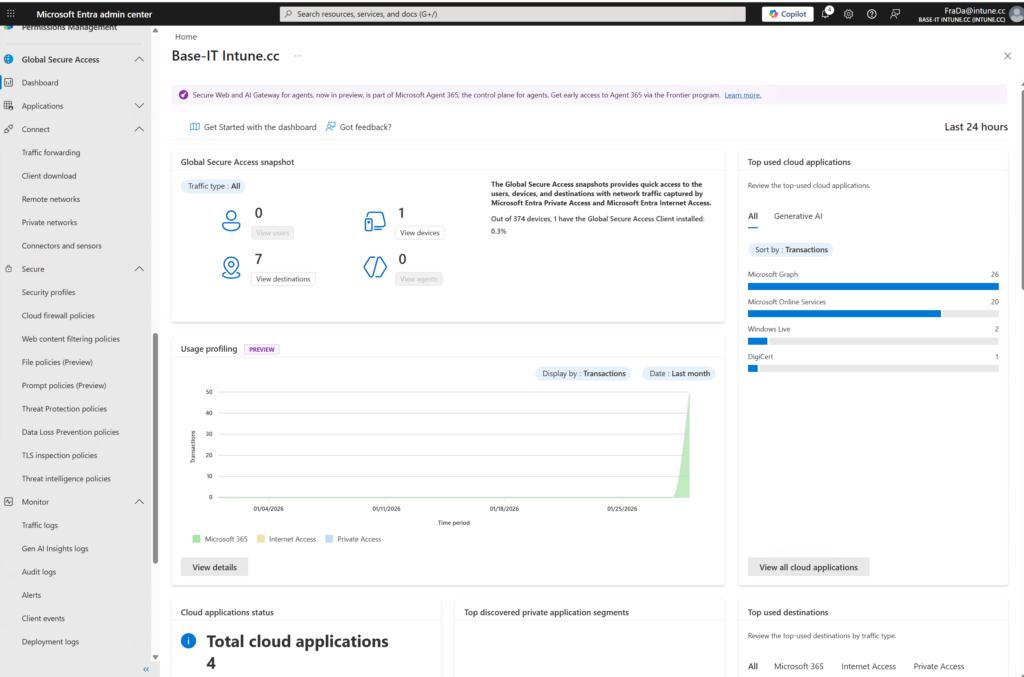
🔒 5. Validate Traffic Flow and Network Recognition
Before enabling Conditional Access enforcement, verify that devices (or approved egress points) are visible as compliant in the Global Secure Access portal.
Portal view:
Device view:
Once validated, you’re ready to enforce Compliant Network with Conditional Access.
🔐 Protect Your Resources Behind the Compliant Network
The Compliant Network Conditional Access policy protects Microsoft and third‑party applications integrated with Entra ID single sign‑on. A typical policy uses a Block grant for all network locations except the Compliant Network.
Follow these steps:
- Sign in to the Microsoft Entra admin center as at least a Conditional Access Administrator.
- Browse to Entra ID → Conditional Access.
- Select Create new policy.
- Give your policy a name. Organizations should use meaningful and consistent names for CA policies.
Assignments
- Under Users or workload identities, select Include → All users.
- Under Exclude, select Users and groups and choose your emergency access / break‑glass accounts etc..
Target resources
- Under Include, select All resources (formerly “All cloud apps”).
- If your organization enrolls devices into Microsoft Intune, exclude:
- Microsoft Intune Enrollment
- Microsoft Intune
to avoid circular dependencies.
Network
- Set Configure → Yes.
- Under Include, select Any location.
- Under Exclude, select All Compliant Network locations.

Access controls
- Under Grant, select Block access, then select Select.
Finalize
- Confirm your settings.
- Set Enable policy → On.
- Select Create to enable the policy.
Once enabled, your tenant will only be reachable from trusted, validated network paths.
🚫 What the Block Looks Like on an Unmanaged Device
This is important to show — because it illustrates clearly how early the enforcement happens and how transparent the message is for the end user.
When a user signs in from:
- an unmanaged device
- a personal laptop
- an unknown IP range
- a network not recognized as part of your Compliant Network
they will not even reach the protected app.
Instead, they see a message like this:
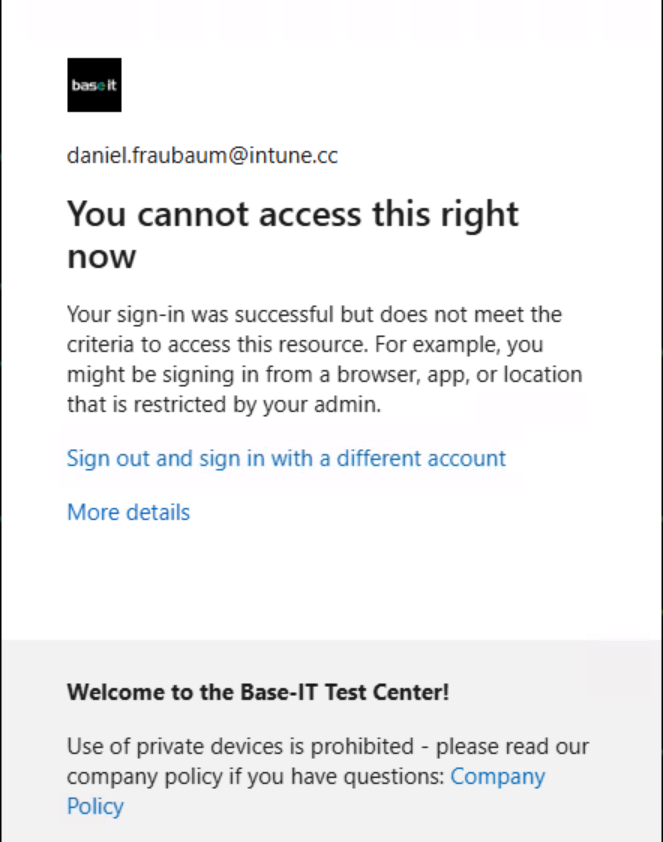
The block message states that:
- Sign‑in was technically successful
- But the criteria to access the resource were not met
- The user might be signing in from a browser, app, or location restricted by the admin
This is the correct and expected behavior of Compliant Network enforcement.
It proves the boundary is working as intended:
identity succeeds, but access is denied at the network layer.
Below the message, you can insert your own organization-specific guidance, such as:
- Why unmanaged devices are not allowed
- Where to request access
- Links to policy documents
- Instructions to sign in from a compliant device
This turns a security block into a clear, informative user experience.
🔐 Result: A Secure, Controlled Entry Point to Your Tenant
With this configuration:
- Only devices using your secure network path can reach Microsoft 365 or Entra-protected apps.
- Unmanaged devices never see the login page.
- The attack surface is drastically reduced.
- Guests and external admins remain operational thanks to your explicit exceptions.
This is what Zero Trust network isolation actually looks like—strong, predictable, enforceable.
🧭 Final Thoughts: A Tenant That’s Actually Locked Down
With Compliant Network enforced, your tenant gains:
- A hard perimeter even before authentication
- No access for unmanaged devices
- A dramatically reduced attack surface
- Clean separation between corporate and non‑corporate access
- Predictable, controlled, compliant network paths
It’s one of the most robust Zero Trust network enforcement layers currently available in Microsoft’s ecosystem — especially when coupled with strong baseline CA policies.
Leave a Reply