

In June 2026, the current UEFI Secure Boot certificates will expire. This might sound like a small technical detail, but it affects every Windows device that uses Secure Boot. These certificates are critical for validating bootloaders and ensuring that your devices can continue to receive Secure Boot-related updates.
If you don’t prepare in advance, devices could fail to boot or lose the ability to apply critical security updates after the rollover. In this post, I’ll show you two ways to get ready for this transition and make sure your Intune-managed devices stay compliant and secure.
✅ Why This Matters
Secure Boot is part of the chain of trust that protects your devices during startup. Microsoft is retiring the original Secure Boot certificates issued back in 2011 and replacing them with updated certificates to maintain security standards.
The existing certificates will expire in June 2026. After this date:
- ❌ Devices without the update may fail to boot.
- ❌ Secure Boot-related updates will no longer apply.
- ❌ Compliance risks will increase for regulated environments.
To avoid these issues, you need to opt in to Microsoft-managed Secure Boot certificate updates and verify that the new certificates are applied.
🛠 Two Ways to Enable It with Intune
You can enforce this setting across your fleet using either:
Option 1: Settings Catalog (Recommended)
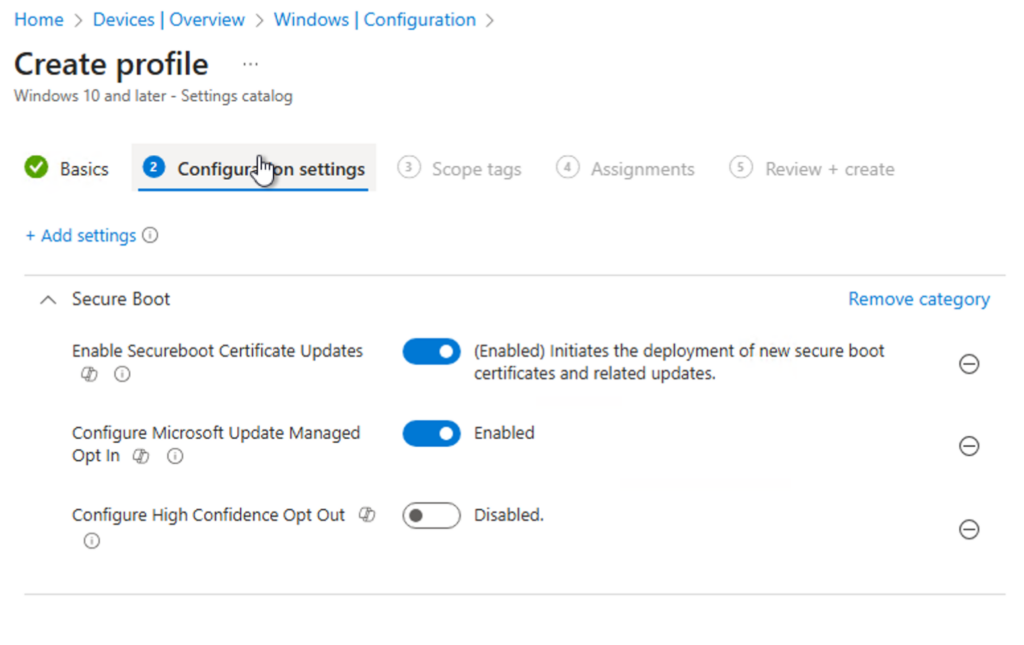
The easiest and most policy-driven approach is using the Settings Catalog in Intune.
Steps:
- Go to Intune Admin Center → Devices → Configuration Profiles → Create Profile.
- Select Platform: Windows 10 and later, Profile type: Settings Catalog.
- Search for Secure Boot settings.
- Enable:
- Enable Secureboot Certificate Updates → Enabled
- Configure Microsoft Update Managed Opt In → Enabled
- Configure High Confidence Opt Out → Disabled
- Assign the profile to your device groups.
✅ This method is simple, scalable, and integrates with compliance policies.
Option 2: Remediation Scripts
For environments that need custom checks and reporting, Intune Remediations are still a great choice.
Detection Script
Checks if the registry value MicrosoftUpdateManagedOptIn underHKLM\SYSTEM\CurrentControlSet\Control\SecureBoot\ is set to 1.
If not, the device is flagged as non-compliant.
<#
Script: Detect SecureBoot Cert Update MicrosoftUpdateManagedOptIn
Author: Daniel Fraubaum | headsinthecloud.blog
Version: 1.0.0
Date: 2025-12-16
Description: Intune Remediation Detection Script.
             Checks if the registry value 'MicrosoftUpdateManagedOptIn'
             under HKLM:\SYSTEM\CurrentControlSet\Control\SecureBoot\ is set to 1.
             Exits 0 if compliant, exits 1 if non-compliant.
#>

# ==============================
# Parameters
# ==============================
$Path = "HKLM:\SYSTEM\CurrentControlSet\Control\SecureBoot\"
$Key = "MicrosoftUpdateManagedOptIn"
$ExpectedValue = 1

# ==============================
# Detection Logic
# ==============================
try {
    # Check if the registry path exists
    if (Test-Path -Path $Path) {
        # Get the current value of the registry key
        $CurrentValue = (Get-ItemProperty -Path $Path -Name $Key -ErrorAction SilentlyContinue).$Key

        # If the value equals 1, return compliant
        if ($CurrentValue -eq $ExpectedValue) {
            Write-Output "Compliant: Value is $ExpectedValue."
            exit 0
        }
        else {
            Write-Output "Non-Compliant: Value is not $ExpectedValue."
            exit 1
        }
    }
    else {
        Write-Output "Non-Compliant: Registry path does not exist."
        exit 1
    }
}
catch {
    Write-Error "Detection failed: $($_.Exception.Message)"
    exit 1
}
Remediation Script
Creates the registry path if missing and sets the value to 1.
This guarantees that the opt-in is applied consistently.
Registry Details:
- Path:
HKLM\SYSTEM\CurrentControlSet\Control\SecureBoot\ - Key:
MicrosoftUpdateManagedOptIn - Type:
REG_DWORD - Value:
1
<#
Script: Remediate SecureBoot Cert Update MicrosoftUpdateManagedOptIn
Author: Daniel Fraubaum | headsinthecloud.blog
Version: 1.0.0
Date: 2025-12-16
Description: Intune Remediation Script.
             Ensures that the registry value 'MicrosoftUpdateManagedOptIn'
             under HKLM:\SYSTEM\CurrentControlSet\Control\SecureBoot\ is set to 1.
             Creates the path if missing and applies the correct value.
#>

# ==============================
# Parameters
# ==============================
$Path = "HKLM:\SYSTEM\CurrentControlSet\Control\SecureBoot\"
$Key = "MicrosoftUpdateManagedOptIn"
$ExpectedValue = 1
$KeyFormat = "DWORD"

# ==============================
# Remediation Logic
# ==============================
try {
    # Check if the registry path exists, create if missing
    if (!(Test-Path -Path $Path)) {
        New-Item -Path $Path -Force | Out-Null
    }

    # Get the current value of the registry key
    $CurrentValue = (Get-ItemProperty -Path $Path -Name $Key -ErrorAction SilentlyContinue).$Key

    # If the value is missing or not equal to 1, set it to 1
    if ($null -eq $CurrentValue -or $CurrentValue -ne $ExpectedValue) {
        Set-ItemProperty -Path $Path -Name $Key -Value $ExpectedValue -Type $KeyFormat
        Write-Output "Remediation applied: Value set to $ExpectedValue."
    }
    else {
        Write-Output "No action required: Value is already correct ($ExpectedValue)."
    }
}
catch {
    Write-Error "Remediation failed: $($_.Exception.Message)"
}
Once deployed, Intune will automatically detect and remediate non-compliant devices, ensuring your environment is ready for Secure Boot certificate updates.
🔍 What’s Next?
Microsoft is also introducing additional registry keys for enhanced control and reporting, such as:
AvailableUpdatesHighConfidenceOptOutServicing\UEFICA2023StatusServicing\UEFICA2023ErrorServicing\WindowsUEFICA2023Capable
To make this process even more robust, I’ve extended the remediation logic to cover all these values, including UEFICA2023 status, error codes, and capability checks. This ensures not only that the opt-in is enforced but also that your devices provide complete compliance and reporting in one step.
<#
Script: SecureBoot CA 2023 Detection
Author: Daniel Fraubaum
Version: 1.1.0
Date: 2025-12-17
Description:
Checks if Secure Boot CA 2023 update is applied by validating registry keys first,
then confirming presence of Windows UEFI CA 2023 certificate in Secure Boot DB.
Exit codes: 0 = Compliant, 1 = Non-Compliant.
#>

# ==============================
# Parameters
# ==============================
$regPath = "HKLM:\SYSTEM\CurrentControlSet\Control\SecureBoot\Servicing"

# ==============================
# Helper Function
# ==============================
function Get-RegistryValue {
    param(
        [Parameter(Mandatory = $true)][string]$Path,
        [Parameter(Mandatory = $true)][string]$Key
    )

    # Return null if path does not exist
    if (-not (Test-Path $Path)) { return $null }

    try {
        (Get-ItemProperty -Path $Path -Name $Key -ErrorAction Stop).$Key
    } catch {
        $null
    }
}

# ==============================
# Detection Logic
# ==============================

# Step 1: Check registry for update status
$status  = Get-RegistryValue -Path $regPath -Key "UEFICA2023Status"
$errorVal   = Get-RegistryValue -Path $regPath -Key "UEFICA2023Error"
$capable = Get-RegistryValue -Path $regPath -Key "WindowsUEFICA2023Capable"

if (($status -eq "Updated" -or $capable -eq 2) -and ($null -eq $errorVal -or $errorVal -eq 0)) {
    Write-Output "Compliant: Registry indicates Secure Boot CA 2023 update applied (Status='$status', Capable=$capable, Error=$errorVal)."
    exit 0
}

# Step 2: Check Secure Boot UEFI database for certificate
try {
    $db = Get-SecureBootUEFI -Name db
    $dbString = [System.Text.Encoding]::ASCII.GetString($db.Bytes)
    if ($dbString -match 'Windows UEFI CA 2023') {
        Write-Output "Compliant: Windows UEFI CA 2023 certificate found in Secure Boot DB."
        exit 0
    } else {
        Write-Output "Non-Compliant: Certificate not found in Secure Boot DB."
        exit 1
    }
} catch {
    Write-Output "Error: Unable to access Secure Boot UEFI DB. Device may not support Secure Boot or access is restricted."
    exit 1
}
📊 Secure Boot Registry Keys Explained
| Registry Key | Type | Possible Values | Meaning |
|---|---|---|---|
MicrosoftUpdateManagedOptIn | REG_DWORD | 0 = Disabled1 = Enabled | Opt-in for Microsoft-managed Secure Boot certificate updates. |
AvailableUpdates | REG_DWORD | Numeric (e.g., 1) | Indicates if Secure Boot updates are available for the device. |
HighConfidenceOptOut | REG_DWORD | 0 = No opt-out1 = Opt-out | If set to 1, device opts out of high-confidence Secure Boot updates. |
Servicing\UEFICA2023Status | REG_SZ | Pending, Updated, Failed | Shows the current status of the Secure Boot CA 2023 update. |
Servicing\UEFICA2023Error | REG_DWORD | 0 = No errorOther = Error code | Provides error details if the update failed. |
Servicing\WindowsUEFICA2023Capable | REG_DWORD | 0 = Not capable1 = Capable2 = Update applied | Indicates whether the device supports and/or has applied the update. |
ℹ️ New: Secure Boot Status Reporting Directly in Intune
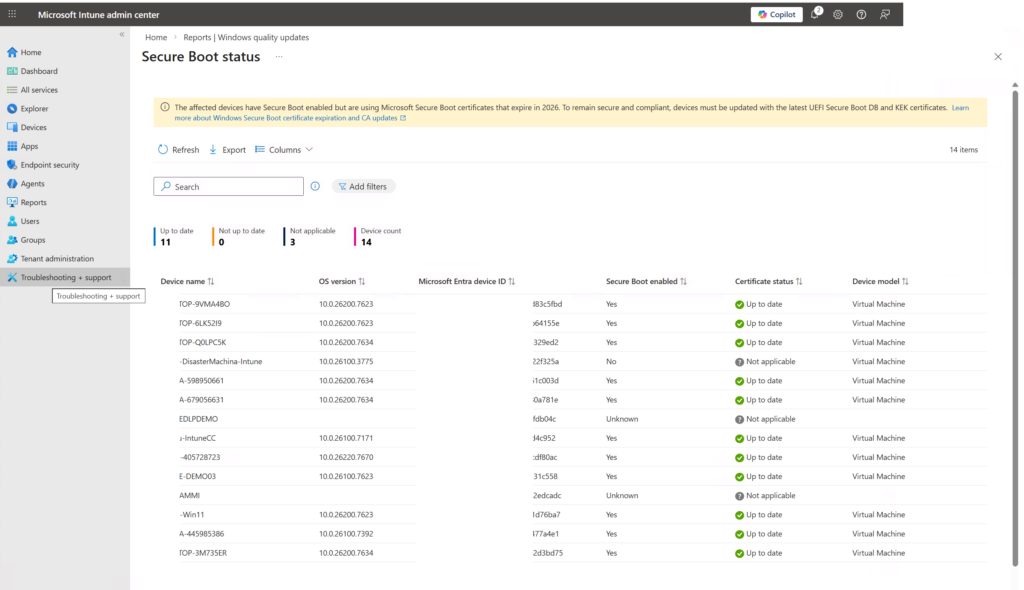
Until recently, verifying whether the Secure Boot CA 2023 update was applied required custom reporting, registry inspection or manually reading remediation output. Microsoft has now added a native reporting experience in Intune which makes the entire process far easier and more transparent.
This new reporting capability lets you monitor rollout progress, detect devices with issues and prove compliance without relying solely on scripts.
How to Access the New Report
You can find it directly in the Intune admin center:
- Go to the Intune admin center.
- Navigate to Reports.
- Select Windows Autopatch.
- Go to Windows quality updates.
- Switch to the Reports tab.
- Select Secure Boot status.
The Secure Boot status report shows:
- Devices where the Secure Boot CA 2023 update is applied.
- Devices that are capable but not updated yet.
- Devices reporting failures or unsupported scenarios.
- Overall adoption across your organization.
Why This Matters
With the new reporting view, you can:
- Validate your Settings Catalog configuration or remediation rollout.
- Quickly pinpoint devices that need additional remediation.
- Monitor your environment without building custom dashboards.
- Cover compliance and audit requirements with minimal manual work.
This report complements the registry keys and remediation scripts described earlier. Instead of collecting registry data device by device, you now have a central reporting source directly in Intune.
💡 Final Thoughts
The Secure Boot certificate rollover in June 2026 is not just a technical update—it’s a critical step to keep your devices secure and compliant. By preparing now with Intune remediation scripts, you can ensure a smooth transition and avoid boot failures or security gaps.


Leave a Reply