

Starting in early 2026, Intune introduced native support for using PowerShell scripts as Win32 app installers. This is more than a minor convenience. It shifts Intune away from packaging and closer to explicit deployment logic. The result is less friction, simpler pipelines, and more predictable outcomes.
🧱 The Old World: Repackaging as a Bottleneck
The classic .intunewin flow did its job for a time. Today it increasingly slows teams down and blurs responsibilities.
Proprietary packaging
Every deployment requires wrapping installers into a custom bundle. For simple apps, this adds overhead without real value.
Fragile detection
Custom detection logic often breaks when vendors change product codes, paths, or install behavior. Small version bumps can trigger broad deployment failures.
Painful debugging
Logs are split across locations, sometimes incomplete, and often lacking context. Diagnosis takes longer than the fix.
DevOps friction
.intunewin fits poorly into modern CI and CD. You need helper tools, temporary content, and manual steps that do not age well.
Why this is architecturally wrong
Repackaging couples vendor install logic with tenant-specific concerns. It turns deployment into an artifact problem instead of a state problem. Detection frequently duplicates vendor intent instead of asserting desired state cleanly.
Repackaging has become the blocker between your app and your users, not the enabler.
⚙️ The Shift: PowerShell as the Installer
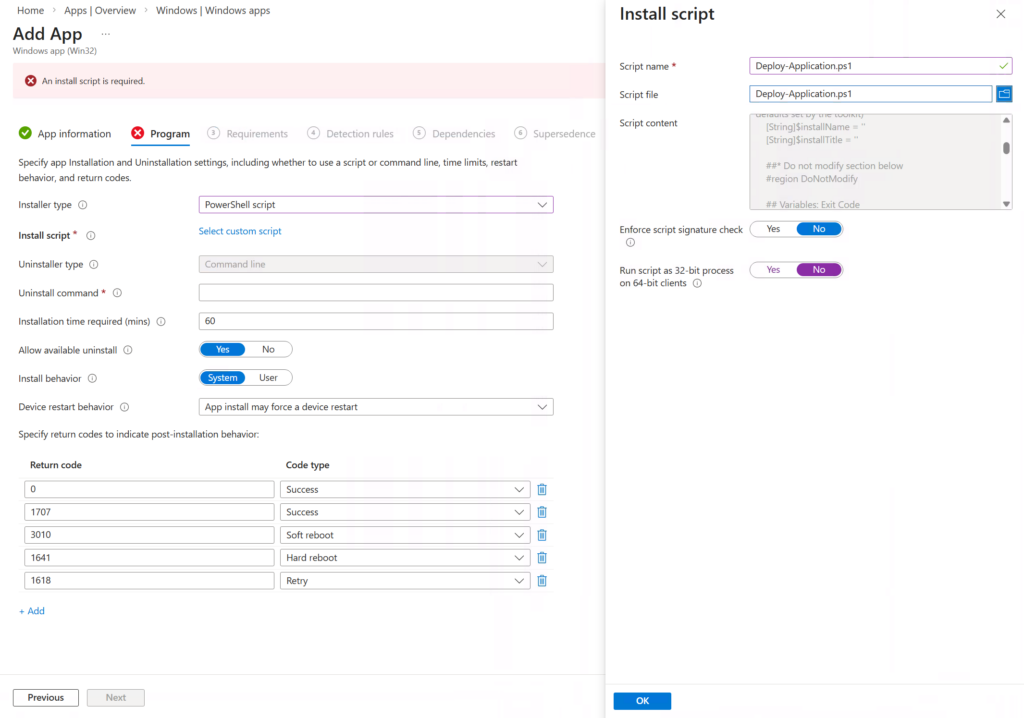
Native PowerShell turns Intune from packaging-centric to logic-centric. Your script is the installer.
Direct execution
Upload and run .ps1 scripts without wrapping. No packaging tools, no conversions, no intermediate artifacts.
Flexible parameters
Pass arguments directly in the Intune UI. This makes your installer logic reusable and dynamic.
Cleaner diagnostics
Script output integrates more predictably with Intune Management Extension logging, which makes troubleshooting easier.
Pre-checks first
PowerShell enables robust pre-conditions. Validate OS version, device context, security posture, dependencies, and configuration before you change state.
This is not just a feature. It is a change in execution semantics that admins can control.
🧠 Execution Semantics that Matter
Determinism beats hope. Make the following choices explicit in your script and documentation.
- Context
Run as System for most app installs. Use user context only if the installer requires user profile access. - Architecture
Be explicit about 64-bit vs 32-bit host. Paths, registry hives, and called binaries differ by host architecture. - Exit codes
Your script sets the exit code. 0 equals success. Use specific non-zero codes for failure. Use 3010 for success with reboot required if applicable. - Idempotency
Repeat runs must be safe. Check state, perform the transition, then verify the target state. No double-installs. No drift.
These choices give you predictable behavior across tenants and environments.
🧭 Limitations and Realities
This feature is powerful, but it does not magically fix everything.
Logging still needs discipline
IME logs are transport and orchestration diagnostics. Production-grade deployments still need application-level logging inside the script. Use transcript or structured logs with timestamps and clear prefixes.
Detection is separate by design
Intune intentionally separates install logic from detection logic. Treat detection as state verification and installation as state transition. Respect the boundary.
Error handling is on you
Silence is not success. If you do not check and throw, Intune will assume success. Be explicit about failures and reboots, and surface them via exit codes.
Flexibility always requires discipline.
🧪 When to Use It and When Not
Great use cases
- Complex or custom deployments
- Installers with OS or security pre-conditions
- Integration into CI and CD with reusable logic
- High-frequency updates that benefit from parameterization
- Scenarios where clear, testable state transitions matter
Consider alternatives when
- The vendor provides a clean MSI with stable product codes and solid silent parameters
- The task is trivial, for example registry changes or file drops that are better as device scripts
- Your team cannot enforce minimal scripting hygiene and code ownership
- You need ultra-lightweight logging but will not add custom logging
PowerShell does not replace good vendor installers. It replaces unnecessary wrapping.
📝 A Note on Responsibility
PowerShell as an installer does not introduce new security requirements. It does shift ownership. Your script now defines install behavior, error handling, and recovery. Teams that already treat PowerShell as production code will benefit immediately. Teams that treat scripts as disposable artifacts may struggle.
🔧 Practical Recommendations
- State first
Write detection and pre-checks before you write the transition. Keep the script idempotent. - Consistent logging
Pick a simple format. For example, structured text with timestamps and a clear source tag. Keep it predictable and parseable. - Clear exit codes
0 success, 3010 success with reboot required, other codes for specific failures. Document them. - Parameterize, do not fork
Use arguments for environment differences. Avoid hardcoding tenant specifics. - Keep it lean
No temporary artifacts unless necessary. No redundant wrappers. - Inline documentation
Add a header block that explains purpose, prerequisites, parameters, exit codes, log locations, and example invocations.
✅ Conclusion
PowerShell-based Win32 installers in Intune close the gap between modern management and legacy packaging. In many scenarios, you can avoid .intunewin entirely. This simplifies pipelines, improves observability, and gives admins the control they need.
For teams that already manage PowerShell like production code, this is the start of a cleaner, more maintainable Windows app deployment approach.
Leave a Reply