

Local Administrator Password Solution (LAPS) has become a cornerstone of secure endpoint management. Rotating, per‑device local admin passwords managed via Microsoft Entra ID or on‑prem AD? Perfect.
But what happens when someone urgently needs that password — and the helpdesk is asleep, overloaded, or twelve time zones away?
If you work in global operations, industrial environments, or field service, you already know the scenario:
A technician stands in front of a mission‑critical machine, somewhere remote, needing to install a vendor tool, driver, or patch. The only thing blocking progress? Local admin rights.
And waiting for support is simply not an option.
That’s exactly the problem this project solves.
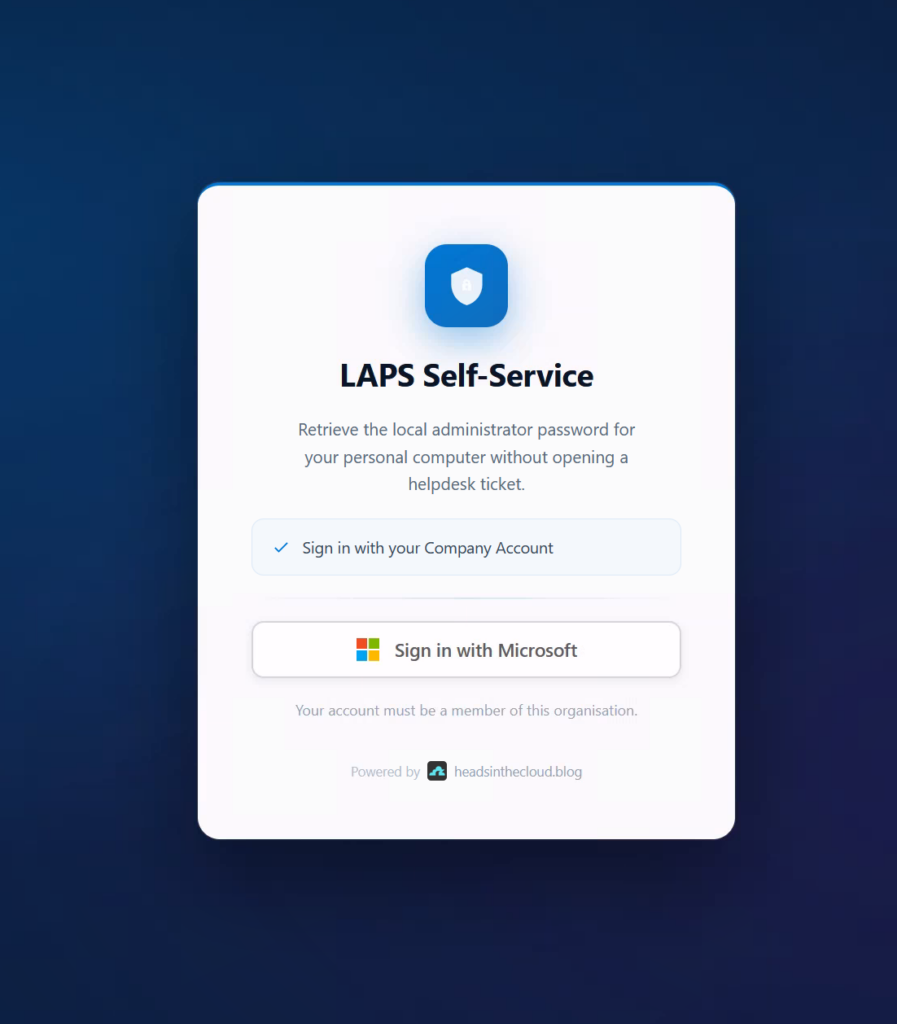
Introducing the Windows LAPS Self‑Service Portal — a lightweight, Azure‑powered portal that lets authorized users securely retrieve the LAPS password for their own device.
No tickets. No waiting. No stored secrets. Fully audited.
👉 GitHub Repository: https://github.com/daniel-fraubaum/laps-self-service-portal
As always: This is a special‑case solution — and that must be stated clearly.
Enterprise Privilege Management, JIT elevation, or PAM suites remain the gold standard for many environments.
But not all environments can deploy them. And when they can’t, field operations suffer.
This portal is built for those real‑world cases.
✨ Why a LAPS Self‑Service Portal?
Let’s be upfront:
This approach has security tradeoffs. You should implement it only in scenarios where the operational benefits outweigh the complexity of other elevation systems.
Typical examples:
- 🌍 Users working far from corporate support
- 🏭 Industrial or OT environments where machines are isolated
- ⏱️ Time‑critical maintenance tasks
- 🔧 Field teams needing controlled local elevation
- 🖥️ Devices that cannot run EPM agents or JIT tooling
In such cases, giving users access to only their own device’s LAPS credential, with justification and full audit logging, can be the most reasonable compromise.
✨ Feature Overview
🖥️ Only‑My‑Device Enforcement
Server‑side validation ensures users see only devices registered to them in Microsoft Graph.
📝 Required Justification
Configurable minimum length (default: 10 characters). Every request is logged.
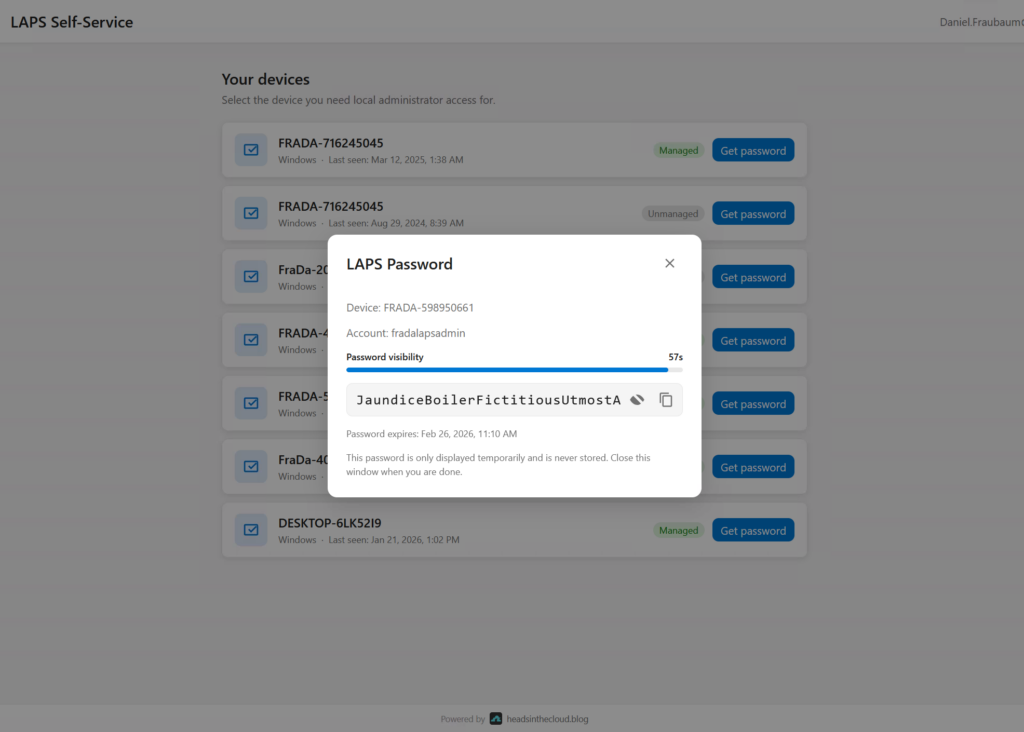
⏱️ 60‑Second Auto‑Hide
The password is displayed temporarily. A visual countdown shows remaining time.
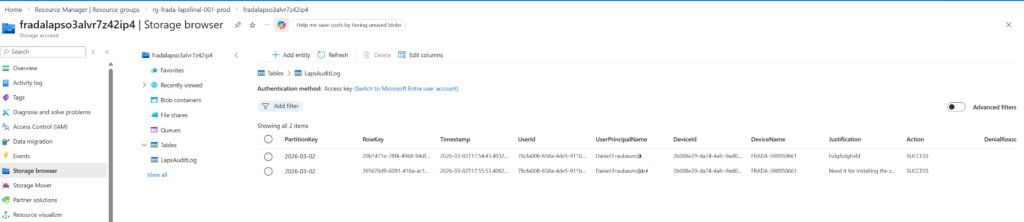
📋 Full Audit Log
All attempts — successful or denied — are written to Azure Table Storage with:
- User
- Device
- Timestamp
- Justification
- IP
🔑 Managed Identity for Graph
No stored secrets. All Graph access uses DefaultAzureCredential.
🛡️ Token Validation via Easy Auth
Azure Functions validate Entra ID JWTs before your code executes.
🎨 Theming Ready
Full white‑label support via CSS custom properties.
🧩 How It Works
- 👤 User signs in via Entra ID (MSAL)
- 🖥️ Portal loads only devices assigned to the user
- 📝 User enters justification
- 🔓 Backend retrieves the LAPS password via Microsoft Graph
- ⏱️ Password appears for 60 seconds
- 📋 Every action is stored in the audit log


Nothing is cached. Nothing is stored.
Each access is short‑lived and fully traceable.
🚀 Deployment Overview
Deployment is fully automated.
👉 GitHub Repository: https://github.com/daniel-fraubaum/laps-self-service-portal
On macOS/Linux:
./infra/deploy.sh --project laps-prodOn Windows:
.\infra\deploy.ps1 -Project laps-prodThe script takes care of:
- Entra ID App Registration
- Backend + frontend deployment
- Managed Identity permissions
- Redirect URI configuration
- Storage + logging infrastructure
At the end, a client secret is shown — required for future redeployments.
🚨 Mandatory Access Controls (Group Assignment + Conditional Access)
Before going live, you must lock down who can access the LAPS Self‑Service Portal — and under which conditions.
Two layers are required: assignment enforcement and Conditional Access.
1️⃣ Entra ID Assignment Enforcement (Who Is Allowed)
By default, any user in your tenant can sign in. To restrict access:
- Open Entra ID → Enterprise Applications
- Select your frontend portal application
- Set “Assignment required?” → Yes
- Assign a dedicated security group, such as SG‑LAPS‑Self‑Service
Only users in this group can access the portal.
Unassigned users are rejected by Entra ID before they ever reach the backend.
2️⃣ Conditional Access (Under Which Conditions Access Is Allowed)
To strengthen the security posture, apply Conditional Access policies to the same security group.
Recommended controls:
- 🔐 Require Multi‑Factor Authentication
- 🖥️ Require compliant or hybrid‑joined devices where applicable
- 🌍 Restrict access by location or country
- 🚫 Block risky or legacy authentication attempts
- 📊 Monitor sign‑ins for anomalous activity
This ensures that only trusted, verified, and policy‑compliant sessions can request LAPS credentials — even if the right user has access.
Together, these two layers guarantee that only authorized users, under safe conditions, can retrieve device‑specific LAPS passwords.
🏗️ Architecture Overview
- Azure Static Web App → SPA frontend
- Azure Functions → API backend
- Easy Auth → JWT validation
- Managed Identity → Graph access
- Azure Table Storage → Audit log
- Application Insights → Telemetry
A minimal, secure footprint that fits even restricted environments.
🎯 Final Thoughts
The Windows LAPS Self‑Service Portal is not meant to replace privileged access management.
It’s designed to fill a gap — a gap that many global teams, field engineers, and industrial operations face daily.
When someone is standing in front of a machine across the world and needs local admin rights now, not tomorrow, this portal can be the difference between uptime and an outage.
And thanks to full auditing, justification, restricted access groups, and a no‑secrets architecture, it gives organizations a manageable, controlled path to urgent local elevation.
Leave a Reply