

If you’ve ever configured Single Sign-On for Azure Virtual Desktop or Windows 365, you know the drill:
Open PowerShell, connect to Microsoft Graph, find the service principal, set isRemoteDesktopProtocolEnabled to true, create target device groups via API calls, and hope you didn’t miss a step.
It worked. But it wasn’t exactly intuitive.
That has now changed.
Microsoft has quietly introduced a new Remote connection configuration blade directly in the Microsoft Entra admin center under Devices, giving administrators a proper UI for what previously required PowerShell or Graph Explorer.
🧭 Where to find it
Navigate to:
Microsoft Entra admin center → Devices → Remote connection configuration
You’ll see a list of three service principals that are central to the RDP-based SSO experience:
- Azure Virtual Desktop
- Microsoft Remote Desktop
- Windows Cloud Login
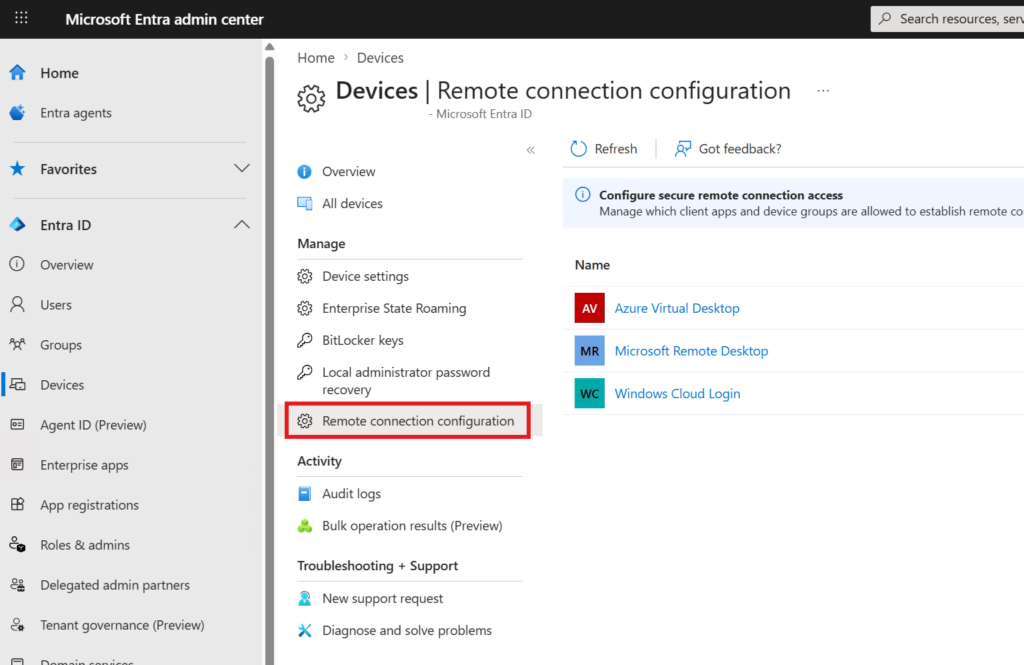
Each of these can be selected individually to view and update its remote connection configuration.
🔐 What this actually configures
Clicking into any of the three service principals reveals the settings that were previously only accessible via the remoteDesktopSecurityConfiguration object through Microsoft Graph.
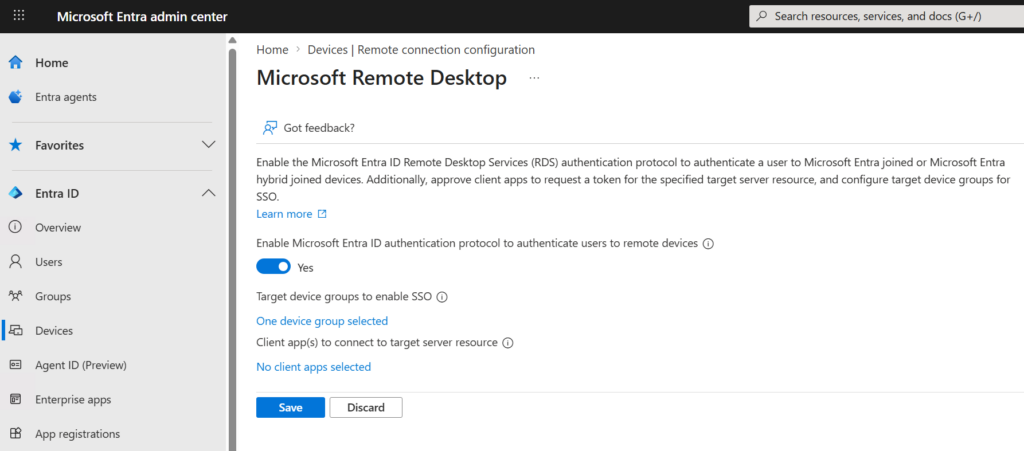
The blade exposes three key settings:
1. Enable Microsoft Entra ID authentication protocol to authenticate users to remote devices
This is the toggle that enables RDP access token issuance — the same property as isRemoteDesktopProtocolEnabled on the service principal. When set to Yes, Microsoft Entra ID can issue tokens that allow users to authenticate to Entra-joined or hybrid-joined remote devices via RDP.
This is the foundational requirement for SSO in both Azure Virtual Desktop and Windows 365 scenarios.
2. Target device groups to enable SSO
This is where you define which device groups are trusted for SSO. When configured, users connecting to devices in these groups will not see the “Allow Remote Desktop connection?” consent prompt.
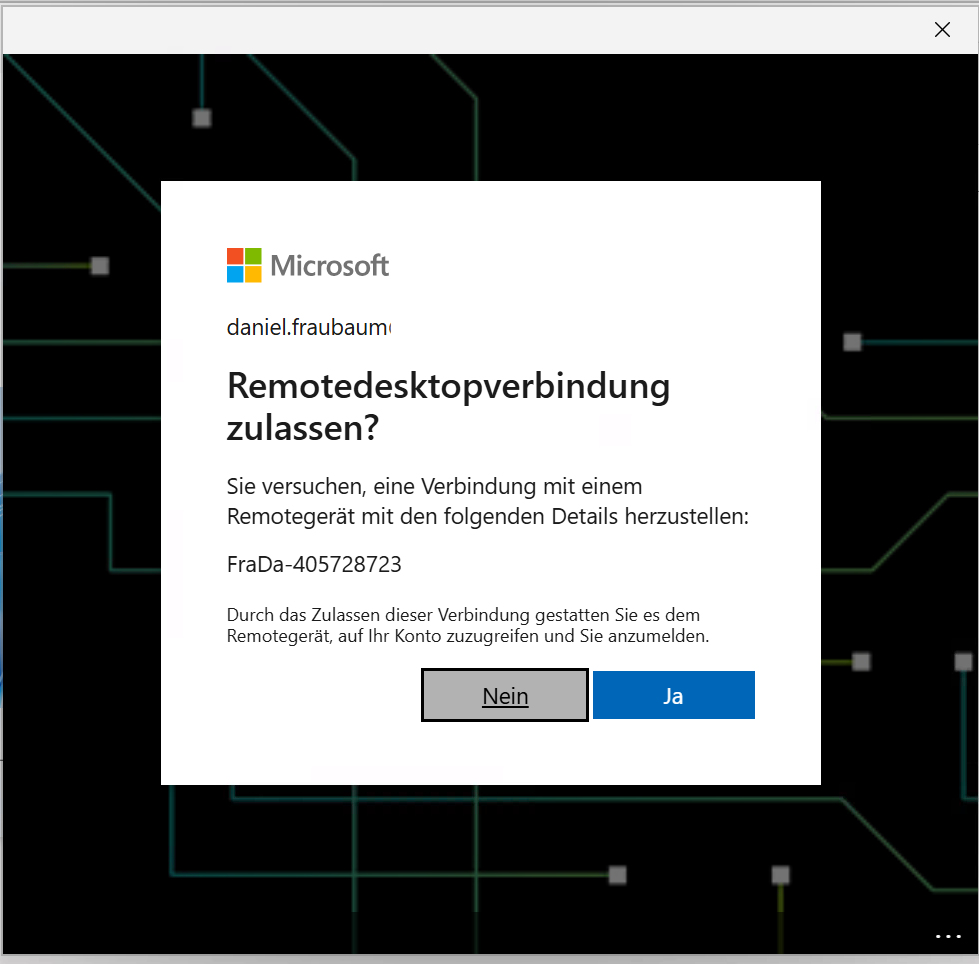
Previously, this required creating targetDeviceGroup objects on the service principal via Graph API or PowerShell — now it’s a simple group picker in the portal.
Recommendation: Use a dynamic device group that includes all your Cloud PCs or AVD session hosts. For Windows 365, a dynamic query based on the device model (e.g., Cloud PC) works well. For AVD, use device names or extension attributes.
ℹ️ Note: You may notice that a device group is already assigned — for example, an “Opal App Device Group.” This was not configured by you. Microsoft’s Project Opal (part of the Frontier program in Microsoft 365 Copilot) automatically registers a target device group on the Windows Cloud Login service principal during its onboarding process. Opal uses Entra-joined Windows 365 Cloud PCs to run AI-powered Computer-Using Agents, and SSO needs to be enabled for those sessions to work seamlessly. You can safely leave this group in place — multiple target device groups are evaluated additively. Simply add your own device group alongside it.
3. Client app(s) to connect to target server resource
This setting is optional and only relevant if you have registered a custom RDP client application in Entra ID.
The default Microsoft clients — Azure Virtual Desktop and Microsoft Remote Desktop — are already pre-configured and do not need to be added here. If you’re using the standard Windows App, Remote Desktop client, or web client, you can safely leave this as “No client apps selected.”
This option exists solely for organizations that have built or registered their own client application that needs to request tokens for RDP authentication against the target server resource.
🛠️ Step-by-step: What to configure when using the Windows App
This is the part that isn’t immediately obvious from the portal UI alone.
The three service principals listed in the Remote connection configuration blade are not alternatives — they work together in the RDP authentication chain. Which ones you need to configure depends on your scenario, but when using the Windows App (the current recommended Microsoft client for both AVD and Windows 365), you need to configure all relevant service principals.
Here’s why:
- Microsoft Remote Desktop handles the client-side token request. When the Windows App initiates a connection, it authenticates against this service principal.
- Windows Cloud Login handles the server-side authentication. The target Cloud PC or session host validates the incoming RDP token against this service principal.
- Azure Virtual Desktop is additionally involved when connecting to AVD session hosts specifically.
The SSO experience only works end-to-end when both sides of the authentication chain — client and server — are configured consistently.
For Windows 365 (Cloud PCs via Windows App)
Configure both of the following service principals with identical settings:
- Windows Cloud Login — Toggle on, add your Cloud PC device group
- Microsoft Remote Desktop — Toggle on, add the same device group
Client apps can be left empty on both.
For Azure Virtual Desktop (Session hosts via Windows App)
Configure all three service principals with identical settings:
- Windows Cloud Login — Toggle on, add your session host device group
- Microsoft Remote Desktop — Toggle on, add the same device group
- Azure Virtual Desktop — Toggle on, add the same device group
Client apps can be left empty on all three.
For combined environments (AVD + Windows 365)
If you run both Windows 365 Cloud PCs and Azure Virtual Desktop session hosts, configure all three service principals. You can either use a single device group that contains both Cloud PCs and session hosts, or add multiple groups to each service principal.
The key principle: every service principal in the chain must know about every target device group.
Final result
Once configured, each service principal should look like this — toggle enabled, device group assigned, client apps left empty:
📋 What this replaces
Until now, the official documentation for both Azure Virtual Desktop and Windows 365 required administrators to perform the following steps manually via PowerShell:
Step 1 — Enable Entra authentication for RDP
powershell
$WCLspId = (Get-MgServicePrincipal -Filter "AppId eq '270efc09-cd0d-444b-a71f-39af4910ec45'").Id

Update-MgServicePrincipalRemoteDesktopSecurityConfiguration `
  -ServicePrincipalId $WCLspId `
  -IsRemoteDesktopProtocolEnabled $true
Step 2 — Add target device groups
powershell
New-MgServicePrincipalRemoteDesktopSecurityConfigurationTargetDeviceGroup `
  -ServicePrincipalId $WCLspId `
  -Id "<group-object-id>" `
  -DisplayName "Cloud PCs for SSO"
These steps had to be repeated for each service principal individually — Windows Cloud Login, Microsoft Remote Desktop, and Azure Virtual Desktop.
With the new portal blade, all of this is reduced to a few clicks per service principal:
Toggle → Select groups → Save.
⚠️ Conditional Access considerations
When SSO is enabled, a Microsoft Entra ID token is issued to authenticate the user to the Cloud PC or session host. This means Conditional Access policies that target the Windows Cloud Login or Microsoft Remote Desktop applications will be evaluated.
If you already have Conditional Access policies in place for Windows 365 or AVD, review them to ensure they don’t unintentionally block the SSO flow. Common issues include:
- Policies requiring compliant devices may block connections from non-managed endpoints
- Policies restricting locations may interfere with remote or VPN-based access
- Policies targeting all cloud apps without exclusions can inadvertently block the RDP authentication flow
Microsoft’s documentation on Conditional Access for Windows 365 and Azure Virtual Desktop provides detailed guidance on how to structure these policies correctly.
🧠 Final thoughts
This is one of those changes that doesn’t get a flashy announcement but makes a real difference in day-to-day administration.
Configuring SSO for remote desktop scenarios used to require PowerShell knowledge, Graph API familiarity, and careful handling of service principal objects. It was a multi-step process that was easy to get wrong and hard to audit.
Now it’s a proper UI experience in the Entra portal — visible, manageable, and accessible to any administrator with the right role assignment.
If you’ve been putting off enabling SSO for your Cloud PCs or AVD session hosts because the PowerShell route felt cumbersome, now is the time.
Toggle it on. Select your device groups. Save.
Do it for each service principal in the chain.
Your users will thank you for the seamless sign-in experience.
At the time of writing, Microsoft has confirmed that official documentation for this portal blade is being updated. The “Learn more” link on the configuration page may still point to an incomplete page. The configuration itself is functional and aligns with the existing Graph API behavior described in the Azure Virtual Desktop and Windows 365 SSO documentation.
Leave a Reply