

If you manage Windows endpoints at scale, you’ve probably heard this request more than once:
“Can we give users a simple way to see their device info and reach IT support – without them having to dig through Settings?”
On macOS, tools like this have existed for years – a clean menu bar widget that shows device name, OS version, storage, and a few helpdesk shortcuts. Branded per customer. Managed via MDM profiles. Loved by IT teams.
On Windows? Nothing comparable existed.
So I built one.
Introducing TrayLight
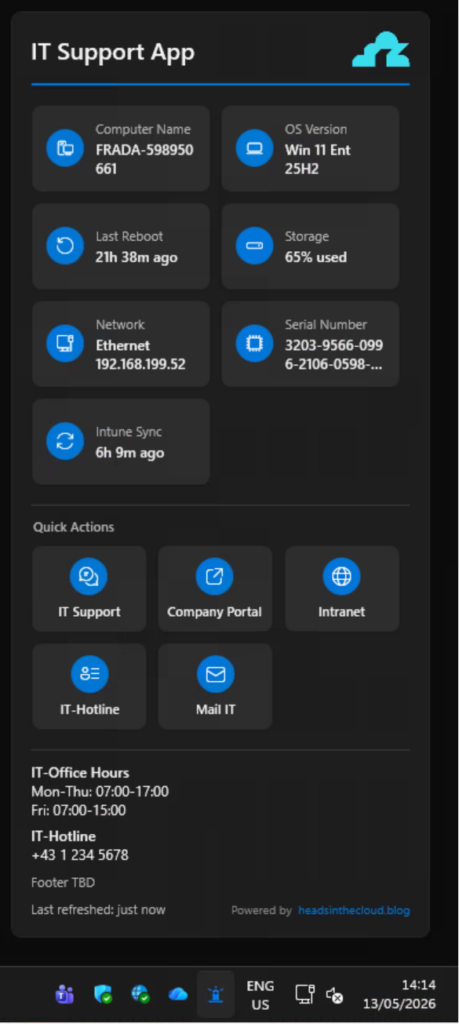
TrayLight is a lightweight Windows System Tray application that gives end users instant access to device information, IT support shortcuts, and Intune sync status – all from a single click on the tray icon.
It’s designed for enterprise environments. Fully configurable via ADMX templates. Deployable via Intune or Group Policy. Branded for your organization. And it works out of the box with zero configuration.
👉 GitHub Repository: https://github.com/daniel-fraubaum/TrayLight
✨ What It Does
TrayLight lives in the notification area next to the clock. Click the icon, and a modern popup appears – Windows 11 Fluent Design, light and dark theme following the system setting.
📊 Six Default Info Tiles
Out of the box, TrayLight shows six tiles:
- Computer Name – click to copy (perfect for helpdesk tickets)
- OS Version – edition + feature update version at a glance
- Last Reboot – relative uptime with configurable warning threshold
- Storage – system drive usage in percent, warns when full
- Serial Number – hardware serial via WMI (with VM detection)
- Intune Sync – time since last MDM check-in, click to trigger a sync
Additional tiles like Network Info can be enabled via policy.
⚡ Quick Action Shortcuts
Up to six configurable buttons below the info tiles. Each one can open a URL, launch an application, or run a command. Think:
- 🎧 IT Helpdesk → Opens your ticketing system
- 🖥️ Remote Support → Launches TeamViewer or ScreenConnect
- 🌐 Intranet → Opens the company portal
- 📧 Mail IT → Opens a pre-filled email to IT support
📋 Info Text Block
A free-text area below the shortcuts – configurable via a single registry value. Perfect for office hours, on-call information, or emergency contacts. Supports basic formatting with *bold*, | for line breaks, and || for blank lines.
🔔 Smart Warnings
TrayLight only warns about things that matter:
- Storage above a configurable threshold (default: 90%)
- Uptime exceeding a configurable number of days (default: 7)
When a warning is active, the tray icon swaps to a warning variant. Everything else is purely informational – a fresh device produces zero warnings.
🏗️ Designed for Enterprise
ADMX-Based Configuration
No JSON files. No custom scripts. TrayLight reads everything from the Windows registry under HKLM\SOFTWARE\Policies\TrayLight\ – the same “true policies” hive that Group Policy and Intune Settings Catalog write to.
The project ships with full ADMX/ADML templates that you can import into Intune or drop into your Central Store. Every setting – from branding to individual tile icons – is configurable through the familiar Administrative Templates UI.
MSI Deployment
TrayLight ships as a self-contained MSI (no .NET runtime required on the target). Deploy it as a Line-of-Business app in Intune, or via Group Policy Software Installation for on-prem environments.
Silent install: msiexec /i TrayLight.msi /qn
The MSI registers a Run key so TrayLight starts automatically on every user logon. Admins can suppress this via the Behavior\AutoStart ADMX policy without uninstalling.
Customer Branding
Every deployment can be branded:
- Logo – via URL (auto-cached) or a local file path
- Accent color – any hex color
- Title – custom header text
- Company name – shown in the About dialog
- Footer text – custom line above the “Powered by” footer
- Custom icons – per-tile icon override via Segoe Fluent Icons codes
🔄 The Intune Sync Tile
This one deserves its own section because it solves a real pain point.
The Intune Sync tile shows the actual time since the last successful MDM check-in – not some approximation, but the real ServerLastSuccessTime from the OMA-DM session data in the registry. The same value that Windows Settings shows.
Click the tile, and it triggers intunemanagementextension://syncapp – the same URI that the Company Portal uses. Instant sync, no need to open Settings or Company Portal.
On non-enrolled devices, the tile simply shows “Not enrolled” and is non-clickable.
🧩 The Story Behind It
I’ve been working in the Microsoft endpoint management space for years. Consulting, deploying Intune, hardening identities, automating everything.
And time and again, I saw the same gap: end users had no simple, branded touchpoint for device info and IT support on Windows. The macOS community had solutions for this for years. We had… nothing.
So I started building TrayLight. The ADMX part was particularly interesting — getting a custom ADMX to import cleanly into Intune’s Settings Catalog has some undocumented quirks (no presentation attributes on policies for Intune, no explainText on categories, unique element IDs across the entire file). If you’re building your own ADMX-configurable app, the TrayLight templates might save you some headaches.
📦 Getting Started
For IT Admins
- Download the latest MSI from GitHub Releases
- Deploy the MSI via Intune (Line-of-Business app) or via Group Policy Software Installation for on-prem environments
- Import the ADMX/ADML templates into Intune Settings Catalog or copy them into your AD Central Store (
PolicyDefinitions) for classic Group Policy - Configure branding, tiles, and shortcuts via Settings Catalog or GPO
- Assign to your device groups
TrayLight works with both modern (Intune) and classic (AD/GPO) management – same MSI, same ADMX templates, same registry paths.
Full deployment guide: INTUNE-DEPLOYMENT.md
For Developers
git clone https://github.com/daniel-fraubaum/TrayLight.git
cd TrayLight
dotnet build TrayLight.sln
dotnet run --project src/TrayLight/TrayLight.csproj
Prerequisites: .NET 8 SDK, Windows 11 SDK (10.0.26100).
🎯 What’s Next
TrayLight v1.0.0 is out and stable. I’m using it internally with customers already.
If you’re managing Windows endpoints and want to give your users a better experience – or if you just want a branded IT support widget that doesn’t require a five-figure license – give it a try.
Feedback, issues, and contributions are welcome on GitHub.


Leave a Reply