

If you manage Windows devices in the EEA, you know this dialog by heart: “Continue to sign in?” Since Microsoft changed the Windows single sign-on behavior to comply with the Digital Markets Act, users in the European Economic Area are no longer automatically signed in to Microsoft apps and services after logging on to Windows. Instead, Windows asks for consent the first time an app wants to use the Windows credentials.
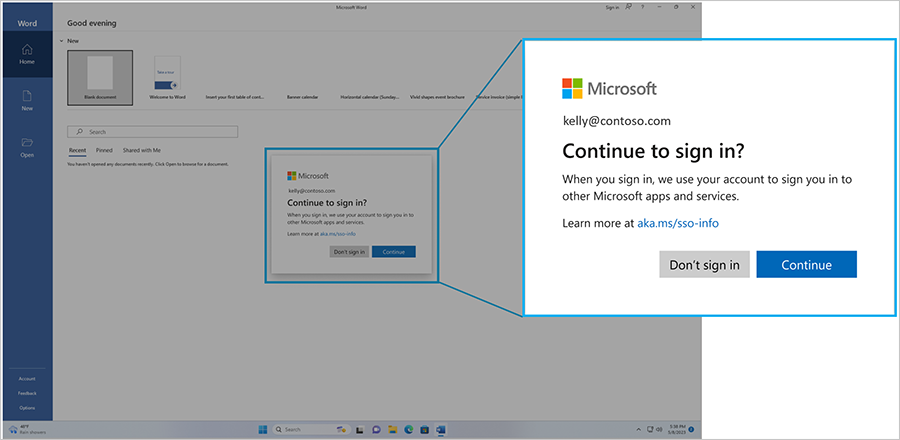
On a personal device, that consent prompt makes sense. On a corporate device that is Entra joined, Intune managed, protected by Conditional Access and compliant with your baseline, it is pure friction. The organization has already established the trust relationship between user, device and identity. Asking the user to confirm it again adds nothing except confusion and helpdesk tickets. And on shared devices, Cloud PCs and AVD session hosts the prompt could show up again and again, because the “only once per user per device” logic simply does not hold up in multi-session or reprovisioning scenarios.
With the July 2026 Patch Tuesday, Microsoft finally shipped the off switch.
What is new
Starting with the July 2026 monthly security update (KB5101650 for Windows 11 24H2 and 25H2, OS builds 26100.8875 and 26200.8875), IT administrators can automatically accept SSO permissions on managed devices via a supported registry policy:
Registry Path: HKLM\SOFTWARE\Policies\Microsoft\Windows\AAD
Value:         AutoAcceptSsoPermission (DWORD) = 1
With this value in place, the “Continue to sign in?” prompt no longer appears. Windows uses the Entra ID credentials from the Windows sign-in for other Microsoft apps and services, exactly like it did before the DMA change.
Scope and limitations
Before you get too excited, be aware of the boundaries:
Supported scenarios
- Windows 11, version 24H2 and 25H2 with the July 2026 security update installed
- Managed enterprise devices with Microsoft Entra ID accounts
Not covered
- Personal Microsoft accounts (MSA): the prompt stays, there is no admin control
- Unmanaged devices: the prompt stays as well
Also important: this policy only handles the SSO permission prompt. It does not change anything about your authentication requirements. Conditional Access, MFA, device compliance and tenant wide app consent settings all continue to apply exactly as before. The policy simply tells Windows to stop asking a question your organization has already answered through its management and trust configuration.
Deployment: two clicks with the Intune Registry Builder
Microsoft supports deploying the setting via Group Policy, Intune, Configuration Manager or any tool that can write registry policies. Since there is no dedicated Settings Catalog entry or ADMX policy for it yet, the fastest way to get this into Intune is my Intune Registry Builder.
If you have not used it yet: the Intune Registry Builder is a free tool that runs entirely in your browser and turns registry changes into Intune-ready PowerShell scripts. You define the keys and values, and it generates validated Detection and Remediation scripts, or a complete Win32 app bundle with Install, Uninstall and Detection scripts. You can even push the remediation directly to Intune from your browser, no manual upload needed. Everything happens locally, nothing is stored or sent to any server, and the only permission required for direct deployment is the delegated DeviceManagementScripts.ReadWrite.All scope.
For this scenario it takes less than a minute:
- Open the Intune Registry Builder
- Give the package a name, for example
AutoAcceptSsoPermission - Select Local Machine (HKLM) as the hive
- Add an entry: key
HKLM\SOFTWARE\Policies\Microsoft\Windows\AAD, valueAutoAcceptSsoPermission, typeREG_DWORD, data1 - Either generate the remediation scripts and push them straight to Intune, or export the Win32 app bundle if you prefer app-based deployment
Assign the result to your Windows 11 24H2/25H2 device group and you are done. If you still manage hybrid joined devices with classic GPO, a simple Group Policy Preferences registry item pointing to the same path and value does the job.
Do not forget the prerequisites
The most common reason this will “not work” in the field: the update is missing. The policy is only evaluated on Windows 11 24H2 and 25H2 devices with the July 2026 cumulative update (or later) installed. So before rolling out the registry value, make sure your update rings or Autopatch deployment have the July update covered. On devices without the update, the value is simply ignored and the prompt keeps appearing.
My recommendation for the rollout:
- Confirm the July 2026 update is deployed across your fleet
- Deploy the registry policy to a pilot group first
- Validate SSO behavior in the apps that were affected the most (Edge, Company Portal, Office)
- Roll out broadly
A few thoughts on governance
Silencing the prompt means users no longer see a visual indication that their work identity is being handed to an application. On a corporate managed device this is usually the expected and desired behavior, and it matches what users knew for years before the DMA change. Still, it is worth checking that your acceptable use policy and employee privacy notices reflect that corporate credentials are used for SSO on managed hardware without additional interaction. That is a five minute review, and it keeps your works council and data protection officer happy.
And to be clear: this is a control Microsoft built for managed enterprise scenarios. It is not a way to circumvent the DMA for consumers, which is exactly why personal Microsoft accounts and unmanaged devices are excluded.
Verdict
This one was long overdue. The DMA driven SSO prompt was one of those changes where a regulation aimed at consumer choice created real operational pain in enterprise environments, especially on shared devices, AVD and Cloud PCs. With AutoAcceptSsoPermission we finally get a supported, centrally manageable switch to restore the seamless sign-in experience on devices we already fully control.
Microsoft has also stated that more admin controls and transparency features around authentication experiences on managed devices are being evaluated, so I would expect a proper Settings Catalog policy to follow at some point. Until then, the Intune Registry Builder gets you there in under a minute.
Leave a Reply