
Staged rollouts in Intune have always been a manual discipline. You create a pilot group, assign the app or policy, wait a few days, add the next group, wait again, and hope nobody forgets the third step because the person who started the rollout is on vacation. Windows Update rings and Autopatch solved this for updates years ago. For apps and configuration policies, it was spreadsheets, calendar reminders and good intentions.
With Deployments and Deployment plans, now in public preview, Intune finally brings that automation to Win32 apps, Enterprise App Catalog apps, Settings catalog policies and Endpoint security policies on Windows. I built a plan and a deployment in my lab to see how it really behaves, and then went through the documentation line by line.
The feature is good. But it is not what most people will assume it is.
🧩 Two building blocks: plans and deployments
The feature lives under Devices > Manage devices > Deployments, currently labeled “Deployments (preview)” in the admin center. It has two tabs, and the split between them is the most important concept to understand.
- Deployment plan: a reusable template. It defines the platform, the rings, the groups and assignment filters per ring, exclude groups and the wait time between rings. It does not contain a payload.
- Deployment: the execution. It takes exactly one payload (an app or a policy), either loads a plan or uses a one-time ring configuration, gets a start date and time, and then rolls out ring by ring on its own.
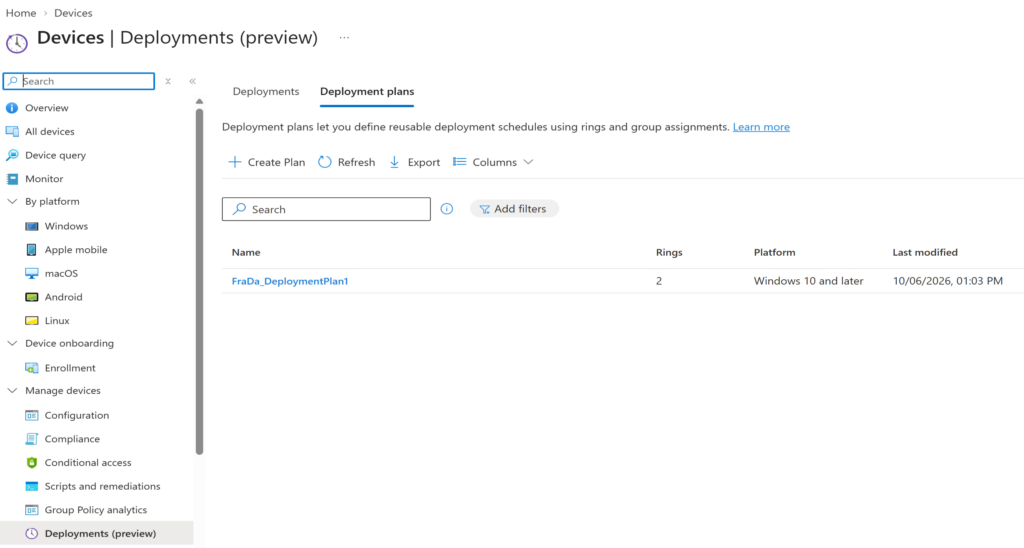
A plan is optional. You can configure rings manually in every deployment. But if you want every app rollout in your organization to follow the same pilot, early adopter, broad pattern, the plan is where you write that rule down once.
| Property | Deployment plan | Deployment |
|---|---|---|
| Contains a payload | No | Yes, exactly one |
| Rings, groups, filters, exclusions | Yes | Yes (from a plan or configured manually) |
| Start date and time | No, only wait times between rings | Yes, for the first ring |
| Editable after creation | Yes, fully | Only name and description |
| Scope tags | Assigned directly | Not assignable, visibility follows the payload |
| Controls | Edit, delete | Pause, resume, cancel, delete |
🛠️ Building the deployment plan
Creating a plan is a four-step wizard: Basics, Deployment schedule, Scope tags, Review + Create.
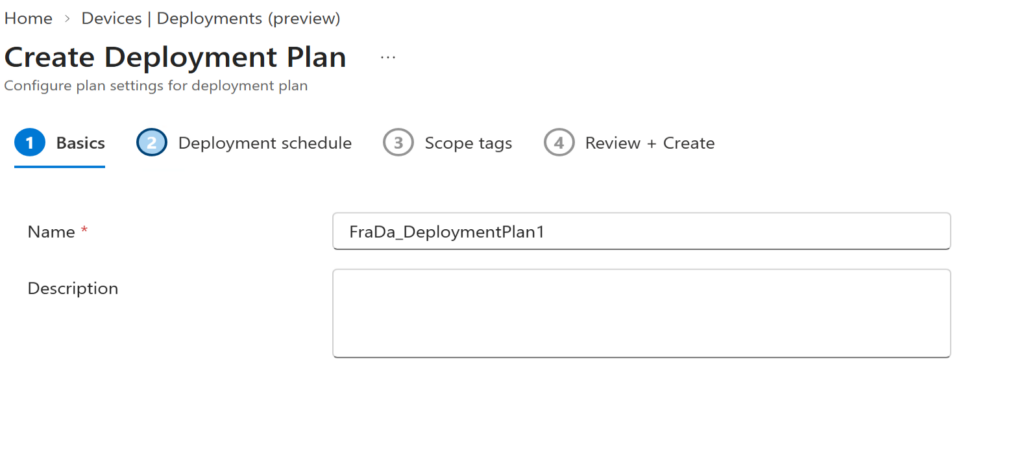
The interesting part is the Deployment schedule page. First you pick a Platform. This choice mainly decides which assignment filters you can add to the rings. If you pick All platforms, the plan can be reused for any platform and payload combination, and you configure the filters later, inside the deployment.
Then you open Manage rings, name your rings and set the Wait time to next ring in days and hours. Two details are worth knowing:
- The first ring has no wait time. Its start is defined when the plan is loaded into a deployment.
- The minimum interval between rings is one hour.
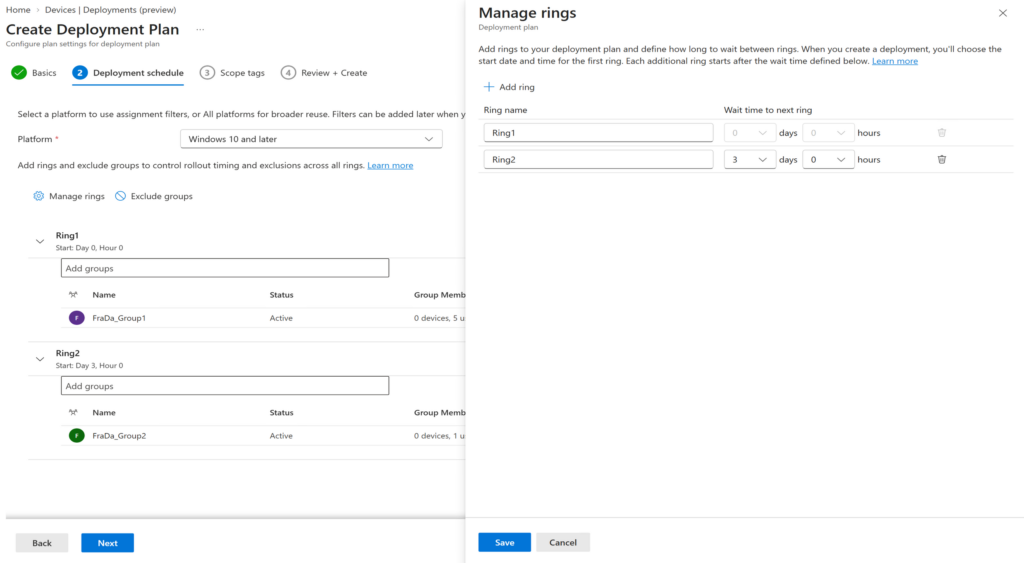
In my lab plan I used two rings with a three day wait in between. Each ring needs at least one group. If you add the All users or All devices virtual group to a ring, the portal asks you to confirm it, and that ring automatically becomes the final ring. Exclude groups apply to all rings of the plan, so this is the place for your “never touch these devices” groups, like kiosks or the CEO’s laptop before a board meeting.
One more thing I like: changes to a plan do not affect deployments that were already created from it. You can improve your template without changing a rollout that is already running.
🚀 Creating the deployment
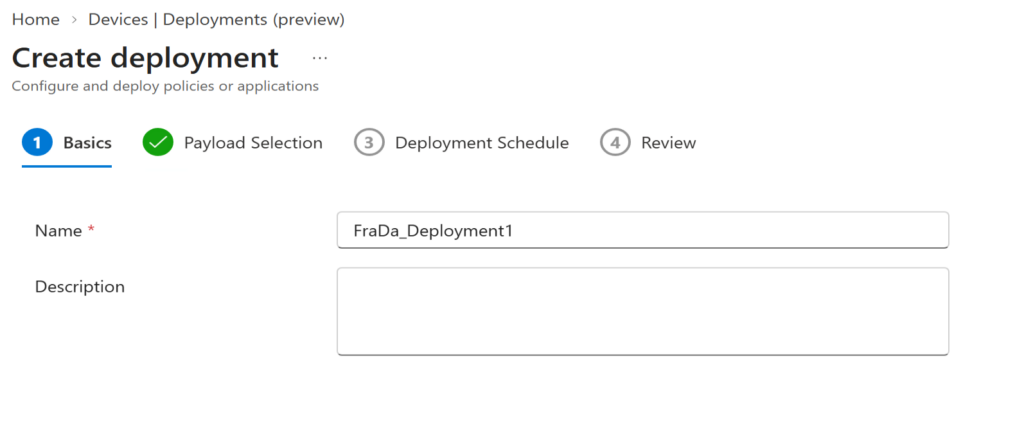
The deployment wizard also has four steps: Basics, Payload Selection, Deployment Schedule, Review.
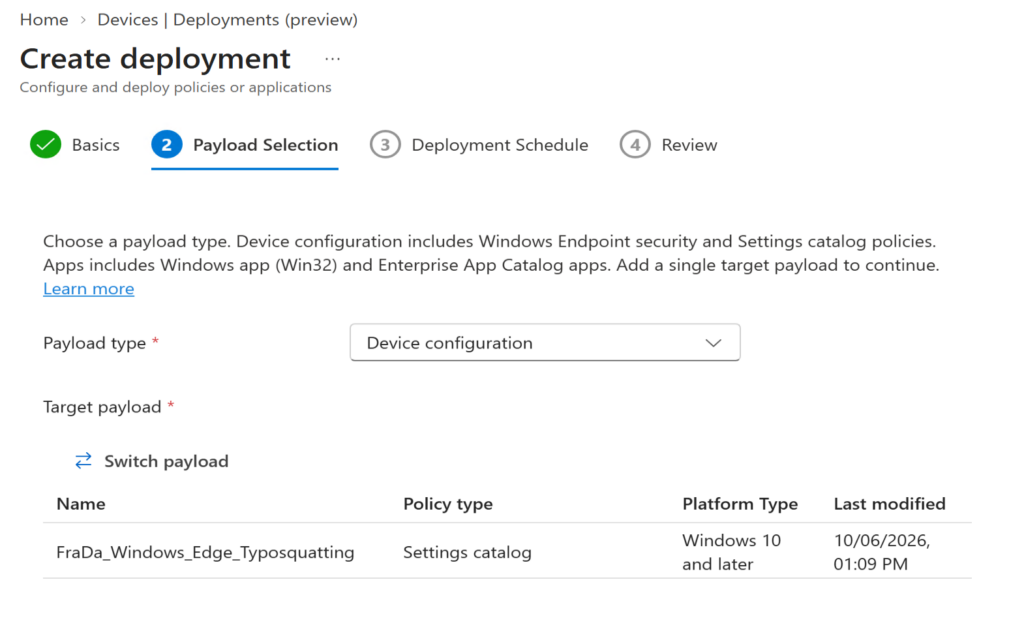
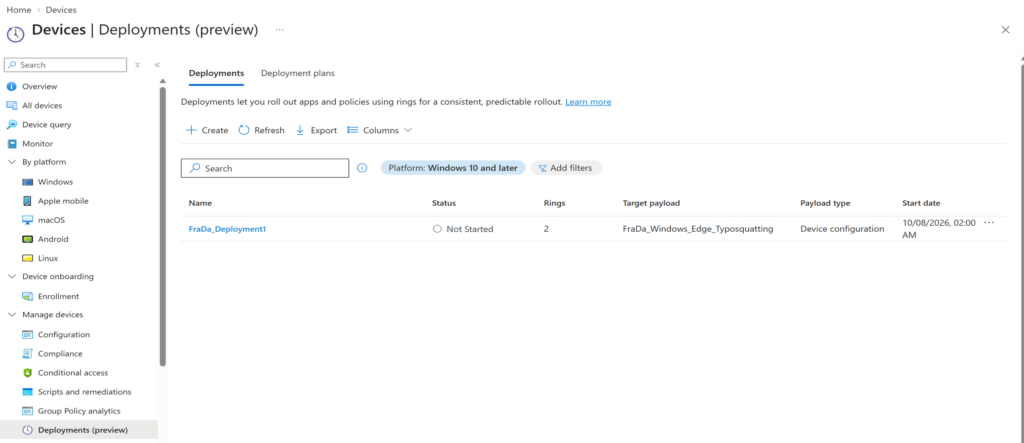
On Payload Selection you choose the payload type, Device configuration or App, and then exactly one payload. For my test I used a Settings catalog policy that configures Edge typosquatting protection.
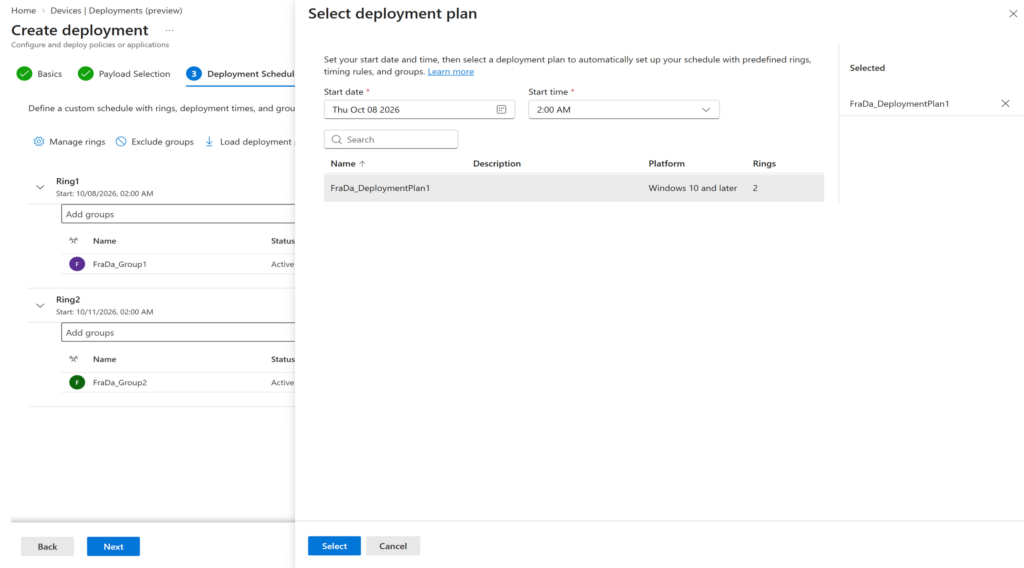
On Deployment Schedule you select Load deployment plan, set the Start date and Start time for the first ring and pick your plan.

After loading, the rings show their calculated start dates. In my case Ring1 starts on October 8 at 2:00 AM and Ring2 three days later on October 11. At this point you can still adjust groups and assignment filters for this specific deployment without touching the plan.
Then comes the Review page, with a banner you should take seriously.
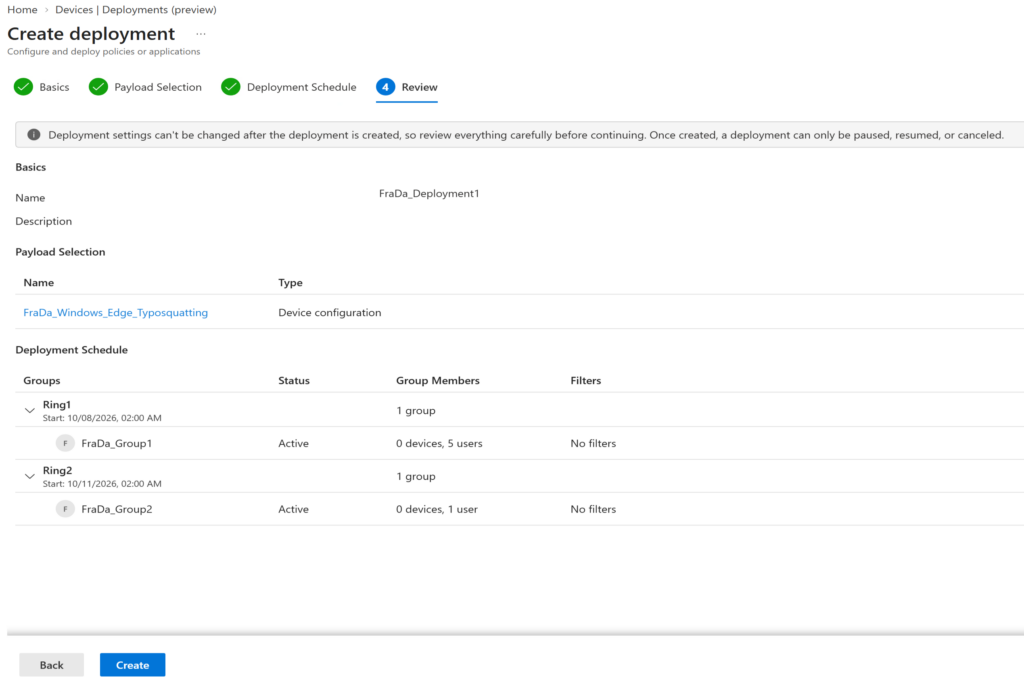
After you click Create, the deployment appears in the list with the status Not Started until the first ring activates.
⚙️ What a deployment actually does to your payload
This is the part I wish had been on the first slide. A deployment does not have its own assignment engine. It edits the assignments of your app or policy as each ring activates. That is all it does, and it explains almost every behavior and every trap.
- Assignments are cumulative. When Ring 2 activates, its groups are added to the Required assignments of the payload. Ring 1 groups stay.
- Existing assignments stay. If the payload already had Required assignments before the deployment started, they remain and the ring groups are added on top.
- The virtual group ring is special. A ring with All users or All devices is automatically the final ring, and you cannot mix virtual groups and Entra security groups in the same ring. When that ring activates, the virtual group replaces the previous Required include-group assignments of the payload. Exclude assignments are preserved.
- The payload stays the source of truth. Direct changes to the payload assignments take precedence over the deployment.
So with a final All devices ring, your app ends up with one clean All devices assignment instead of a growing list of ring groups. That is a nice side effect. It also means the deployment is cleaning up assignments you might have added for a different reason.
⚠️ The traps I would plan around
🔓 The payload is not locked. A deployment does not freeze the app or policy. If you change the payload while the rollout is running, every group that already has it gets the change at the next device check-in, and the next ring gets the updated version. A staged rollout of version 1 is not a staged rollout of the change you make on day two. If you need to roll out a modified setting in stages, the clean way is a new payload (a copy of the policy or a new app version) in its own deployment, not an edit to the one that is already rolling. A payload can only be part of one active deployment anyway, and the assignments from earlier rings stay on it.
⏪ Cancel is not rollback. Canceling a deployment stops future rings. It does not remove the assignments that completed rings already added to the payload. Pause behaves the same way: progression stops, existing assignments remain. If something breaks in Ring 1, pausing protects Ring 2, but Ring 1 is still yours to clean up in the payload properties.
⏱️ Time is the only gate. Rings progress based on date and time. There is no health signal, no failure threshold, no automatic stop when installation errors pile up. The deployment keeps going until you pause it. Someone has to look at the results between rings, and that someone needs to know it is their job.
🧱 Immutable after Create. Once created, you can change the name and description. Payload, ring names, schedule, groups and scope tags are fixed. Wrong group in Ring 2? Cancel, fix the leftovers on the payload, create a new deployment.
💥 Assignment collisions pause the rollout. If the same group is assigned directly on the payload and also in a deployment ring, Intune flags it at creation. If the collision only shows up when a ring activates, for example because someone added that group to the app in the meantime, the deployment goes into an error state and pauses. Remove the group from the payload assignment and resume.
👤 All users is not All devices. This one is my own reading, not something the documentation spells out as a warning. Because the virtual group ring replaces the previous Required include assignments, a device-targeted payload that ends with an All users ring loses its device group assignments when that ring activates. For devices without a signed-in user, shared devices or kiosks, that can be a real difference. Pick the virtual group that matches how the payload was targeted before.
🗑️ Deleted groups. A permanently deleted group in an activating ring puts the deployment into an error state, and you have to cancel or delete it. A soft-deleted group can be restored within the 30 day window and the deployment resumed. Plans with deleted groups show a banner and cannot be saved until you clean them up.
📋 What is supported in the preview
| Platform | Payload category | Supported payloads |
|---|---|---|
| Windows 10 and later | Device configuration | Settings catalog, Endpoint security policies |
| Windows 10 and later | Apps | Windows app (Win32), Enterprise App Catalog apps |
A few more limits worth knowing:
- Required only for apps. Win32 and Enterprise App Catalog apps support only the Required intent. Available and Uninstall are not supported.
- Enterprise App Catalog updates. Update with supersedence works, Automatically update is not supported with deployments.
- One payload, one active deployment. A deployment delivers exactly one payload, and a payload cannot be part of more than one scheduled or active deployment.
- Minimum ring interval. At least one hour between rings.
- No other platforms yet. macOS, iOS and Android are not part of the preview.
🔐 Permissions, scope tags and Multi Admin Approval
Deployment plans have their own permission (Create, Read, Update, Delete). Built-in roles like Policy and Profile Manager, Application Manager, Endpoint Security Manager and School Administrator get full CRUD, Read Only Operator and Help Desk Operator get Read.
Deployments themselves have no dedicated permission. To create one you need Read and Assign on the payload category: Device configurations for policies, Mobile apps for apps. Which makes sense, because a deployment is really just a timed assignment.
Scope tags follow the same logic. You can tag plans, but not deployments. An admin only sees deployments whose payload is in their scope.
If you use Multi Admin Approval, deployments respect it. Create, Resume, Cancel and Delete trigger the approval flow when an access policy protects the payload type. Pause is not in that list, which is exactly how I would want it: stopping a bad rollout should not wait for a second admin. One preview quirk: a deployment waiting for approval does not show up in the Deployments list until it is approved. You find it in the Multi Admin Approval view or under Admin tasks.
🧭 How I would start with it
- Define two or three standard plans, for example one for apps and one for security policies, and treat them as your rollout policy written down.
- Use dedicated ring groups. Do not reuse groups that are also assigned directly to payloads, or you will hit collisions.
- Clean up existing assignments first when you move an existing app into a deployment, so you know what the final state will look like.
- Put the review between rings in someone’s calendar. The deployment will not stop on its own.
- Freeze the payload during the rollout. Changes go into a new payload with its own deployment.
💭 Final Thoughts
Deployments and deployment plans fill a gap that has been in Intune for a long time. The setup is quick, the plan concept is exactly the right abstraction, and the cumulative assignment model is easy to reason about once you know it is just your payload’s assignment list being edited on a timer.
What it is not: a release gate. There is no health check between rings, no rollback, and edits to the payload bypass the staging completely. For a public preview that is fine, and I expect Microsoft to add more payload types and platforms over time. Until then, the three things I would keep in mind:
- The payload is the source of truth, not the deployment.
- Pause and cancel stop the future, they do not undo the past.
- The rings move on time, not on success.
A staged rollout is only as good as the person who checks Ring 1 before Ring 2 starts.
Leave a Reply