

A Temporary Access Pass (TAP) is one of those small things that comes up constantly. A user lost their phone and can no longer reach their MFA method. A new starter should onboard passwordless on day one and register their first passkey or FIDO2 key. Someone is migrating from the Authenticator app to a hardware key and needs a way to bootstrap the new method. In all of these cases the answer is the same: someone issues a TAP.
The TAP itself is not the problem. The problem is everything around it: who is allowed to issue one, and the oversized tool they have to use to do it.
EphemGate tackles this from two directions at once. It is not just a helpdesk tool. It ships two separate portals from a single repo: a Self-Service Portal where end users issue a TAP for themselves, and a Helpdesk Portal where authorized agents issue one on someone else’s behalf. The two cover different halves of the same problem, and together they handle the full TAP lifecycle without ever sending a user or an agent into the Entra admin center.
Why the obvious approach is the wrong one
To issue a TAP in the Entra portal, an agent needs a role like Authentication Administrator. Then they land in the admin center, open the Users blade, and pick the user. That sounds harmless. It is not:
- Depending on the role, they probably see quite a bit more than they actually need for this one task.
- The same permission typically lets them reset other users’ methods too, well beyond “issue a TAP.”
- And frankly, most helpdesk colleagues do not want to work in an admin console for this at all. The Entra portal is an admin tool, not something built for a person who performs exactly one action twenty times a day. Too many options, too much surface, too much room for mistakes.
So you hand out a fairly powerful role, drop a huge tool in front of someone, and hope nobody clicks the wrong button. That is the opposite of least privilege. The same logic applies to end users: you certainly are not going to give them an Entra role just so they can recover their own account.
Self-Service Portal: let users help themselves
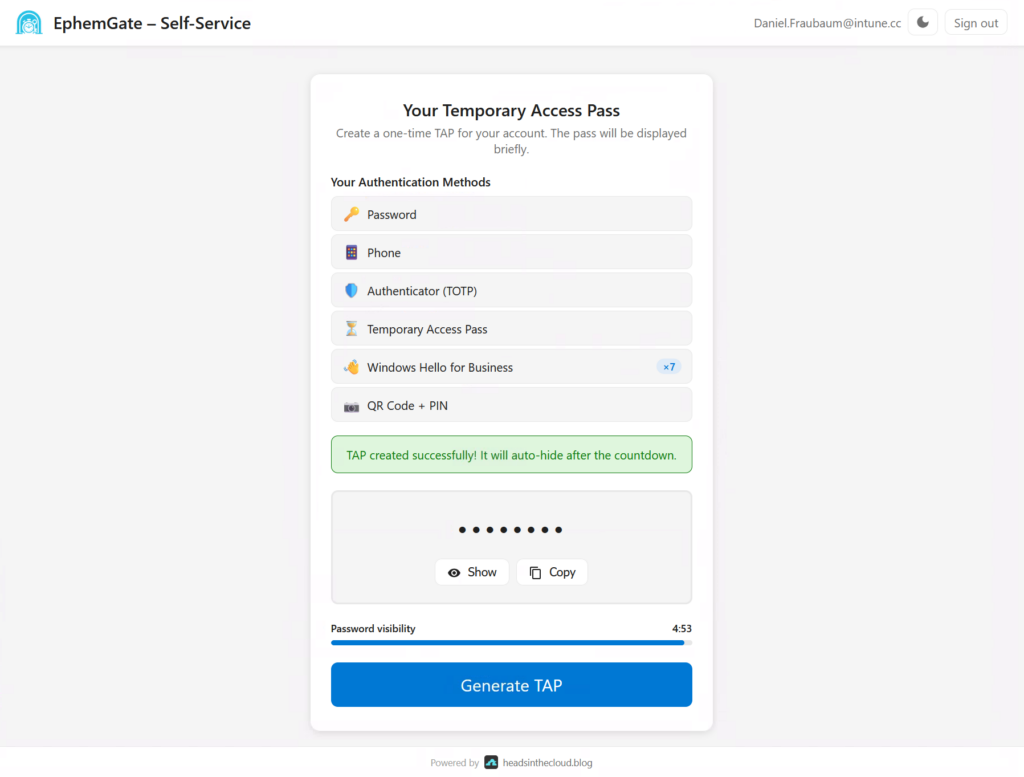
This is the half that usually gets forgotten, and it is the one that quietly removes the most tickets from the queue.
The Self-Service Portal is a single-page app where a user signs in (MFA required) and generates a TAP for themselves. The backend validates their token, reads the identity straight out of that validated token, and issues the TAP strictly for that same signed-in user. There is no user picker, because there is nothing to pick: a user can only ever act on their own account, never anyone else’s. The portal can also show the user their own registered authentication methods so they have some context for what they are about to do.
The natural question is “if a user has lost their MFA, how do they sign in to get a TAP in the first place?” The answer is that self-service is not meant for the fully locked-out case. It shines when the user can still authenticate with at least one method and needs to bootstrap a new one. Typical scenarios:
- Passwordless onboarding, where a user signs in once and uses the TAP to register their first passkey or FIDO2 key.
- Migrating to a hardware security key and needing a clean way to register it.
- Proactively grabbing a TAP before wiping or swapping a device.
For everyone who still has a working method, this takes the helpdesk out of the loop entirely. No ticket, no waiting, no agent involvement. And the fully locked-out case, where the user genuinely cannot get in, is exactly what the second portal is for.
The defaults here are deliberately conservative: a 60 minute TAP lifetime, single use, and the TAP is shown with a 5 minute display timeout before it auto-hides.
Helpdesk Portal: for the locked-out case, without the keys to the kingdom
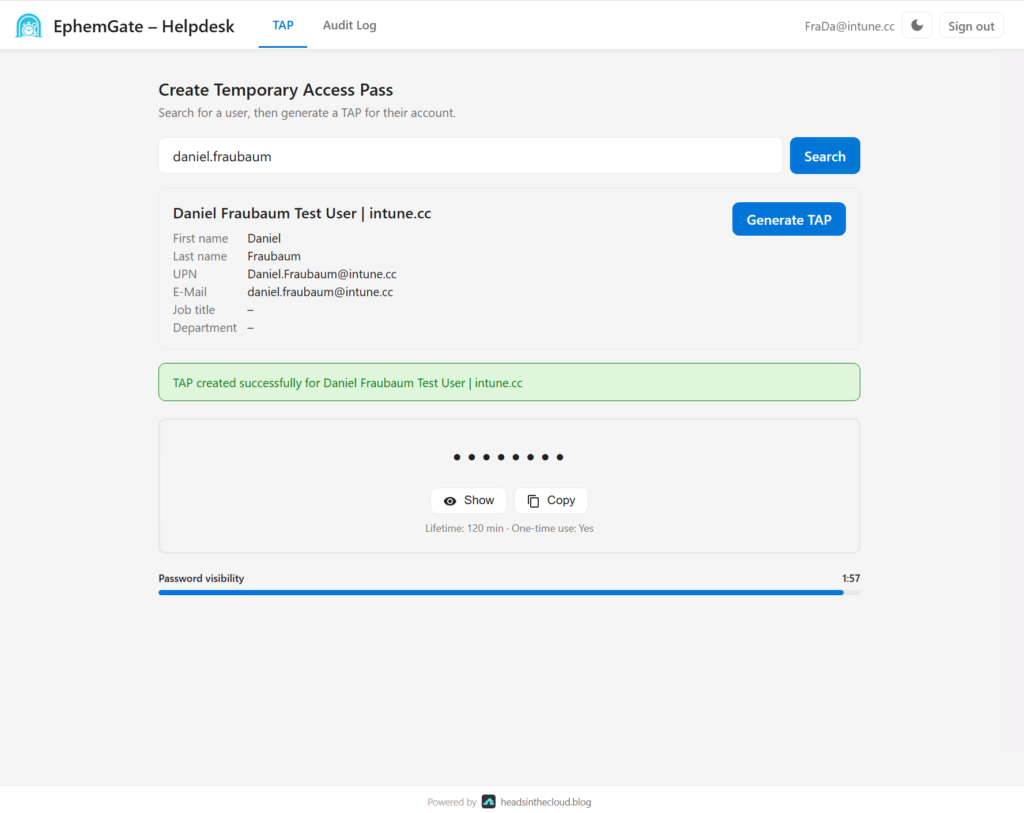
When a user cannot authenticate at all, an agent has to step in. The Helpdesk Portal gives them a deliberately tiny app that does exactly one thing: issue a TAP for a user.
The agent flow is three steps:
- Sign in (MFA required, App Role checked).
- Search for the user by UPN or display name.
- Click issue. The TAP appears with a countdown and auto-hides afterwards.
That is it. No Users blade, no sign-in logs, no twelve other admin options sitting next to it. One screen, one purpose.
The key point: the agent has no Graph rights of their own
This is the part that makes the architecture safe, and the part that is easy to overlook.
The helpdesk agent’s identity has no Graph permissions at all. It cannot issue TAPs, it cannot read auth methods, it cannot do anything directly in Entra. The actual application permissions live exclusively on the system-assigned Managed Identity of the backend Function App:
UserAuthenticationMethod.ReadWrite.AllUser.Read.AllDirectory.Read.AllRoleManagement.Read.DirectoryMail.Send
The agent never sees these rights and can never use them anywhere else. Authorization happens purely through an App Role in the JWT (Helpdesk.TapAdmin). The backend validates the token against Microsoft’s JWKS endpoint, checks for that role, and only then does the Managed Identity call Graph.
In practice that means even if a helpdesk account is compromised, the attacker holds no reusable Graph permissions. They can do exactly what the portal allows, which is fenced in (more on that below). They cannot drop into the admin center and start flipping switches, because the role to do so simply does not exist on that account.
If you want finer separation, there are two roles:
Helpdesk.TapAdmin: search users, issue TAPs, view the audit log.Helpdesk.TapViewer: read the audit log only, nothing else. Handy for a team lead or someone in security who wants to watch without being able to issue anything.
The helpdesk defaults differ slightly from self-service: a 120 minute TAP lifetime (an agent-assisted recovery often needs a bit more breathing room) and a shorter 2 minute display timeout, since the agent reads the TAP out and hands it over right away.
The guardrails
Anything that issues TAPs is security sensitive. A TAP is effectively a time-limited password that lets someone sign in and register new strong auth methods. That is exactly why there are several brakes built in, mostly on the helpdesk side where one person acts on behalf of another.
Privileged User Guard
Before a TAP is created in the Helpdesk Portal, the backend checks the target user. If they hold a privileged directory role (Global Administrator, Privileged Role Administrator, Privileged Authentication Administrator, Security Administrator, Application Administrator, Exchange Administrator, SharePoint Administrator, Conditional Access Administrator), the request is rejected with HTTP 403 and logged as BLOCKED_PRIVILEGED.
The reason: a TAP for a Global Admin would be a perfect privilege escalation path. A compromised or careless helpdesk account must never be able to build itself a route to an admin account. A BLOCKED_GROUP_IDS setting lets you block arbitrary groups of your own on top of that, for example service accounts or break-glass identities.
Rate limiting
Each agent is capped at 10 TAP requests per hour, and a target user can only have one active TAP at a time. Exceed that and you get HTTP 429. This catches both fat-finger mistakes and automated abuse. It is tracked in an Azure Table Storage.
Audit log
Every action lands in the audit log (Azure Table Storage), with agent UPN, target user, outcome (SUCCESS, DENIED, BLOCKED_PRIVILEGED, RATE_LIMITED, ERROR), client IP, and user agent. Both portals write their own log. Agents with the right role can browse and filter the log directly in the Helpdesk Portal, without jumping into Log Analytics or anywhere else.
Optionally, issuing a TAP can send an email to the target user so they know one was just created for them. That is a useful signal if someone receives a TAP they never asked for.
Zero secrets, because nobody enjoys rotation
The whole solution runs without any stored secrets:
- JWT validation via JWKS: the backend validates tokens against Microsoft’s public signing keys. No client secret needed.
- Graph via Managed Identity: both Function Apps use their system-assigned Managed Identity. No stored credentials.
- SPA login via PKCE: the frontends use MSAL.js with Authorization Code Flow plus PKCE. No secret there either.
The result: nothing expires, nothing needs rotating, and there is no secret that can accidentally end up in a repo or a log.
Locking down access
Two things round this out, and they apply to both portals. First, the Enterprise Application for each should have “Assignment required” enabled, so only explicitly assigned users or groups can sign in at all. Second, a dedicated Conditional Access policy per portal makes sense:
- Self-Service: MFA plus compliant device.
- Helpdesk: MFA plus compliant device plus a named location, so agents can only reach it from the corporate network.
That keeps the set of people who can even reach each tool tightly scoped, and the tools themselves can only ever do their one job.
Wrap-up
The real security problem with issuing TAPs is not the TAP. It is the permission you normally hand out to do it, and the oversized tool you do it in. EphemGate addresses both, from both ends. End users who can still authenticate help themselves through the Self-Service Portal and never generate a TAP for anyone but themselves. Agents handle the locked-out cases through the Helpdesk Portal without a single Graph permission on their own identity, with the rights cleanly encapsulated in the backend’s Managed Identity. The Privileged User Guard blocks escalation upward, and rate limiting plus the audit log keep the whole thing accountable.
Less to click through, fewer rights, smaller attack surface, and as a nice side effect, a much more pleasant experience for both users and helpdesk than the Entra portal ever was. The code and deployment scripts (a full Bicep deployment for the whole setup) are on GitHub: github.com/daniel-fraubaum/ephemgate.
Leave a Reply