

Every Conditional Access tenant I have reviewed in the last few years has the same smell. Forty, sixty, sometimes well over a hundred policies, and the break glass exclusion copied into every single one of them by hand. Change the persona group, touch twenty policies. Forget one, and you find out during an incident. Microsoft has now shipped an answer to that in preview: Conditional Access policy plans.
And it is only getting worse. Global Secure Access brings its own Conditional Access policies for traffic profiles and security profiles, and agent identities add another layer on top. Microsoft names both as reasons why the policy list keeps growing, and plans are their answer to that.
I spent a morning building a best practice setup in my lab tenant, ran the migration wizard against some of my own old policies and tried to break things on purpose. Plans are a real improvement for how you author and maintain Conditional Access. They also come with one design rule that is easy to miss and changes how you should slice your plans: as soon as a plan shares anything, client app types belong to the plan, not to the rule.
So here is the honest version: what a plan actually is, how I would structure one, where the preview bites, and how to migrate without a gap in enforcement.
🧩 What a policy plan actually is
A plan is a container for related Conditional Access rules. It is an authoring and change management layer, not a new enforcement engine. You find it in the Entra admin center under Entra ID > Conditional Access > Policy plans (Preview), right next to the classic policy list, which also greets you with a migration banner now.
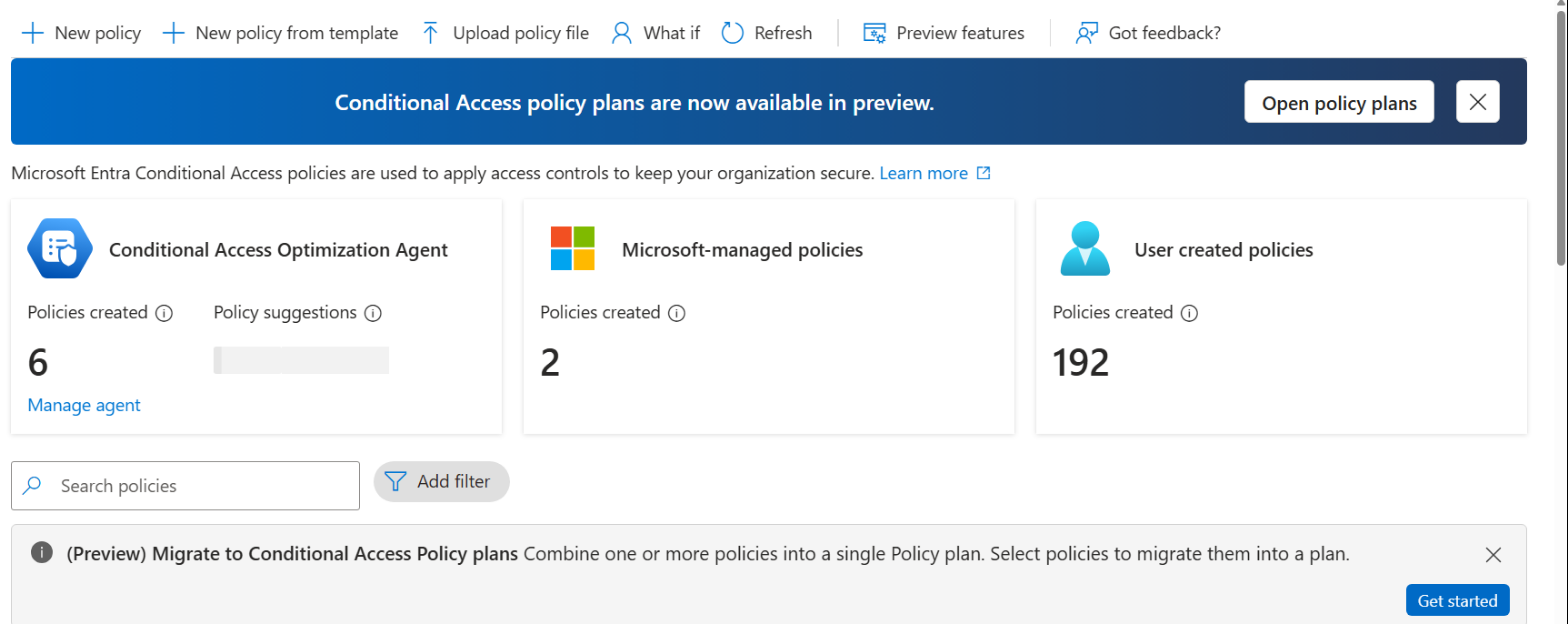
Every plan has three layers:
- Plan details: name, description, owners and tags. Owners are for accountability only, they do not grant any edit permission. None of this affects enforcement.
- Shared conditions: identities, resources and conditions defined once and inherited by every rule in the plan.
- Rules: the actual enforcement scenarios. Each rule adds its own assignments and conditions plus its grant or session controls. A plan needs at least one rule.
At sign in, Entra merges each rule with the plan’s shared conditions and evaluates that rule like a standalone policy. Every rule shows up separately in the sign in logs, so your troubleshooting workflow stays the same. Classic policies keep working and are evaluated side by side with plan rules. There is no precedence between them: everything that applies must be satisfied.
The inheritance rules are where it gets interesting:
| Setting | Plan level (shared) | Rule level |
|---|---|---|
| Specific users, groups, directory roles | Yes | Yes, adds to the plan |
| All users | No | Yes |
| All resources | No | Yes |
| Exclusions | Yes | Yes, they accumulate |
| Remove a plan exclusion | n/a | Not possible |
| Narrow the plan targeting | n/a | Not possible |
| Mix users and agents or workload identities | No | Yes, one identity type per rule |
| Grant and session controls | No | Yes, rules only |
Read that table twice. The two “not possible” lines are the whole point of the feature, and also its biggest risk. An exclusion at plan level cannot be forgotten by a rule. A wrong exclusion at plan level cannot be fixed by a rule either.
🏗️ My best practice: one plan per objective
The obvious way to use plans is to group by naming prefix: all CAU policies in one plan, all CAD in another. I would not do that. A shared prefix is not a shared intent, and shared conditions only make sense when they are true for every current and future rule in the plan.
My rule of thumb: a plan is an objective, a rule is a variation. Put into shared conditions only what defines the objective. Everything that varies belongs in the rules. For the lab I built three plans, all with the break glass group as shared exclusion and every rule in report-only:
| Plan | Shared conditions | Rules |
|---|---|---|
| FraDa – Baseline (All Users) | Exclude: break glass group | CA001: All users, all resources, authentication strength MFA CA002: All users, all resources, block device code flow and authentication transfer |
| FraDa – Privileged Access (Admins) | Include: Global Admin, Privileged Role Admin, Security Admin, CA Admin, Intune Admin Exclude: break glass group | CA101: Phishing-resistant MFA CA102: Compliant device CA103: Sign in frequency 4 hours |
| FraDa – Legacy Authentication (All Users) | Client app types: Exchange ActiveSync clients, Other clients Exclude: break glass group | CA003: All users, all resources, Block |
Notice what the baseline plan does not share: All users. That is not a design choice, it is the platform. All users is rule level only, so a baseline plan has an empty include at plan level and the rules carry the scope. The break glass exclusion still lives at plan level, which is exactly where I want it.
And yes, legacy authentication gets a plan of its own. Why that is not overkill but a requirement is explained further down.
Also notice the rule names. I kept my classic naming convention with IDs (CA001, CA101) on the rules. Plans add a grouping layer, they do not replace a naming scheme you can filter on in sign in logs and exports.
🛠️ Building it step by step
1️⃣ Plan details and shared identities
Policy plans (Preview) > Create plan. Give the plan a name that describes the objective, write the objective into the description and set tags you can filter on later. Then add the shared identities. For the baseline plan that is only the excluded break glass group.
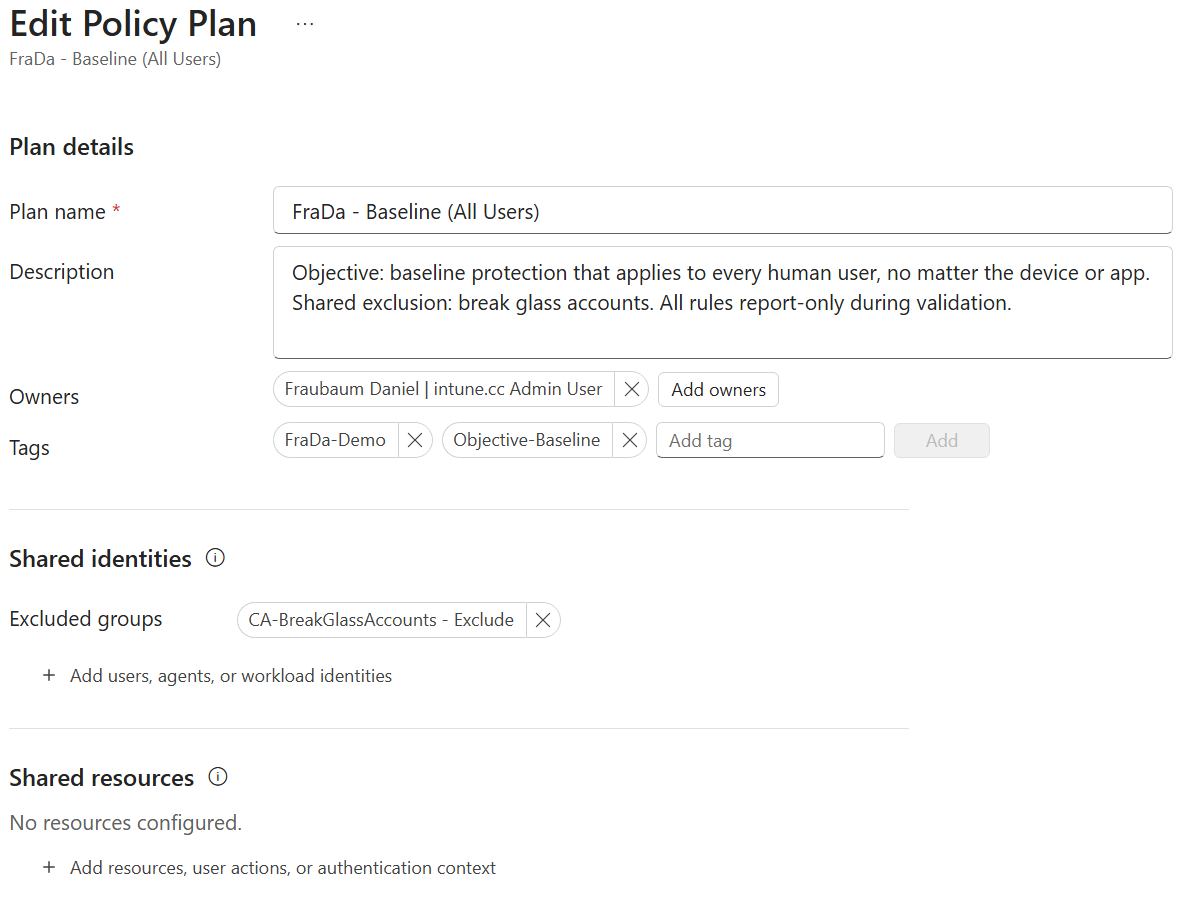
2️⃣ The first rule
The wizard forces you to define the first rule right away. Two details are worth a look. The state defaults to Report-only, and the inherited exclusion is shown with a link icon and cannot be removed inside the rule.

Then the usual Conditional Access work: All users, All resources and, my default for every MFA rule, an authentication strength instead of the plain MFA checkbox.

Additional rules are added later on the plan itself with Add rule. For CA002 I used the newer Authentication flows condition to block device code flow and authentication transfer for everyone. Phishing with device codes is far too popular to leave that open, and it fits perfectly into a baseline plan.
3️⃣ The privileged access plan
This is where plans really shine. The admin roles are defined once as shared included roles, together with the break glass exclusion. Every rule in this plan targets exactly the same population without anyone having to select eight roles three times.

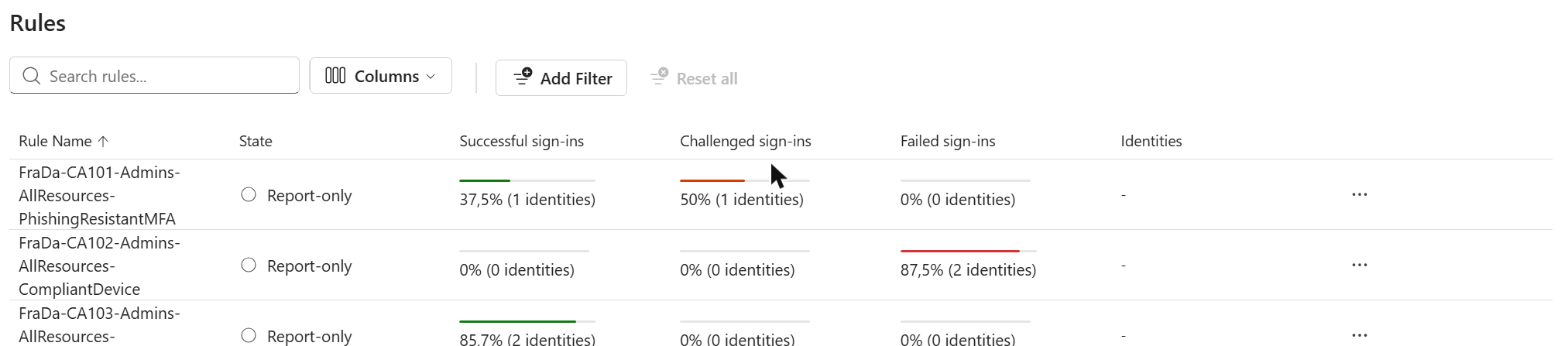
Three rules, three variations of the same objective: phishing-resistant MFA, compliant device and a four hour sign in frequency. On the plan overview you get the shared conditions on top and the rules below, including sign in statistics per rule once there is traffic.

🧷 Client app types: one setting per plan as soon as it shares anything
My first version of the baseline plan had a third rule: block legacy authentication. Classic pattern, All users, All resources, Client app types set to Exchange ActiveSync and Other clients, Block. Inside the baseline plan I could not build it. In the rule, Client app types was greyed out and showed “All” with the inherited link icon.

That is only half of the story, though. Plans created from templates behave differently, and that sent me back into the lab. I created a test plan from two templates at once, Block legacy authentication and Require MFA for all users. You can combine as many templates as you like, and just like the migration wizard, every rule is created Off. The preview already tells you what is going on: no conditions are shared, and each rule brings its own client app types.
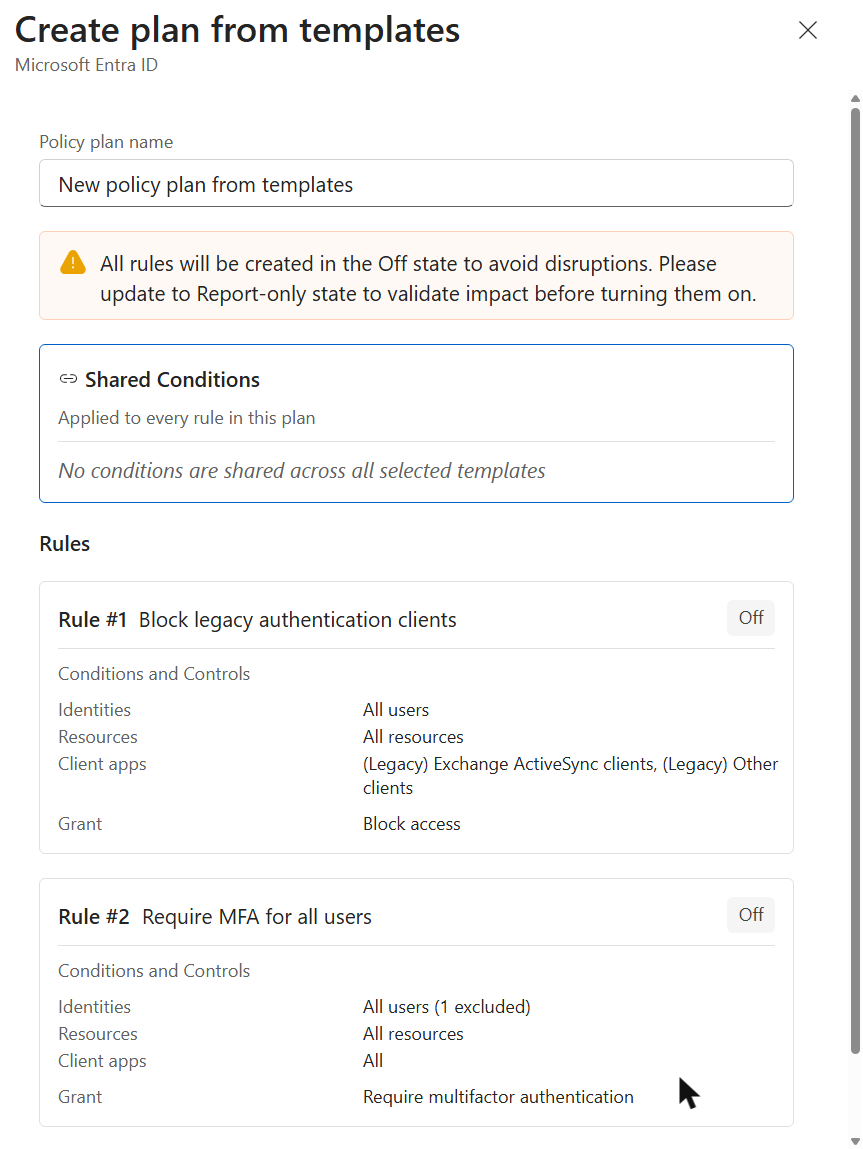
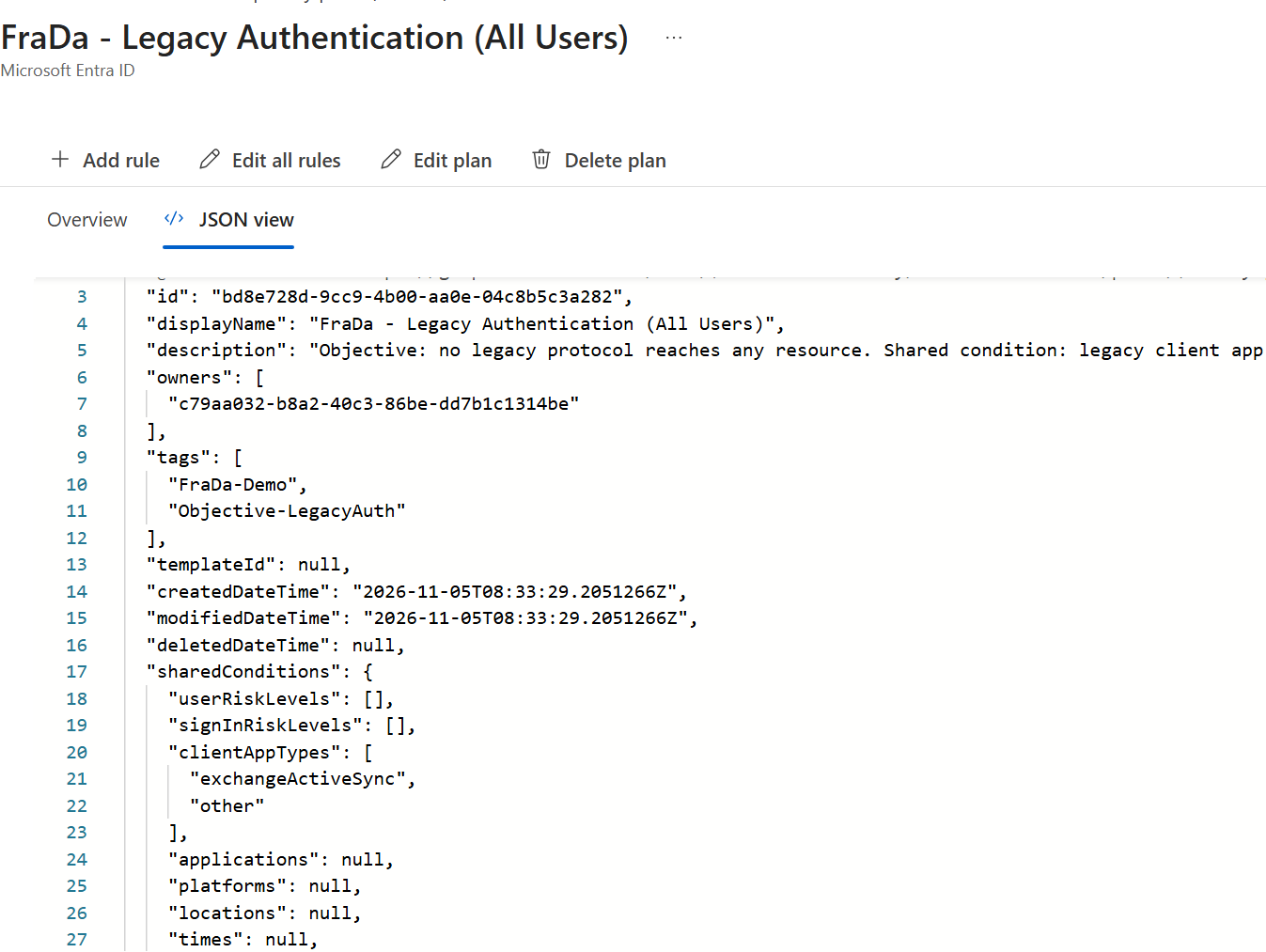
The JSON view confirms it: sharedConditions is null, and the client app types live on the rule. In this plan, Add rule lets me pick the client app types for every rule individually.

Then I did what every admin does next: I added the break glass group as shared exclusion and saved. The plan suddenly had shared conditions with client app types “All”, and I never set it. The reason sits in the Graph schema. clientAppTypes is a required property of a Conditional Access condition set. As soon as a plan has shared conditions at all, they need a client app type, and the portal fills in “All”. Remove it in Edit plan and save, and “All” comes back. Change it to another value, and it sticks.
From that moment on, client app types are locked in every rule. The legacy rule now shows the inherited “All” next to its own two legacy values, none of them can be removed, and in Add conditions the client app types entry is greyed out.
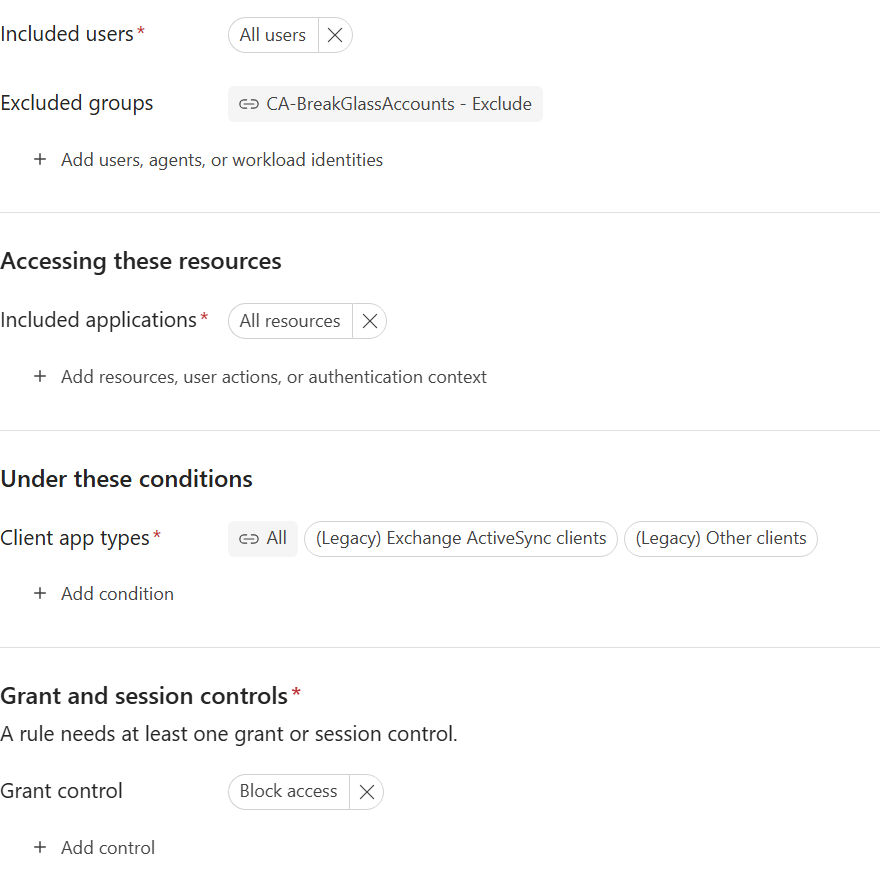
I ran this test with all rules Off, so I will not claim how the engine resolves “All” at plan level plus legacy types on the rule. Shared conditions are combined with each rule, so it should still end up as legacy only. But a mixed state that nobody can edit anymore is not something I want in a production plan.
The practical consequence: the moment a plan shares anything, client app type is a property of the whole plan. Every rule inherits it, no rule can change it. And sharing at least the break glass exclusion is the main reason to use plans in the first place.
So the legacy authentication block does not go into the baseline plan. It gets its own plan with the legacy client app types as shared condition:

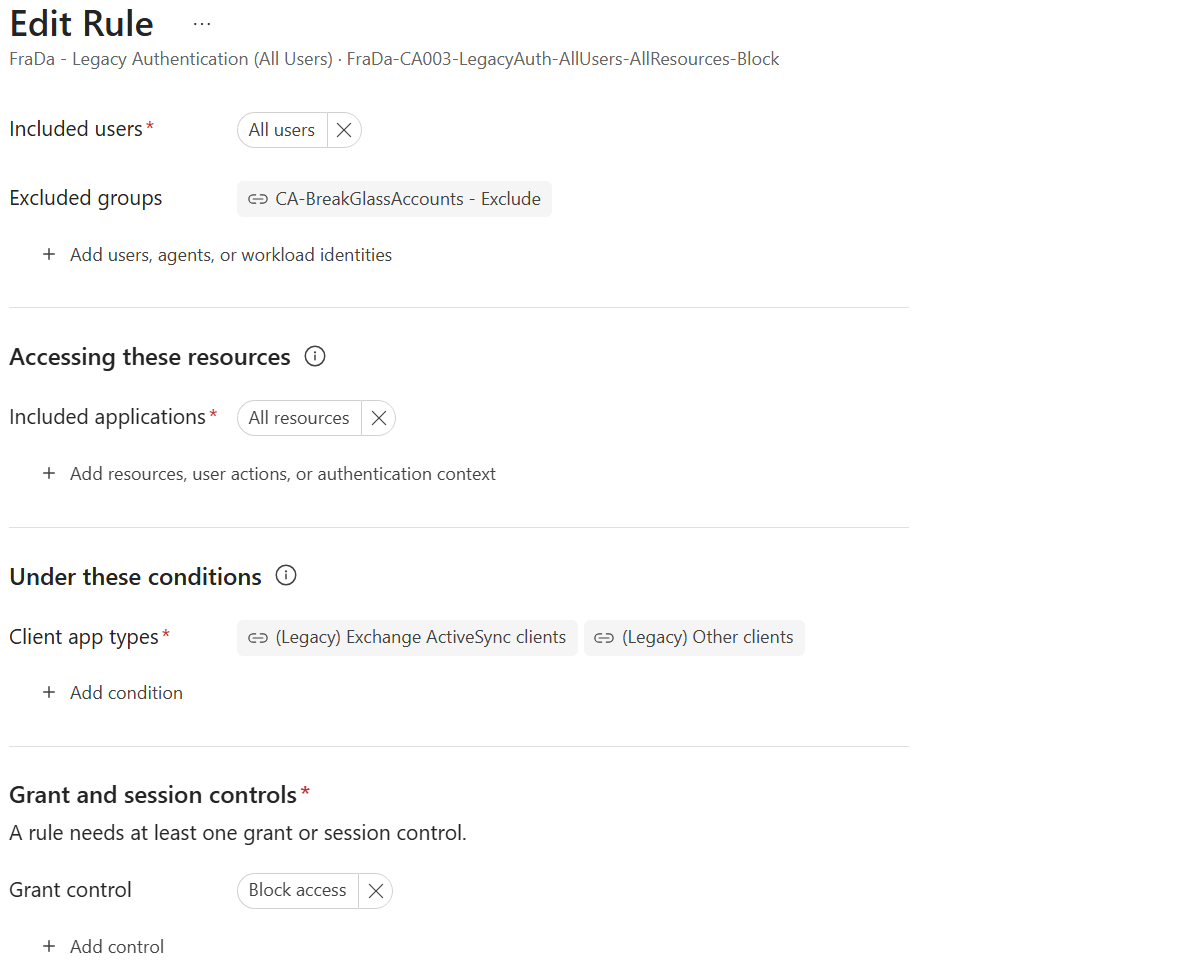
One small UI quirk: the Review + create page of the wizard lists the rule with Client apps “All”. Do not let that confuse you. The rule editor shows the inherited legacy types, and the JSON view of the plan shows what is actually stored:
A plan with a single rule feels like overhead at first. It is not. The plan name says exactly what it does, nobody can widen the client app types by accident inside a rule, and if you later add a second legacy scenario, for example a separate scope for guests, it inherits the right client app types automatically.
🎯 The flip side. Changing the client app types of a plan changes every rule in it at once. While testing, my baseline plan had “(Modern) Browser” instead of “All” for a while. Result: the MFA rule for all users only covered browser sign ins, and nothing in the portal warned about it. Report-only saved me here. In production that is a silent hole.
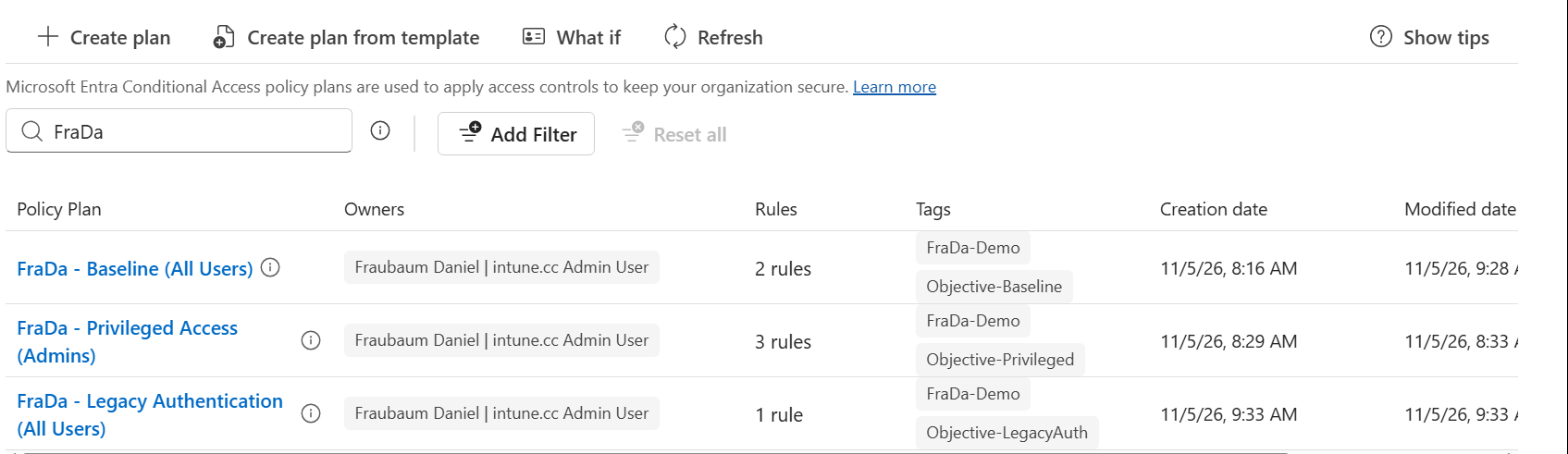
My rule of thumb: decide client app types when you design a plan, not when you add a rule. “All” for baseline and persona plans, the legacy types for a legacy authentication plan, “(Modern) Browser” for browser only scenarios like session controls on unmanaged devices.
⚠️ More gotchas before you go live
📍 Location rules and token lifetime. During the preview, plans that target users with a location condition issue one hour access tokens without the instant IP enforcement you know from continuous access evaluation. A user who leaves a trusted location can keep access for up to an hour. If your design depends on strict location enforcement, keep those rules as classic policies for now.
💥 Bigger blast radius. The flip side of “change once, apply everywhere”: a wrong group in the shared exclusions now opens every rule in the plan at once. Treat plan level changes like a change to five policies, because that is what they are.
🧯 Temporary exceptions. The classic “exclude this one service account from the MFA rule for two weeks” does not belong at plan level, because there it hits every rule. Put it on the rule, and be aware that you cannot undo a plan level exclusion there.
🗂️ Moving rules changes what they do. Click a rule in a plan and the details pane offers Edit, Move rule, Duplicate rule and Delete. In a plan with a single rule, Move and Delete are greyed out, because a plan always needs at least one rule. That is why my legacy authentication plan shows them disabled.
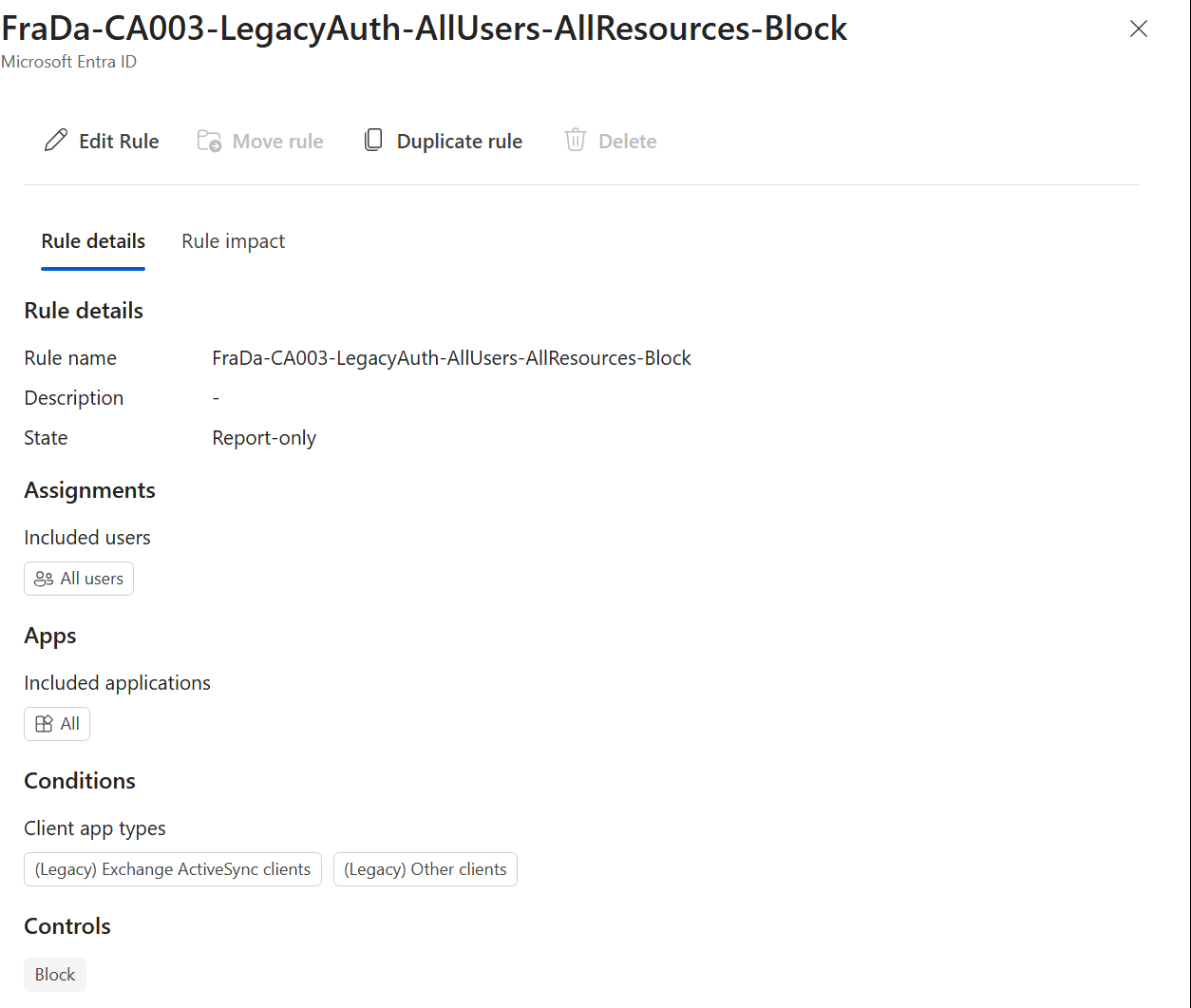
Move is the one to be careful with. The rule leaves its old shared conditions behind and picks up the ones of the target plan: exclusions, included roles and, yes, client app types. Move my device code rule from the baseline plan into the legacy authentication plan and it would suddenly only apply to legacy protocols. The dialog lists every plan in the tenant and says nothing about that.

💾 Backups and tooling. Plans live in their own endpoint, /beta/identity/conditionalAccess/plans. Any backup, export or drift detection that only reads conditionalAccess/policies does not see them. On top of that, a rule only stores its own settings, not the inherited ones. Back up plans and rules together or you restore a rule without its exclusions.
🔢 The policy limit question. After I added five rules, the Policy Snapshot on the Conditional Access overview still showed exactly the same total as before. That tells you how the overview counts, not whether rules count against the per tenant policy limit. The documentation does not answer that yet. If your tenant is close to the limit, do not assume plans buy you headroom.
🔄 Migrating existing policies without a gap
The migration wizard starts from the banner on the policies page: Get started, select the policies, Merge into a plan. The wizard does not suggest which policies belong together, that part is your job.
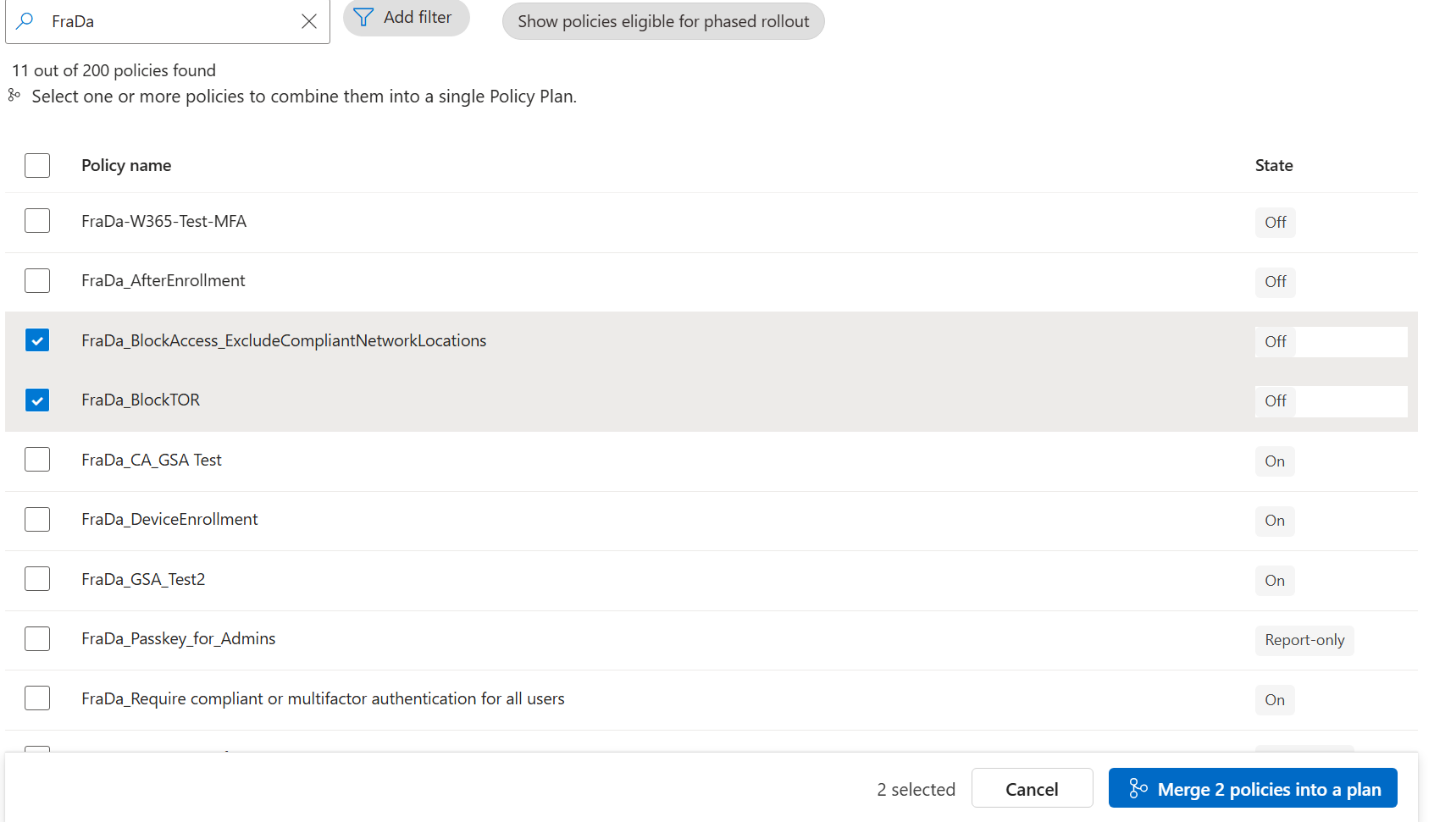
The preview is honest about what happens. Every policy becomes its own rule, every rule is created Off, the originals stay untouched, and only conditions that are identical across all selected policies move into the shared conditions. In my test with two block policies that was exactly one thing: Client app types “All”, which is no surprise after the template test above: as soon as anything is shared, client app types come along. Identities, resources and exclusions stayed on the rules because they were not identical. If the policies you merge use different client app types, they do not belong in the same plan anyway.
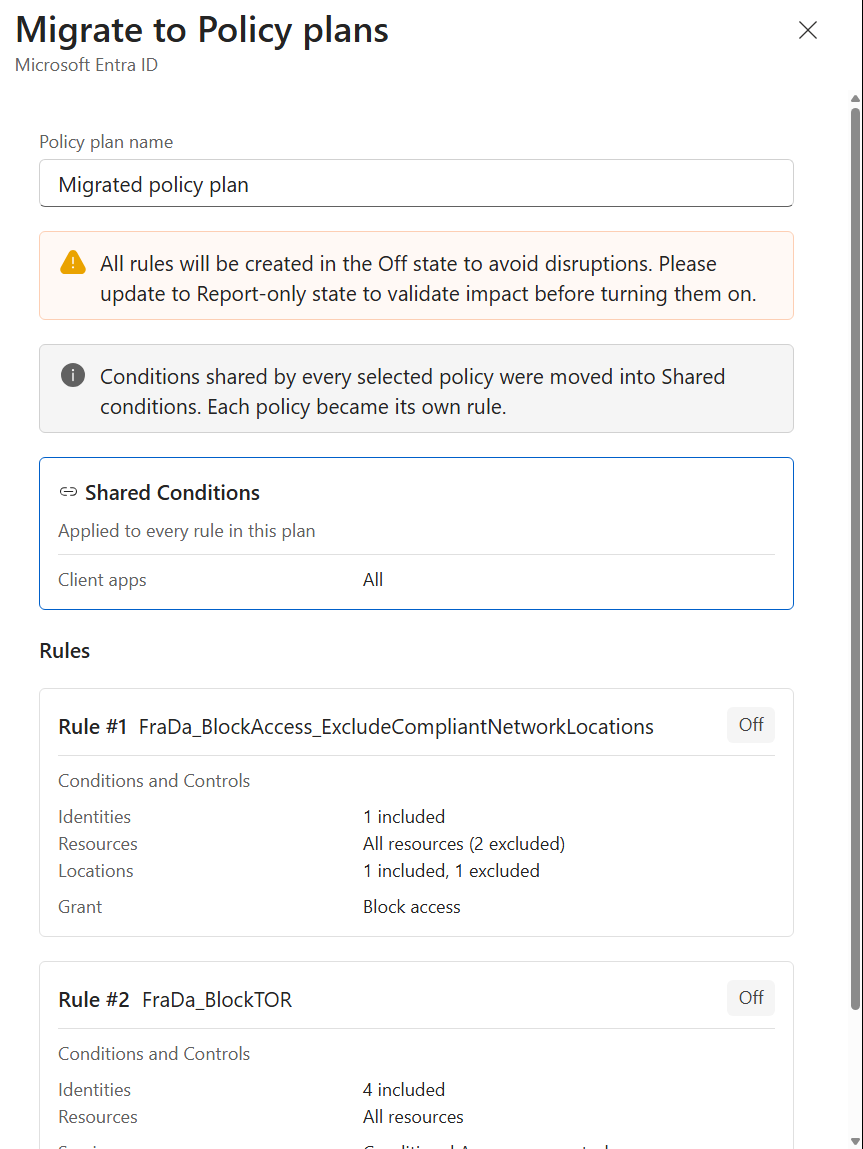
My migration sequence:
- Pick a small group by objective, not by prefix. Two to five policies that really share the same intent and the same client app types.
- Review the result, especially the exclusions. If the break glass exclusion stayed on the rules, move it to the plan manually and remove it from the rules.
- Set all rules to Report-only with Edit all rules and compare the report-only results in the sign in logs with the originals for at least a week.
- Do not touch the originals during validation, otherwise you compare against a moving target.
- Rules On first, originals Off second. The reverse order leaves a window without enforcement. The short overlap with double enforcement is the safer evil.
- Delete the originals after a validation period, with an export in your change ticket.

📋 Requirements
- Role: Conditional Access Administrator to create, edit or delete plans. Plan ownership does not replace the role.
- Licensing: the same as for Conditional Access itself. I have not found any additional requirement for plans.
- Status: public preview. Graph endpoints are beta and subject to change.
- Break glass: a dedicated, cloud only exclusion group for your emergency accounts. If you do not have one yet, fix that first, plans make it even more central.
💭 Final Thoughts
Policy plans fix a real problem. Copying exclusions and role selections into dozens of policies was always the weakest part of every Conditional Access design, and the privileged access plan alone shows how much cleaner this gets. For new tenants I would start with plans from day one, structured by objective.
For existing production tenants I would take it slower:
- Start with one plan where the shared conditions are obvious, privileged access is the perfect candidate.
- Give legacy authentication its own plan, and keep location based rules standalone until the preview limitations are gone.
- Do not migrate anything your backup tooling cannot see yet.
Plans do not reduce the number of decisions you make in Conditional Access. They reduce the number of places where you can forget one.
Leave a Reply