

For years, Remote Help was the remote support tool that looked great on every Intune Suite slide and rarely made it into production. It cost extra per user, and on Windows it had one hard requirement that made it useless for half the tickets in a helpdesk queue: somebody had to sit in front of the machine and accept the connection.
Both excuses are gone now. Remote Help is moving into Microsoft 365 E3 and E5, and with the August 2026 Intune release Windows finally got unattended support with remote sign-in. Time to take another look, and this time properly.
This post covers the whole thing in the order I would build it: licensing, tenant setup, app deployment, RBAC, a Conditional Access design that actually holds up, attended sessions, and then the unattended part, which quietly pulls the Azure Virtual Desktop agent onto your physical endpoints. I went through all of it in my lab.
🧭 What Remote Help actually is
Remote Help is the cloud based remote support tool built into Intune. The difference to Quick Assist is not the screen sharing, it is everything around it: both parties authenticate with Entra ID, the helper’s permissions come from Intune RBAC, Conditional Access applies, the helper gets a warning when the device is non-compliant, elevation works through UAC, and every session lands in the Intune audit log. Before a session starts, both sides also see each other’s organizational profile with name, job title and verified domain, which takes a lot of the air out of the classic fake support call.
| Mode | What the helper can do | Typical use |
|---|---|---|
| View only | See the screen, use pen and laser pointer | Walking a user through something |
| Full control | Mouse and keyboard in the user’s session | The classic helpdesk fix |
| Elevation | Answer UAC prompts with admin credentials | Installs, drivers, anything that needs admin rights |
| Unattended | Connect without user consent (Windows: separate remote sign-in session, Android: dedicated devices) | Devices nobody is sitting at |
| Client | Platforms | Notes |
|---|---|---|
| Windows app | Windows 10 and 11, Windows 365, Azure Virtual Desktop, on x86, x64 and ARM64 | Full feature set including elevation and Remote Launch |
| macOS app | macOS 13 or later | View only and full control, no elevation |
| Android | Android Enterprise dedicated devices (Samsung Knox, Zebra) | Unattended control for kiosk style devices |
| Web app | Any modern browser | Security code based. A browser helper gets view only and full control on macOS and Android sharers, a sharer in the browser only gets view only |
A helper on the native Windows app can only help Windows sharers. Anything cross platform goes through the web app.
💳 Licensing: what changed this summer
Until now, Remote Help was a per user add-on, either standalone or as part of the Intune Suite. Microsoft is folding a set of Intune Suite capabilities into the enterprise bundles, and Remote Help is one of them: it is now part of Microsoft 365 E3 and E5. The rollout started in July 2026, so do not panic if it does not show up in your tenant on day one.
Two things people get wrong. First, the license is needed for every user who takes part in a session, helpers and sharers alike, not just your helpdesk. Second, assign it through groups, and for the helpers reuse that same group in the RBAC assignment later, so licensing and permissions never drift apart. Beyond the license you need Intune Plan 1 or higher, devices registered in Entra ID, and helpers, sharers and devices in the same tenant.
If you are not on E3 or E5 yet, a trial is available under Tenant administration > Intune add-ons.
⚙️ Step 1: Enable Remote Help in the tenant
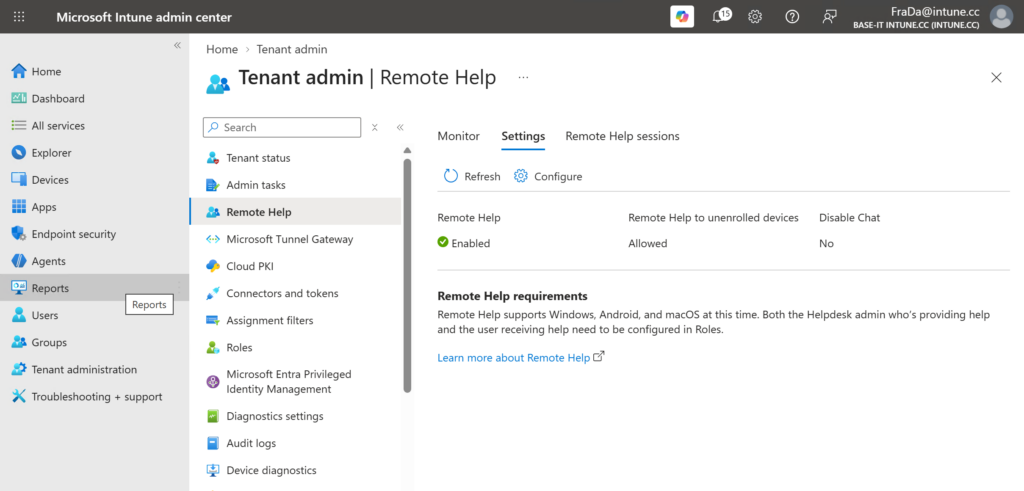
Everything starts in Tenant administration > Remote Help > Settings. If you already run attended Remote Help, this is done and you can move on. If not, set Enable Remote Help to Enabled, which is off by default.
The other two switches matter for attended sessions only. Allow Remote Help to unenrolled devices is off by default, and I would leave it off unless you have a real use case, because auditing for unenrolled devices is limited. Disable chat is set to No by default, so in session chat is available. Neither has any effect on unattended sessions, which only work against enrolled devices and have nobody on the other end to chat with.
📲 Step 2: Deploy the Remote Help app
For attended sessions, both sides need the Remote Help app. For unattended sessions the target device does not, more on that later. Assign the app to device groups, not user groups.
Enterprise App Catalog
With E5, Enterprise App Management becomes part of the bundle too, and Remote Help is in the Enterprise App Catalog. Apps > All apps > Create > Enterprise App Catalog app, pick Remote Help, assign it as required to your device groups, done. Updates come through the catalog as well, which is the main reason I prefer this route.
Win32, the classic way
Without the catalog you wrap remotehelpinstaller.exe yourself:
Install:    remotehelpinstaller.exe /quiet acceptTerms=1
Uninstall:  remotehelpinstaller.exe /uninstall /quiet acceptTerms=1
Detection:  File C:\Program Files\Remote Help\RemoteHelp.exe, version greater than or equal to <file version of RemoteHelp.exe>
Three things that bite. acceptTerms and enableAutoUpdates are case sensitive. Add enableAutoUpdates=0 only if you really want to own the update cycle yourself. And for the detection rule, use the file version of the installed RemoteHelp.exe, not the version the installer reports: the two numbers do not match, and a rule built on the installer version never detects anything. Running (Get-Item "$env:ProgramFiles\Remote Help\RemoteHelp.exe").VersionInfo on a test device gives you the right value. The installer also adds the Microsoft Edge WebView2 Runtime if it is missing.
If your Windows Firewall restricts outbound traffic, allow RemoteHelp.exe, RHService.exe and RemoteHelpRDP.exe. Network wise everything goes out over 443 to remotehelp.microsoft.com plus the Azure Communication Services endpoints used for chat. Exclude those from SSL inspection.
macOS and Android
On macOS you deploy the PKG and preconfigure the Accessibility and Screen Capture permissions with a Privacy Preferences Policy Control profile from the settings catalog, otherwise the first session starts with the user clicking through system dialogs. Android runs through Managed Google Play and only covers dedicated devices, with OEMConfig permission profiles on Zebra and Knox plus display overlay permission on Samsung.
🛡️ Step 3: Build the RBAC roles
Remote Help permissions are stacked: Elevation includes Take full control, which includes View screen. On their own they do nothing. Every helper also needs Remote tasks > Offer remote assistance and Remote Assistance Connector > Read. The built in Help Desk Operator role covers all attended permissions, which is fine for a quick start and too broad for most real environments. This is the split I would build:
| Custom role | Remote Help permission | Who gets it |
|---|---|---|
| Remote Help Support | View screen, Take full control | First level helpdesk |
| Remote Help Elevation | Elevation | A small second level group |
| Remote Help Unattended | Windows unattended control remote sign-in | Tier 2 or 3 only, see below |
All three also carry the two base permissions. Permissions are enforced server side when the session is set up, so a helper cannot work around a missing permission on the client.
The unattended role
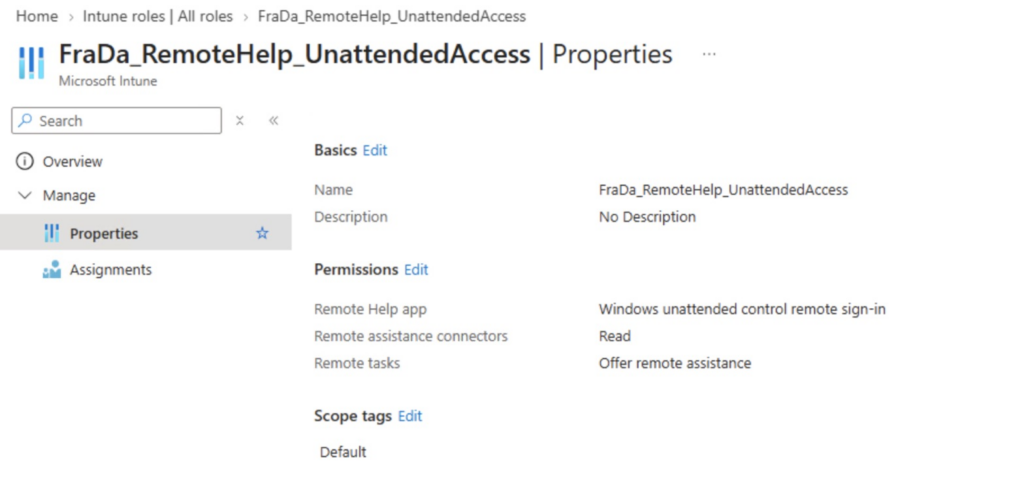
This is the part I would spend the most time on. The capability hangs off a single dedicated permission, Remote Help app > Windows unattended control remote sign-in, and it exists in no built in role whatsoever. Help Desk Operator does include Android unattended control, which is easy to mix up, but not the Windows permission. You have to create a custom role.
Go to Tenant administration > Roles > All roles > Create and build a role that contains the permissions below. Remote Help needs a combination, not just the one permission, which trips people up on the first attempt.
| Permission | Why it is needed |
|---|---|
| Remote Help app > Windows unattended control remote sign-in | The actual unattended capability |
| Remote Tasks > Offer remote assistance | Allows the helper to start a session at all |
| Remote Assistance Connector > Read | Lets the helper see that Remote Help is configured for the tenant |
I deliberately leave View screen, Take full control and Elevation out of this role. Those belong to the attended scenario and to a different, broader group of people. Keeping the unattended role clean means a role assignment review later is a two minute job rather than an archaeology project.
Scoping the assignment
The role itself is only half the control. The assignment is where you decide which devices this actually reaches. On the role assignment, put your Tier 2 or Tier 3 support group in the admin group, and then scope it to the specific device groups that are allowed to receive unattended support. Assigning All devices here defeats the entire purpose of the separate permission.
For helpdesks spread across sites, combine scope groups with scope tags, so a helper in Vienna only ever sees the Vienna devices. If you already use Autopilot group tags, dynamic device groups on those tags give you that split almost for free.
My recommendation for a real environment: start with a pilot device group, keep the helper group tiny, and only widen the scope once you have seen the session behavior in front of a real user.
🔐 Step 4: Conditional Access, done properly
This is the part I find most interesting, because the documentation sends you in two directions at once. The deployment guidance tells you to exclude Remote Help from your policies, the planning guidance tells you to protect helpers with MFA and compliant devices. Both are right, for different people, and you only get there with more than one policy.
Helpers now hold an account that can reach interactive sessions on managed endpoints at scale. That account deserves the same treatment as any other privileged identity: phishing resistant MFA, a compliant device requirement, and just in time access rather than a permanent assignment. Intune RBAC roles cannot be activated through PIM directly, so put the helper group into PIM for Groups and assign the role to that group.
Creating the service principal
To reference Remote Help in a Conditional Access policy, the service principal has to exist in your tenant first. It is not there by default. The documentation walks you through Graph PowerShell, but for a single one off call like this I reach for Graph Explorer instead. No module install, no session to keep track of, and you see the raw response.
Sign in to Graph Explorer with an account that can consent, grant yourself Application.ReadWrite.All on the Modify permissions tab, and fire this off:
POST https://graph.microsoft.com/v1.0/servicePrincipals

{
    "appId": "1dee7b72-b80d-4e56-933d-8b6b04f9a3e2"
}
A 201 comes back with the full object, and the displayName in the response confirms you hit the right one: RemoteAssistanceService. That app ID is the backend service behind Remote Help. If you want to check whether it already exists before you post anything, this tells you in one call:
GET https://graph.microsoft.com/v1.0/servicePrincipals?$filter=appId eq '1dee7b72-b80d-4e56-933d-8b6b04f9a3e2'Once the service principal exists it shows up as RemoteAssistanceService in the Conditional Access resource picker, and you can include or exclude it in your policies like any other cloud app.
A policy design that holds up
The trick is to separate helpers from sharers. A sharer whose device is broken or non-compliant is exactly the person who needs help, so a blanket compliant device policy must not lock them out of Remote Help. A helper, on the other hand, holds a privileged capability and deserves the strictest policy you have.
| Policy | Users | Target resource | Grant and session |
|---|---|---|---|
| Baseline | All users | All resources, excluding RemoteAssistanceService | Require compliant device |
| Helpers | Remote Help helper group | RemoteAssistanceService | Compliant device plus phishing resistant authentication strength, sign-in frequency Every time |
| Sharers (optional) | All users | RemoteAssistanceService | MFA only, no device requirement |
The exclusion on the baseline applies to everyone in that policy, you cannot exclude RemoteAssistanceService for some users only. That is why the helper requirements live in their own policy. Sign-in frequency Every time makes sure every session starts with a fresh authentication instead of a token from this morning.
Two details that catch people. Conditional Access for Remote Help works on Windows and macOS only, Android sessions are not gated at all. And the compliance of the target device never blocks a session, it only shows the helper a warning banner. The device Conditional Access evaluates is the helper’s own. Which also means your helpdesk staff are end users too: if their laptop drifts out of compliance, the helper policy locks them out of Remote Help until it is fixed.
You could call PIM for Groups plus a strict Conditional Access policy belt and braces. For a capability that lands you on any device in scope, I take both: PIM decides who is a helper right now, Conditional Access decides how they prove it.
⚠️ Check which sign-in your policy actually sees. The service principal covers the attended flow. For an unattended session, the helper signs in to the Windows App web client, and that sign-in does not show up as RemoteAssistanceService. Microsoft says it plainly: Conditional Access for Remote Help only applies to sessions an end user accepts, not to unattended access. In my tenant the unattended sign-in shows up as Windows App – Web against Microsoft Graph instead, so a policy scoped only to RemoteAssistanceService never fires for it. Run one test session, open the helper’s sign-in log entry and look at the application and resource it was evaluated against. Then make sure the helper accounts are also covered there, ideally by a policy on All resources with phishing resistant MFA and a compliant device.

When a session gets blocked
Open the Entra sign-in logs, filter for RemoteAssistanceService and look at the Conditional Access tab: which policy applied, which grant control failed. Keep in mind that compliance changes take a while to reach Conditional Access, and an existing token can carry a helper through a session even after their device has gone non-compliant.
🤝 Attended sessions in practice
There are two ways into an attended session. The comfortable one is Remote Launch from the Intune admin center: open the device, choose New remote assistance session > Remote Help, and the user gets a notification to join. That requires an enrolled device with a healthy Intune Management Extension, and it is the moment you find out who runs Do Not Disturb or Focus mode, because both hide the notification. On Azure Virtual Desktop multi-session hosts I would skip Remote Launch entirely, since the notification can reach every user on that host.
The other way is the security code. The helper generates a code in the app and reads it out, the user types it into their Remote Help app, and the code expires after ten minutes. It works everywhere, also on unenrolled devices if you allowed them, and it is the only option for the web app.
If you need cross platform support or just a quick look without installing anything, there is a browser experience: sharers browse to aka.ms/rh, helpers to aka.ms/rhh. It works with the security code. If the sharer is the one in the browser, the helper only gets view only. A helper in the browser can still take full control of a macOS or Android device that shares from its native app. Keep it apart from unattended, which runs through a completely different browser client, the Windows App web client. Different URL, different session model, different permissions.
Elevation and the black screen
When a UAC prompt appears, it runs on the secure desktop. Without elevation the helper just sees a black screen with a pause symbol, and I would bet that is the most common “Remote Help is broken” ticket you will get. With the Elevation permission the helper starts an Admin Session and enters admin credentials, for example from Windows LAPS, without the user ever seeing them.
Two guardrails are worth knowing. The helper gets a persistent reminder to close elevated windows before leaving, and if the user ends the session while an Admin Session is active, they are signed out immediately. If you run Endpoint Privilege Management, the two complement each other nicely: EPM for what users may elevate themselves, Remote Help elevation for everything else.
🔓 Unattended remote sign-in: what actually changes
The important thing to understand is that this is not “attended Remote Help without the prompt”. It is a different connection model. Attended control mirrors the user’s existing desktop, which means you see what they see and you inherit the context of their logged on session. Unattended remote sign-in creates a separate authenticated Windows session on the target device. You sign in inside that session with an account you already have, and Windows enforces exactly the privileges that account holds. Signing in with a standard user account does not magically hand you administrator rights.
That distinction matters for the security conversation you will inevitably have with your CISO. Nobody is bypassing authentication here. The helper is authenticating twice, once against Entra ID to reach the Intune admin center and start the session, and then again inside the remote Windows session with a credential that has its own rights. What disappears is the end user’s consent click, not the authentication.
⚖️ Attended and unattended side by side
| Attended control | Unattended remote sign-in | |
|---|---|---|
| User consent | Required, always | Not required, prompt only if someone is signed in |
| Session model | Mirrors the user’s active session | Separate, isolated Windows session |
| Client on the target | Remote Help app | AVD agent plus bootloader, no Remote Help app needed |
| Helper client | Remote Help Windows app | Windows App web client in the browser |
| Supported devices | x86, x64, ARM64, W365, AVD | Physical x64 only, Entra joined or hybrid joined |
| BYOD and unenrolled | Optionally supported | Not supported |
| Privilege model | User’s session plus optional UAC elevation | Whatever the helper’s own account holds |
| Built into a standard role | Yes, Help Desk Operator | No, custom role only |
The row I would highlight to anyone planning this is the last one. Microsoft deliberately left the Windows unattended permission out of every built in role, including Help Desk Operator. That is a good decision and I would not undo it by bolting the permission onto a role that half your first level staff already holds.
✅ Unattended prerequisites before you touch anything
| Area | Requirement |
|---|---|
| Licensing | Microsoft 365 E3 or E5 (Remote Help is now included there, the rollout started in July 2026 and can take a while to reach your tenant), otherwise Intune Suite or the Remote Help standalone add-on on top of Intune Plan 1 or Plan 2, for helpers and sharers |
| Device type | Physical, x64, corporate owned, Intune enrolled, Entra joined or Entra hybrid joined |
| Not supported | Windows 365, Azure Virtual Desktop, any other VM, ARM devices, BYOD, unenrolled devices |
| Agents on the device | Intune Management Extension, Azure Virtual Desktop agent, Azure Virtual Desktop agent bootloader |
| Device state | Remote Desktop enabled, powered on, connected to the internet. Sleeping, hibernating and powered off devices cannot be reached |
| Compliance | Device should satisfy its assigned compliance policies, otherwise you get a warning banner |
| Network | Port 443 outbound, no SSL inspection on the Remote Help endpoints |
| Tenancy | Helper, sharer and device all in the same tenant, no cross tenant sessions. Not available for tenants in the Switzerland North datacenter region |
The Windows 365 and AVD exclusion catches people out. If your helpdesk workflow is built around Cloud PCs, unattended remote sign-in does not apply to them at all, only to the physical fleet. Attended Remote Help still works there.
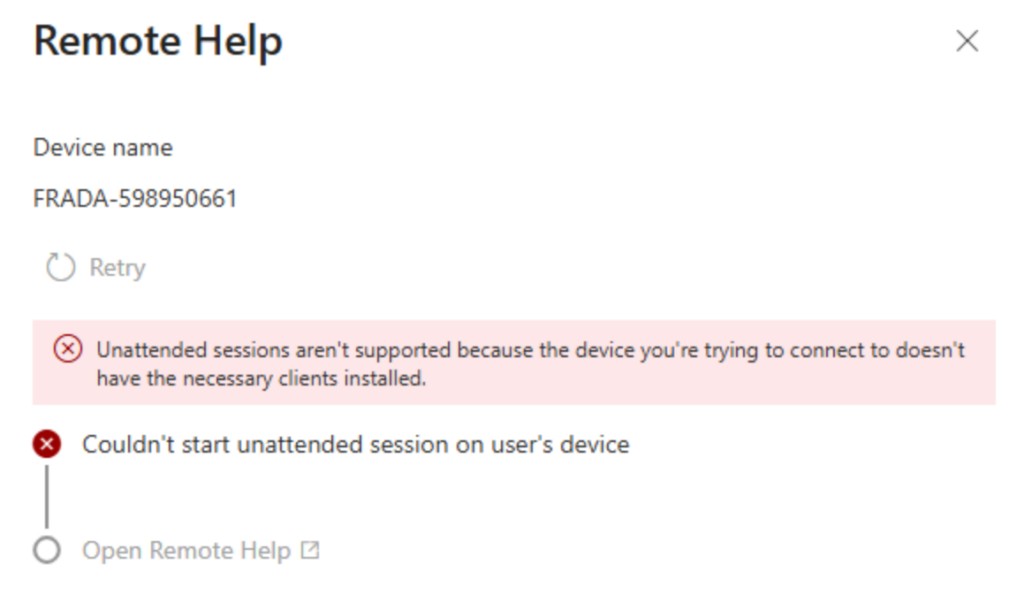
Officially, the same applies to any other VM. In practice it looks like a support statement rather than a technical block: my Hyper-V lab VM runs unattended sessions just fine. Getting there cost me a few evenings, because every attempt first ended with the message that the device does not have the necessary clients installed. I was sure the clients were there. They were not: the bootloader was missing. If you see this message, check whether the RDAgentBootLoader service exists and search IntuneManagementExtension.log for AgentNotFound before you blame the device. For production I would still stick to physical devices, since that is what Microsoft supports.
📦 Step 5: Deploy the AVD agent and bootloader
Here is the part that surprised me. Unattended remote sign-in does not use the Remote Help application on the target device at all. It rides on the Azure Virtual Desktop agent and the Azure Virtual Desktop agent bootloader, the same components that run on session hosts. You are, effectively, installing a slice of AVD infrastructure on your physical laptops.
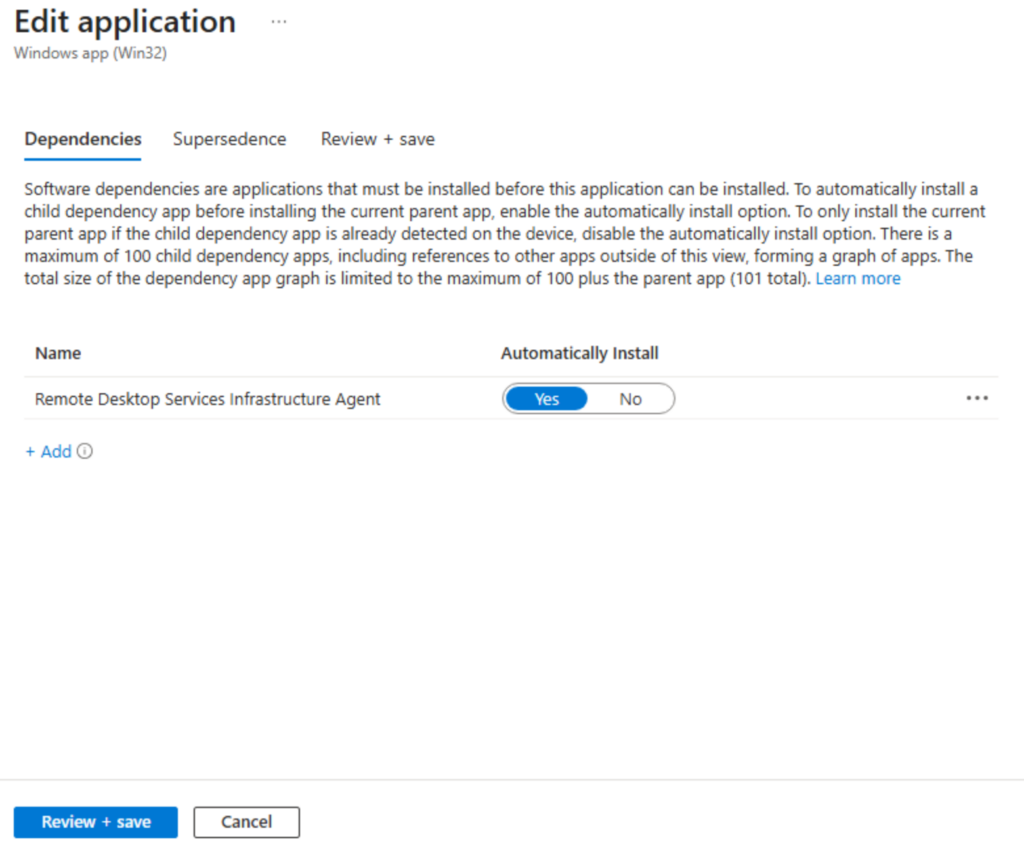
Both come down as MSI files and both get packaged as Win32 apps. The order is not optional: the agent goes first, the bootloader depends on it. You enforce that with a Win32 app dependency rather than hoping the check in cycle happens to run in the right order.
| App 1 | App 2 | |
|---|---|---|
| Package | Microsoft.RDInfra.RDAgent.Installer-x64-<version> | Microsoft.RDInfra.RDAgentBootLoader.Installer-x64-<version> |
| Publisher | Microsoft | Microsoft |
| Install command | Auto populated by Intune, do not modify | Auto populated by Intune, do not modify |
| Minimum OS | Windows 10 1607 or later | Windows 10 1607 or later |
| Detection | MSI product code | MSI product code |
| Dependency | None | Remote Desktop Services Infrastructure Agent, automatically install |
| Assignment | Your unattended device group | The same device group |
Package both MSIs separately with the Microsoft Win32 Content Prep Tool. Keep the source and output folders apart, otherwise you will end up with one intunewin containing both installers and a detection rule that lies to you.
IntuneWinAppUtil.exe -c C:\Source\RDAgent -s Microsoft.RDInfra.RDAgent.Installer-x64-1.0.x.msi -o C:\Output\RDAgent
IntuneWinAppUtil.exe -c C:\Source\RDBootloader -s Microsoft.RDInfra.RDAgentBootLoader.Installer-x64-1.0.x.msi -o C:\Output\RDBootloader
When you add each app in Intune, the install and uninstall command lines populate themselves from the MSI and do not need touching. The detection rule is the MSI product code, which Intune reads out of the package for you. Stick with that. The agent updates itself, so a version based detection rule breaks the moment it does. On the bootloader app, the only manual step is the Dependencies page, where you point at the agent app, called Remote Desktop Services Infrastructure Agent, and leave Automatically install set to Yes.
Or you skip all of that
Now for my favorite detail of this whole rollout. Intune ships with Enterprise App Management and its Enterprise App Catalog, a curated collection of prepackaged Win32 apps maintained by Microsoft, which exists precisely so you never have to touch the Content Prep Tool again. Remote Help itself is in there. The two Microsoft components that Microsoft’s own new Microsoft feature depends on are, at the time of writing, not.
Patch My PC, on the other hand, already has both the Azure Virtual Desktop agent and the bootloader in its catalog. So if you run Patch My PC in your tenant, the entire packaging exercise above collapses into picking two apps from a list, assigning them, and going for coffee. Dependency and ordering handled, updates handled, no intunewin in sight.
I fully expect the Enterprise App Catalog to catch up, and when it does this section becomes three sentences long. Until then, it is a nice reminder that the third party catalog vendors are still moving faster than the first party one, on first party software, for a first party feature.
The INVALID_TOKEN thing
If you run the bootloader installer interactively to test it, it will ask for a registration token and pre-fill the field with INVALID_TOKEN. That looks like an error and it is not. Leave the value exactly as it is and continue. The device is not registering with an AVD host pool, so there is no real token to supply. No post installation configuration is needed either.
Updates you do not control
Worth knowing before you sign off on the change: once installed and online, the AVD agent updates itself. You cannot manage, delay or ring that update process, and the agent will always track the current version available to the AVD service. If your change management process expects every binary on the endpoint to be under your control, this is a conversation you need to have up front rather than after the first surprise version bump.
🖥️ Step 6: Enable Remote Desktop through the settings catalog
The agents alone are not enough. The device also has to accept remote connections, and on a normal managed client Remote Desktop is off. A settings catalog profile handles it.
Create a profile under Devices > Configuration, platform Windows 10 and later, profile type Settings catalog. Searching the settings picker for “Remote Desktop” returns a long list, and the one you want sits under Administrative Templates rather than in one of the modern CSP categories:
| Category | Administrative Templates |
| Subcategory | Remote Desktop Services > Remote Desktop Session Host > Connections |
| Setting | Allow users to connect remotely by using Remote Desktop Services |
| Value | Enabled |
That subcategory carries 17 settings in total and Intune will politely tell you that 16 of them are not configured. That is intentional, leave them alone. Adding session time limits or security layer settings here because they happen to be in the same list is how a helpdesk enablement turns into an unrelated RDS hardening project.
Assign it to the same device group that gets the agents. After the next check in, you can verify it on the client under Settings > System > Remote Desktop, and in the portal under per setting status. If you want a harder check, HKLM\SOFTWARE\Policies\Microsoft\Windows NT\Terminal Services should contain fDenyTSConnections with a value of 0. The policy wins over whatever the local Remote Desktop settings say.

I would deliberately scope this profile to the unattended device group and nothing wider. Turning on RDP across the whole estate to enable a helpdesk feature on a subset of it is exactly the kind of scope creep that shows up badly in the next security assessment.
🔥 Step 7: Network for unattended
One thing that is easy to get wrong here: the settings catalog profile does not open anything inbound. It only sets fDenyTSConnections to 0 so the Remote Desktop listener accepts connections. No inbound firewall rule gets enabled and none is needed. The AVD agent uses reverse connect, which means the device builds the connection outbound to the broker, exactly like a session host does. No inbound rule, no port forwarding, nothing to punch through your hardened firewall baseline. I checked it on my test device: all three inbound Remote Desktop firewall rules disabled, and the unattended session still connected.
Everything that matters is outbound on port 443. Remote Help talks to the Remote Assistance Service and carries RDP inside a TLS 1.2 tunnel, and the AVD agent on the device needs to reach the Azure Virtual Desktop service endpoints (*.wvd.microsoft.com and the rest of the list a session host needs). If you run SSL inspection on your proxy, exclude both the Remote Help and the AVD endpoints, otherwise sessions fail with errors that point nowhere useful.
▶️ Starting an unattended session
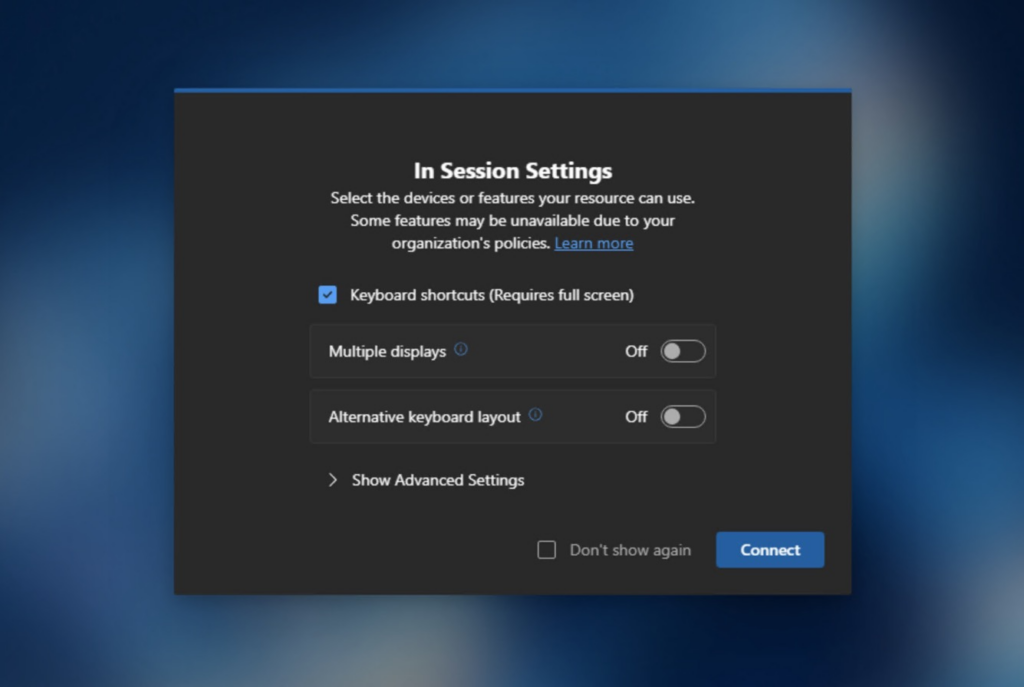
With the plumbing in place, the session itself is refreshingly simple. Here is the full path from the click to the remote desktop, plus what the user on the other end experiences at the same time.
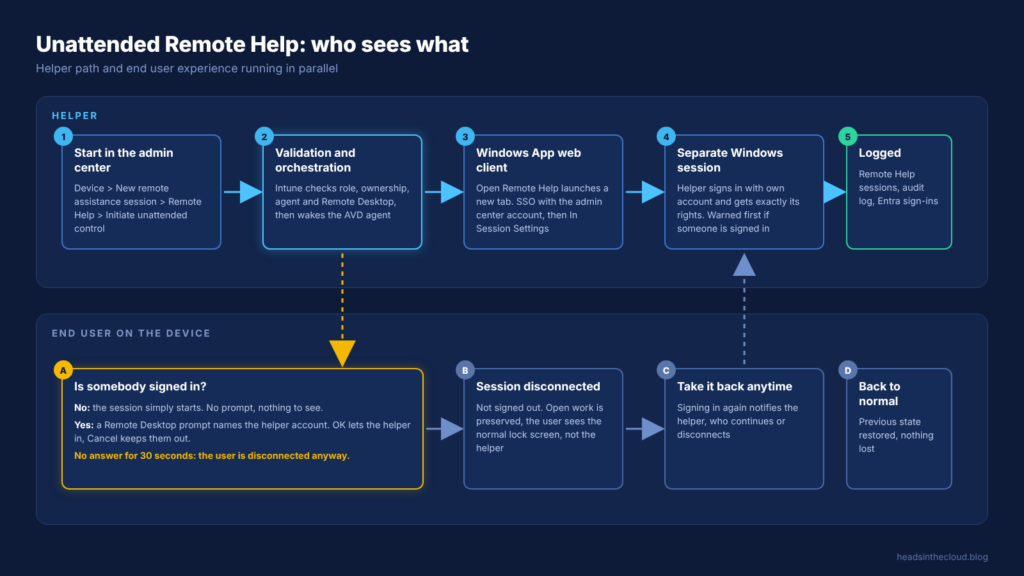
In the portal it goes like this. Open Devices > All devices, pick the device, and from the remote actions bar choose New remote assistance session > Remote Help > Continue. You then get two options, and this is where the split between the two models becomes visible in the UI: Initiate attended control and Initiate unattended control. This is the only entry point. The Remote Help app on the helper’s machine cannot start an unattended session.
Intune validates before it connects, which I appreciate. If the permission is missing or the device is marked personal, the unattended option is simply grayed out. If a prerequisite such as the agent or Remote Desktop is not in place, the Remote Help pane tells you what is missing, and an offline device fails with a clear hint to check power and connectivity instead of a generic timeout. A non-compliant device produces a warning banner but does not block the session.
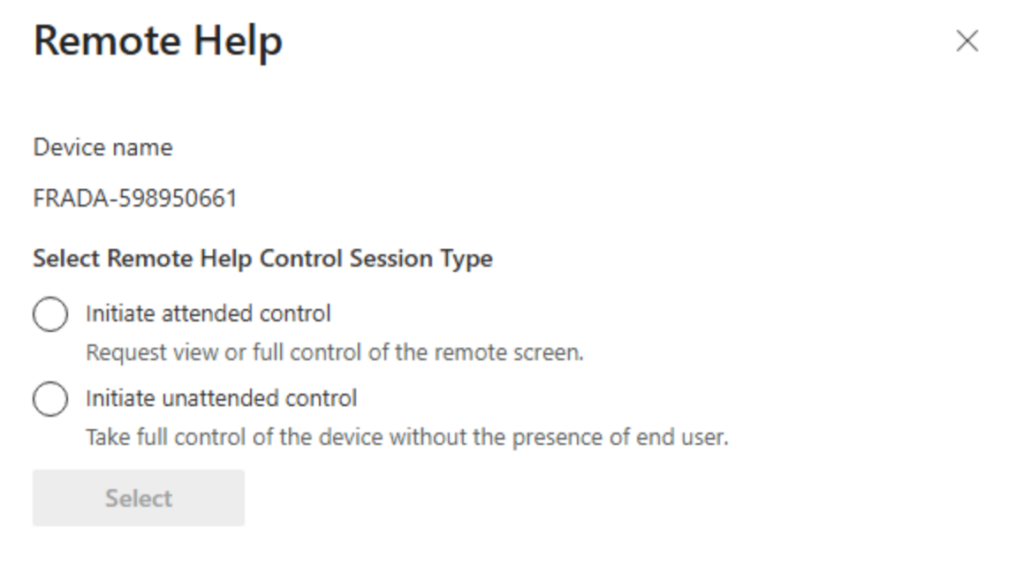
A progress panel then shows the orchestration in real time while Intune wakes the agent and brings the connection up. When it is ready, Open Remote Help launches the Windows App web client in a new browser tab.
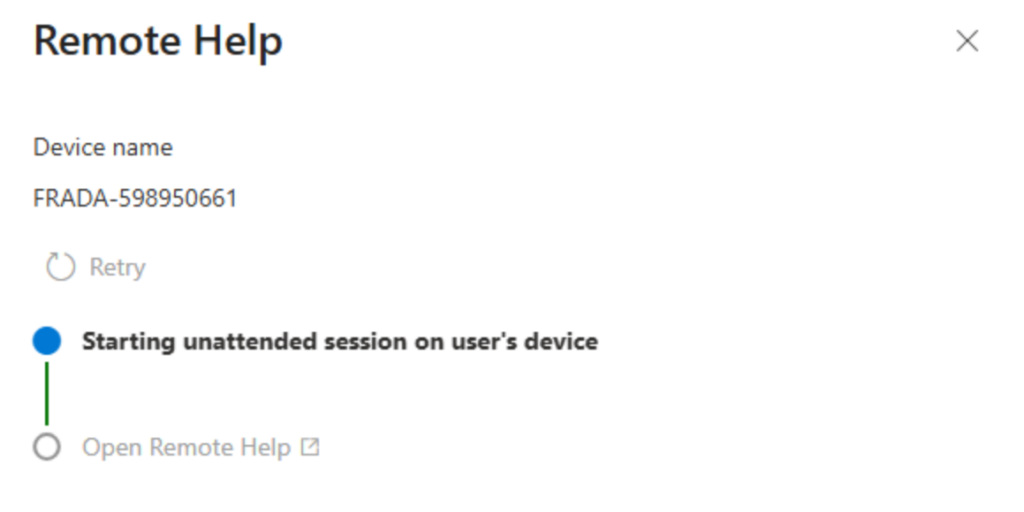

Windows App opens in a new browser tab and reuses the account you are signed in with in the admin center. In my lab there was no extra sign-in at this point. Before it connects, it shows its In Session Settings: keyboard shortcuts, multiple displays and an alternative keyboard layout. What you will not find there is a switch for clipboard, file transfer or printer redirection. Microsoft lists those as session features, but neither this dialog nor the settings panel during the session let me turn them on or off. If clipboard access matters to you, and in an unattended session it should, test how your environment behaves before you put it into your support process.
Next comes a sign-in prompt for the Windows session itself, with your admin center account already filled in. Three account types work:
- Local Windows account, as
ComputerName\UserName - Active Directory domain account, as
Domain\UserNameor UPN - Microsoft Entra ID account, as UPN
If somebody is signed in on the device, Windows asks you first: another user is signed in, continuing will disconnect them, do you want to sign in anyway? Only after you confirm does the user get their own prompt.
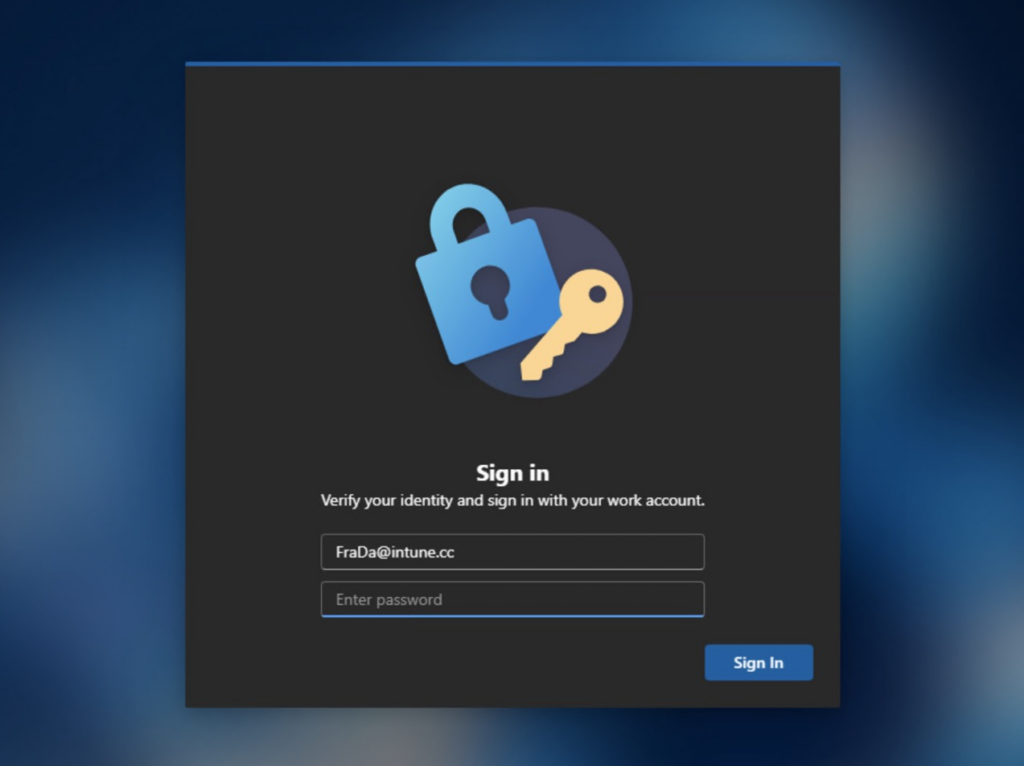
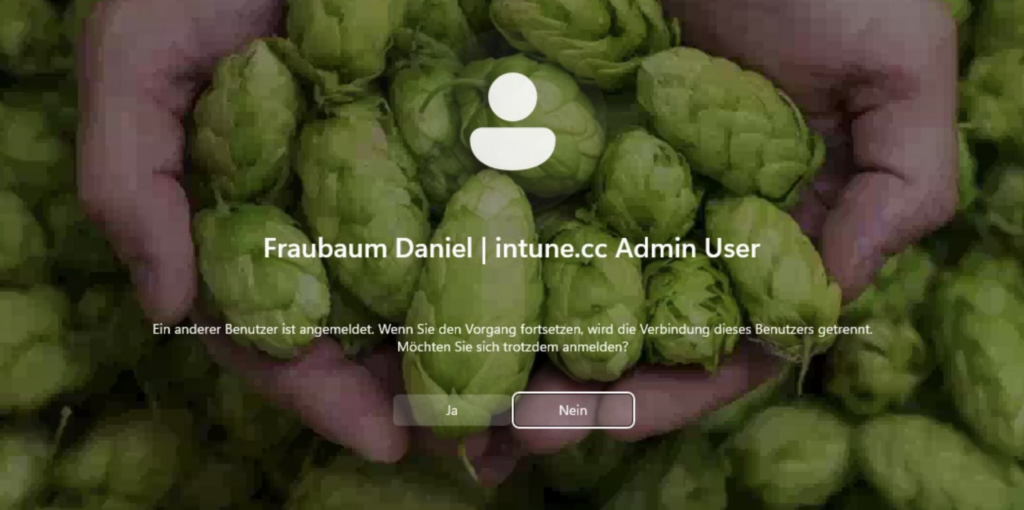
Only one helper can hold an unattended connection to a device at a time, and only one unattended session can be active on a device at a time. So if two people are chasing the same ticket, the second one waits.
👤 What the user actually sees
This is the part I would put into your end user communication before you enable anything, because it is the part people will ask about.
If nobody is signed in, the session simply starts. No prompt, no notification, nothing to see.
If somebody is signed in, they get a Remote Desktop Connection prompt that names the helper account asking to connect. OK disconnects them right away and lets the helper in. Cancel keeps them connected and the helper stays out. And if they do nothing, the prompt stays for 30 seconds and then they are disconnected anyway. That timeout is the single most important detail in this whole feature and the one your works council or data protection officer will focus on, so do not bury it. The upside: the prompt shows exactly which account wants in, so the user at least knows who is coming.
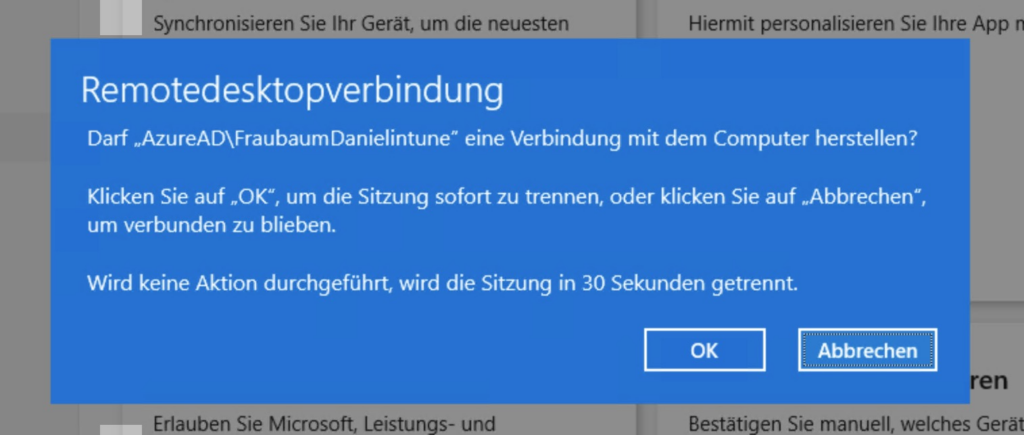
After that, the user’s session is disconnected, not signed out. Their open work is preserved, and they see the normal Windows lock screen. They cannot observe anything the helper does in the separate session. They can, however, take their device back at any moment by signing in again from the lock screen, and the helper is notified when that happens and can either continue or disconnect. Nothing is lost on either side. When the session ends, the device returns to its previous state and the user picks up where they left off.

🔎 Auditing and what gets logged
Every session, attended or unattended, lands in two places in Intune. Tenant administration > Remote Help has a Monitor tab with the active sessions and a Remote Help sessions tab with the history: helper, sharer, device and duration. You can add a session type column there, which shows Attended or Unattended. For unattended sessions the recipient stays empty, because there is no sharer. The Intune audit log adds which features were used, including whether elevation was invoked, and the helper’s authentication shows up in the Entra ID sign-in logs. Between those you can answer who connected to which device, when and with which rights, which is the minimum any auditor will ask for.
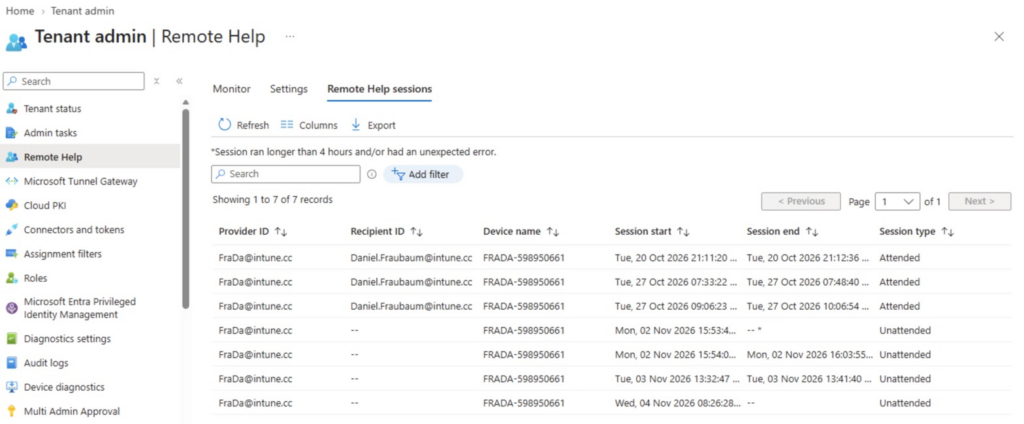

Microsoft additionally retains a small amount of session telemetry for 30 days: start and end times, who helped whom on which device, and which in session features were used. Errors from Remote Help itself, such as unexpected disconnects, are written to the event log on the sharer’s device. What is explicitly not captured anywhere is the content of the session. No recordings are stored, and Microsoft cannot see actions or keystrokes.
If you want anything beyond 30 days, and for a privileged access capability you probably do, ship the Intune audit logs and the Entra sign-in logs into your own workspace and keep them under your retention policy.
When a session fails and you end up opening a support case, use the Capture logs button in the About panel of the Windows App web client. It sits right next to the session and support IDs, which is exactly what Microsoft support will ask for first.
🧰 Troubleshooting cheat sheet
| Symptom | Likely cause | Where to look |
|---|---|---|
| Helper gets a missing permission message | RBAC role, scope groups or scope tags | The role assignment, not the role |
| Connection hangs or fails | SSL inspection or blocked outbound 443 | Proxy exclusions |
| Remote Launch notification never appears | Do Not Disturb, Focus mode or an unhealthy Intune Management Extension | The client, then IME health |
| Black screen with a pause symbol | UAC prompt on the secure desktop | Start an Admin Session |
| Sign-in blocked before the session | Conditional Access | Entra sign-in logs: RemoteAssistanceService for attended, Windows App for unattended |
| Unattended option grayed out | Missing permission or device marked personal | RBAC and device ownership |
| Unattended fails before connecting | Agents, Remote Desktop or device offline | Remote Help pane, then fDenyTSConnections |
| “Necessary clients not installed” | Bootloader missing | RDAgentBootLoader service, IME log (AgentNotFound) |
| Unexpected disconnects | Anything on the device side | Event Viewer on the sharer device |
🚨 The security decisions I would not skip
A capability that grants interactive access to endpoints without a human present is a security product whether it is marketed as one or not. A handful of decisions turn this from a risk into a controlled tool:
- Tier the attended roles. View and control for first level, elevation for a small group, unattended in its own role. Help Desk Operator for everyone is the easy way and the wrong one.
- One dedicated role, nothing else in it. Do not merge unattended with your attended Remote Help role. The separation Microsoft built in only helps if you keep it.
- Scope by device group, always. The permission is only as narrow as the scope groups on the assignment.
- PIM for Groups on the helper group. Intune roles cannot be activated in PIM directly, so make membership of the assigned group eligible rather than permanent, with justification and approval.
- Conditional Access on the helper account. Phishing resistant MFA and a compliant device, at minimum. Make sure it covers the unattended sign-in path, not only RemoteAssistanceService.
- Never sign in with a Global Admin or a tier 0 account inside the remote session. The session enforces the privileges of the account you type in, so type in the smallest one that solves the ticket.
- Test clipboard and file transfer before you go live. The web client gave me no switch for them, so find out how your environment behaves before a helper pastes a credential into the wrong place. Enable them per session when the task actually needs them.
- Offboard properly. When someone leaves the support team, the role assignment has to go with them the same day.
- Clean up helper profiles. Every unattended session creates a real local profile for the helper account on the device, and it stays there after the session ends. Only the group membership is temporary: the helper account is added to the local Remote Desktop Users group for the duration of the session and removed afterwards. Plan a cleanup, especially on shared or high value devices.
- Write it down for the users. The 30 second timeout, the lock screen behavior, and the fact that they can reclaim the device belong in your IT policy, not in a support ticket after the fact.
⚠️ Limitations worth knowing before you promise anything
Remote Help in general
- No session recording. If your compliance team needs recordings, Remote Help is not your tool.
- Session setup is slower than with some third party tools, because identity, RBAC and compliance are checked for every single session. That is by design.
- Cross platform helpers work through the web app, and a sharer who joins from the browser instead of the native client only gets view only support.
- No cross tenant sessions, which matters if you are an MSP working in customer tenants from your own.
- Not supported in DoD tenants. If you are on GCC or GCC High, verify the unattended scenario specifically before you promise it.
Unattended on top of that
- No virtual machines, at least not supported ones. Windows 365 and AVD are out, which rules out a large chunk of many modern estates. A plain Hyper-V VM worked in my lab, but that is nothing to build a support process on.
- No ARM devices, so a fleet of Snapdragon based laptops is not covered.
- No BYOD and no unenrolled devices, regardless of the tenant level unenrolled setting.
- The device has to be awake and online. Sleeping, hibernating and powered off machines cannot be reached, which limits the classic overnight maintenance use case unless you have Wake on LAN or a modern standby policy sorted out.
- One helper and one unattended session per device at a time.
- Sessions end after 12 hours at the latest, and that limit is not configurable.
- A restart triggered by the helper ends the session, and anything unsaved in it is gone.
💭 Final Thoughts
Remote Help has been “almost there” for a long time. This summer it got the two things it was missing: a license most enterprises already own, and a way to support a device nobody is sitting at. That combination makes it a serious candidate to replace a third party remote support tool, and I say that as someone who has spent years explaining to customers why Remote Help was almost but not quite enough.
The security model is more thoughtful than I expected. Entra ID on both sides, RBAC enforced server side, a dedicated unattended permission that lives in no built in role, a separate session instead of a hijacked one, and a user who can take the device back at any time. What I like less is the unattended delivery mechanism: the AVD agent and bootloader on every supportable endpoint, updating themselves outside your control, is a heavier footprint than the announcement implies.
My advice: roll out attended Remote Help now, since you are probably already paying for it. Get the RBAC tiers and the Conditional Access split between helpers and sharers right before anyone gets used to a wide role. Then add unattended on a small pilot ring and put the 30 second timeout in writing for your users. The technical setup is a couple of hours. The governance is what takes the time. The click is gone, and the accountability for who gets to skip it is now entirely yours.
Leave a Reply